
1. From the dashboard page sidebar, select “Products“
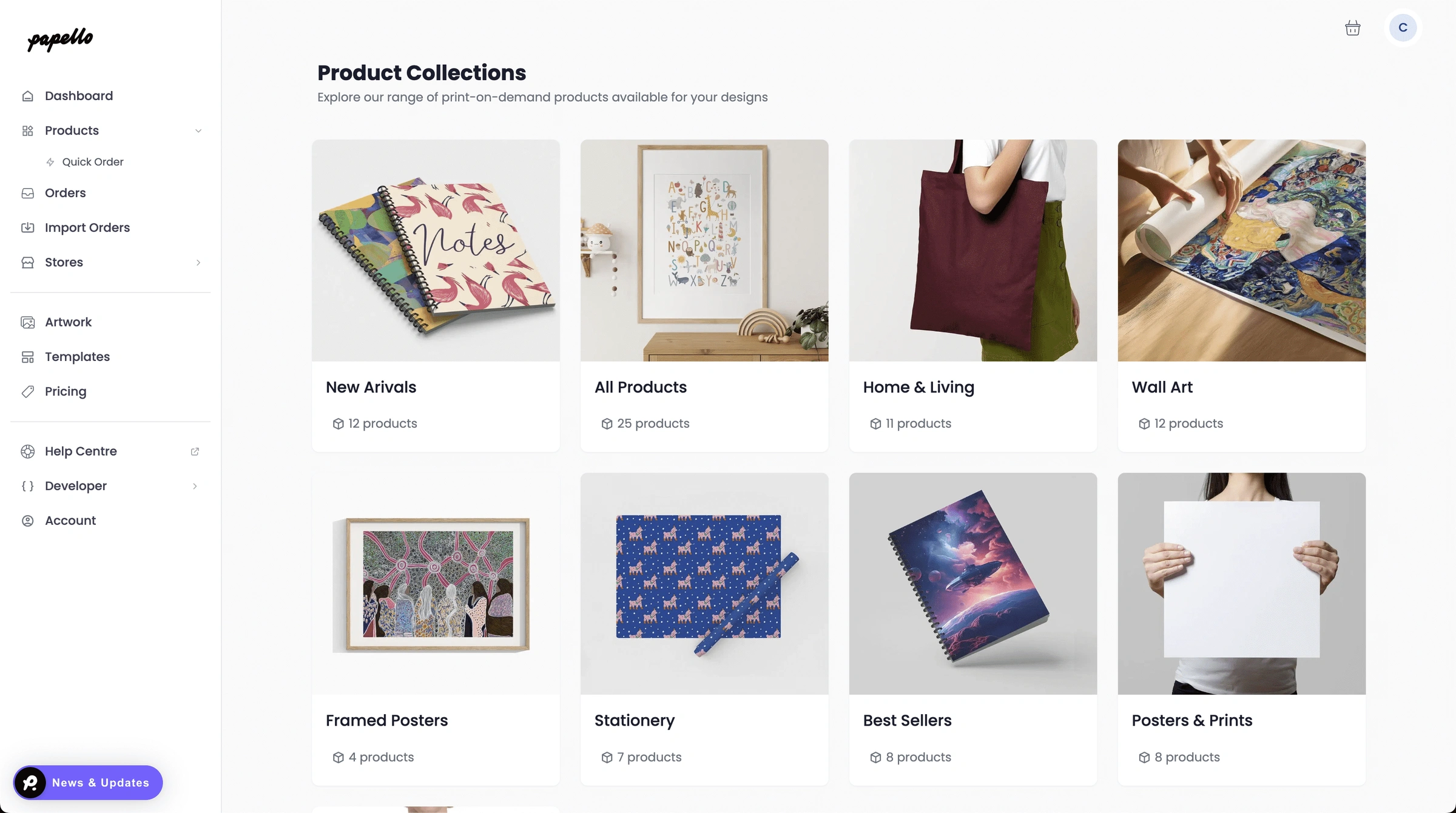
2. Select a product category.
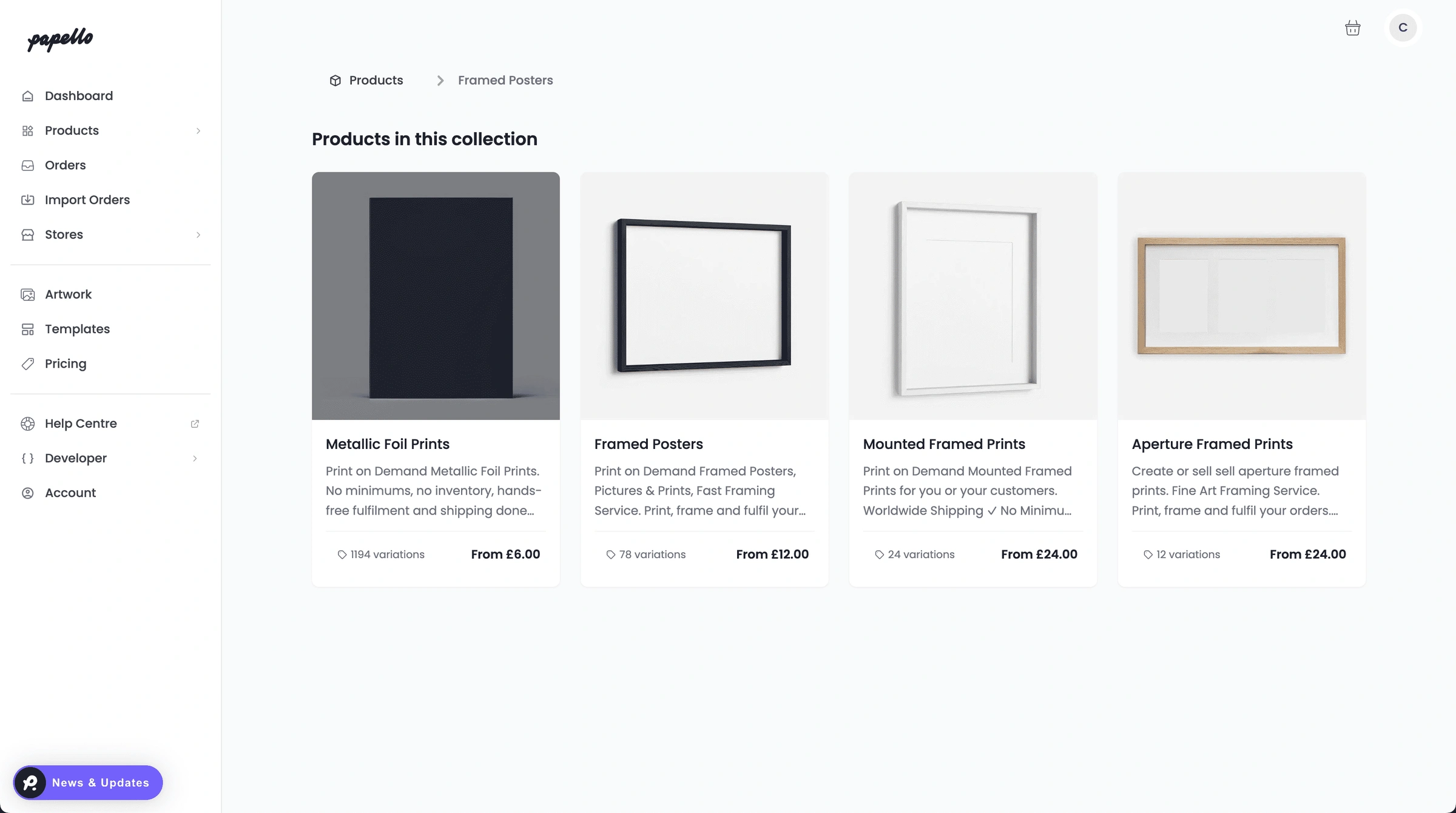
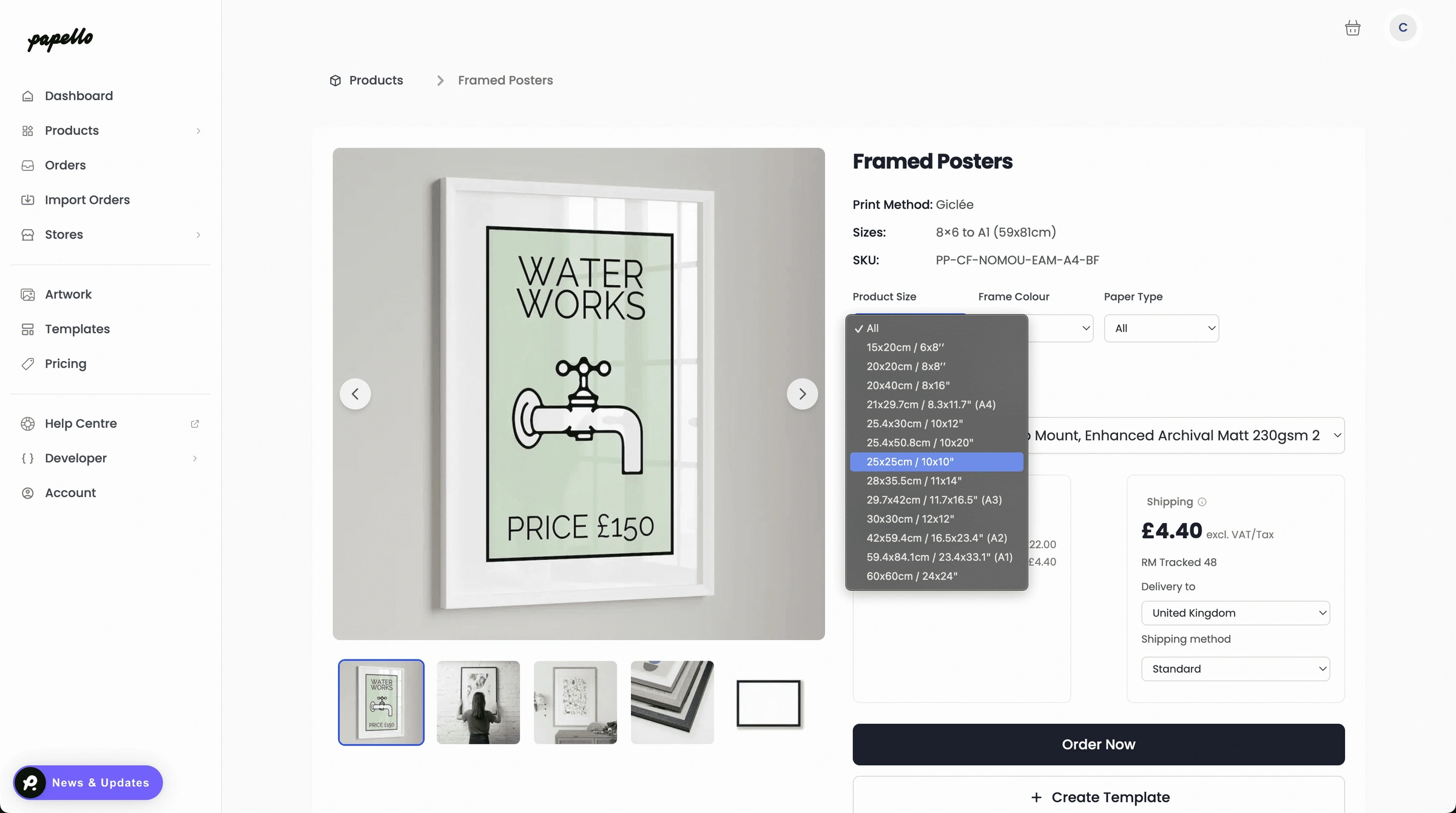
3. On the product page, use the filters to narrow down variations – click Order Now to add to your basket”.
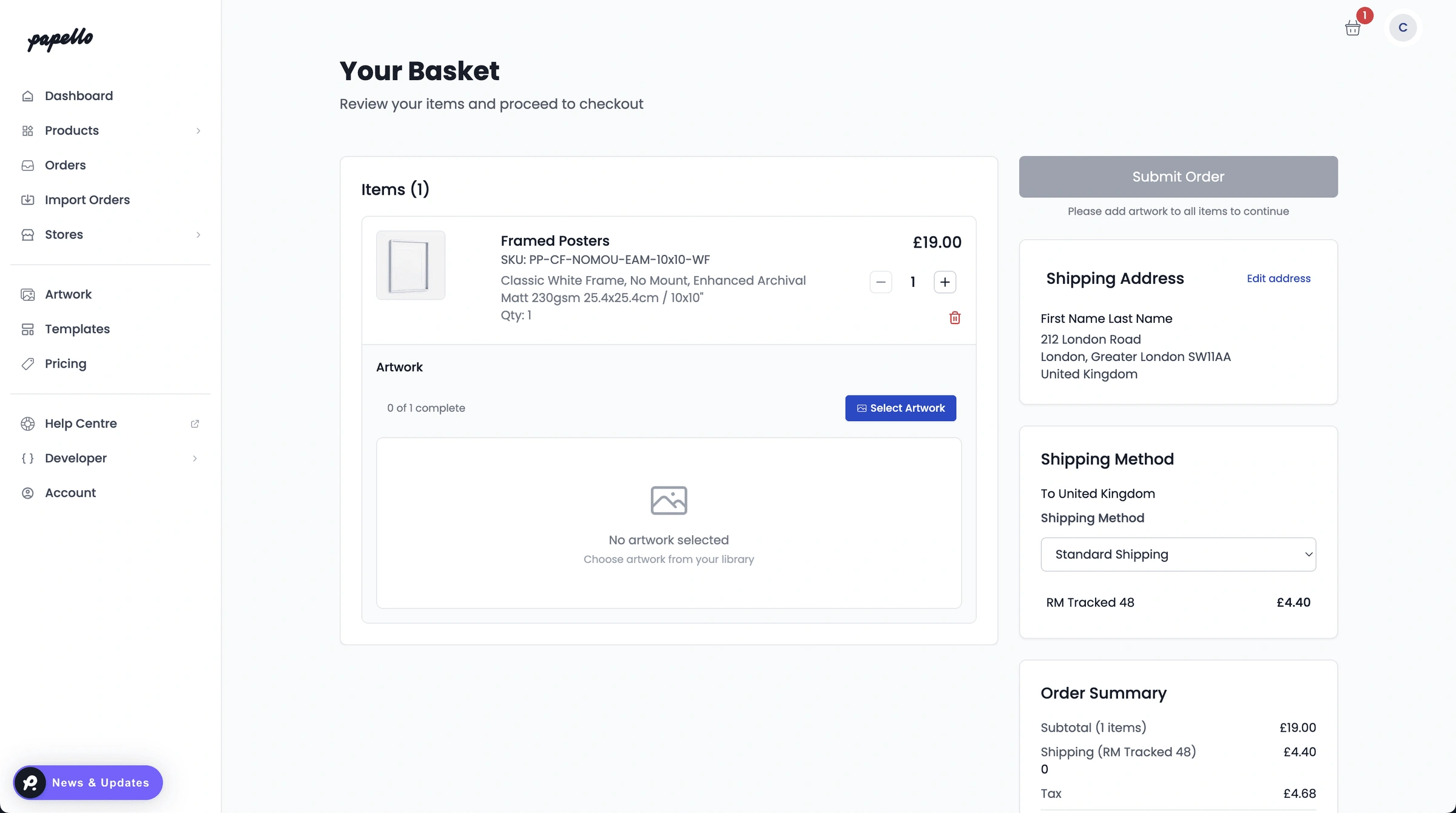
4. Now in your basket – click Select Artwork to assign artwork to each product” .
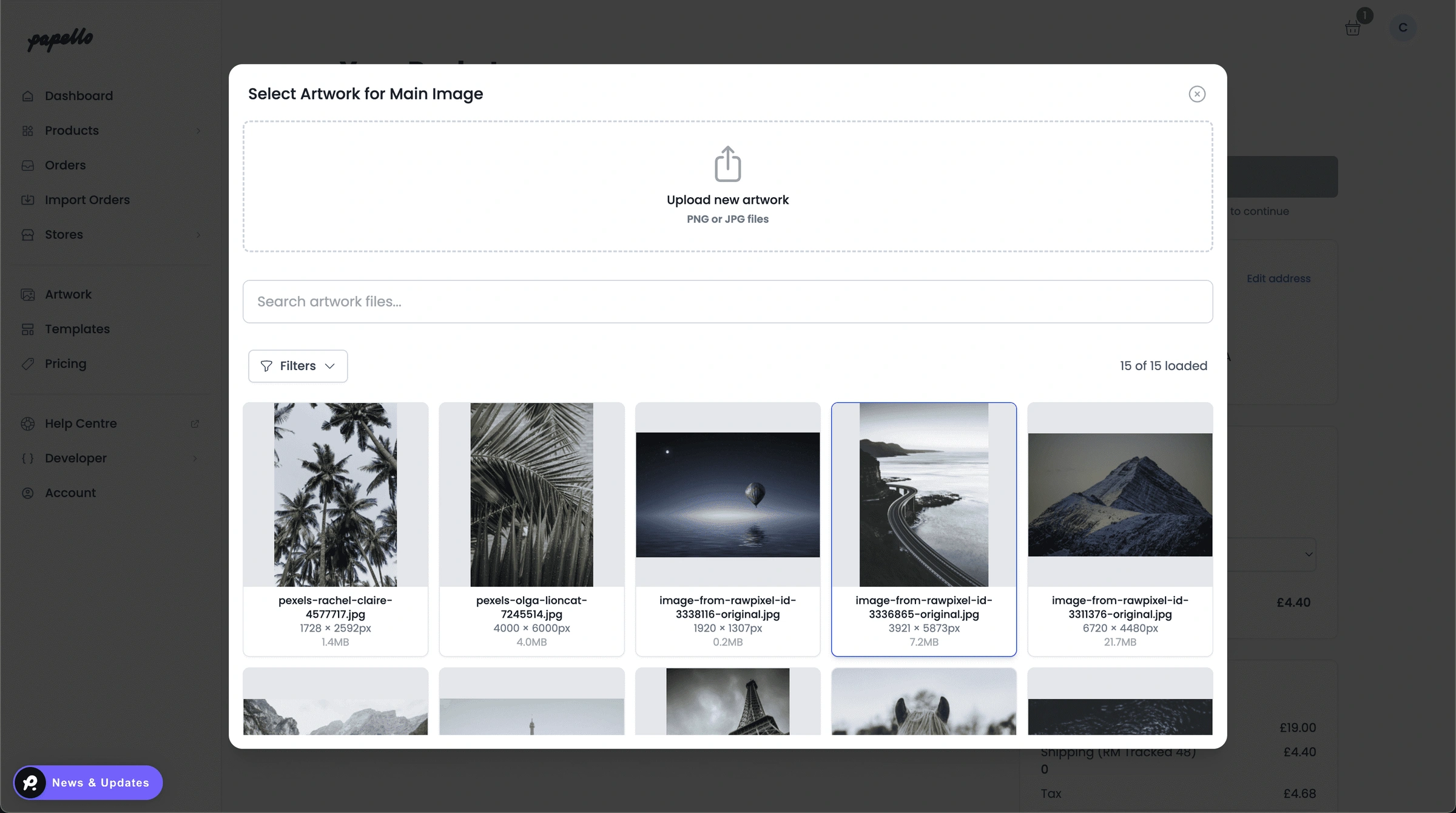
5. Your artwork library will pop-up where you can select existing or upload new artwork to your product”.
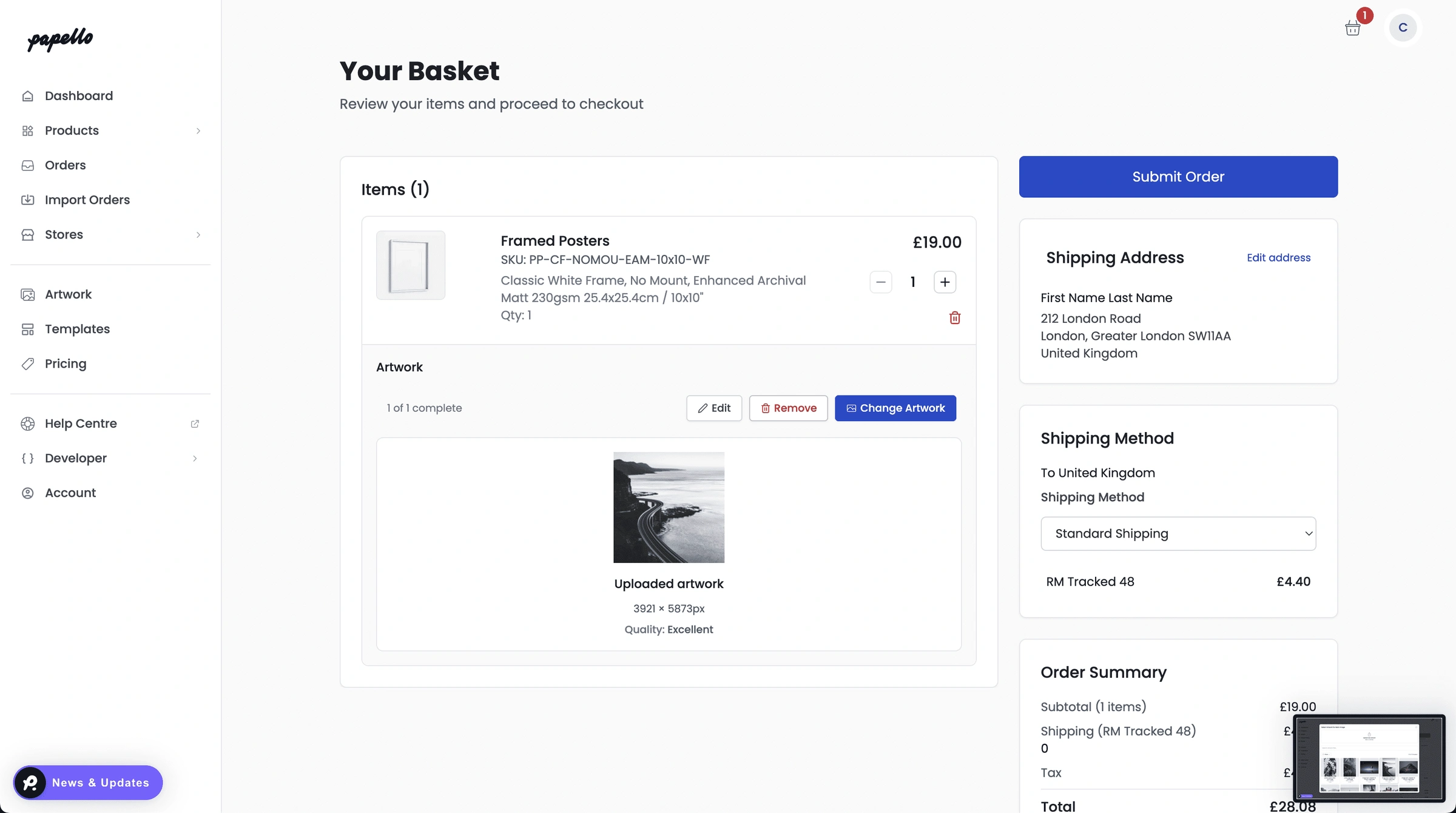
6. Now, you can see how your artwork will be cropped (if the image doesn’t fit the product – Click Edit to place your image”.
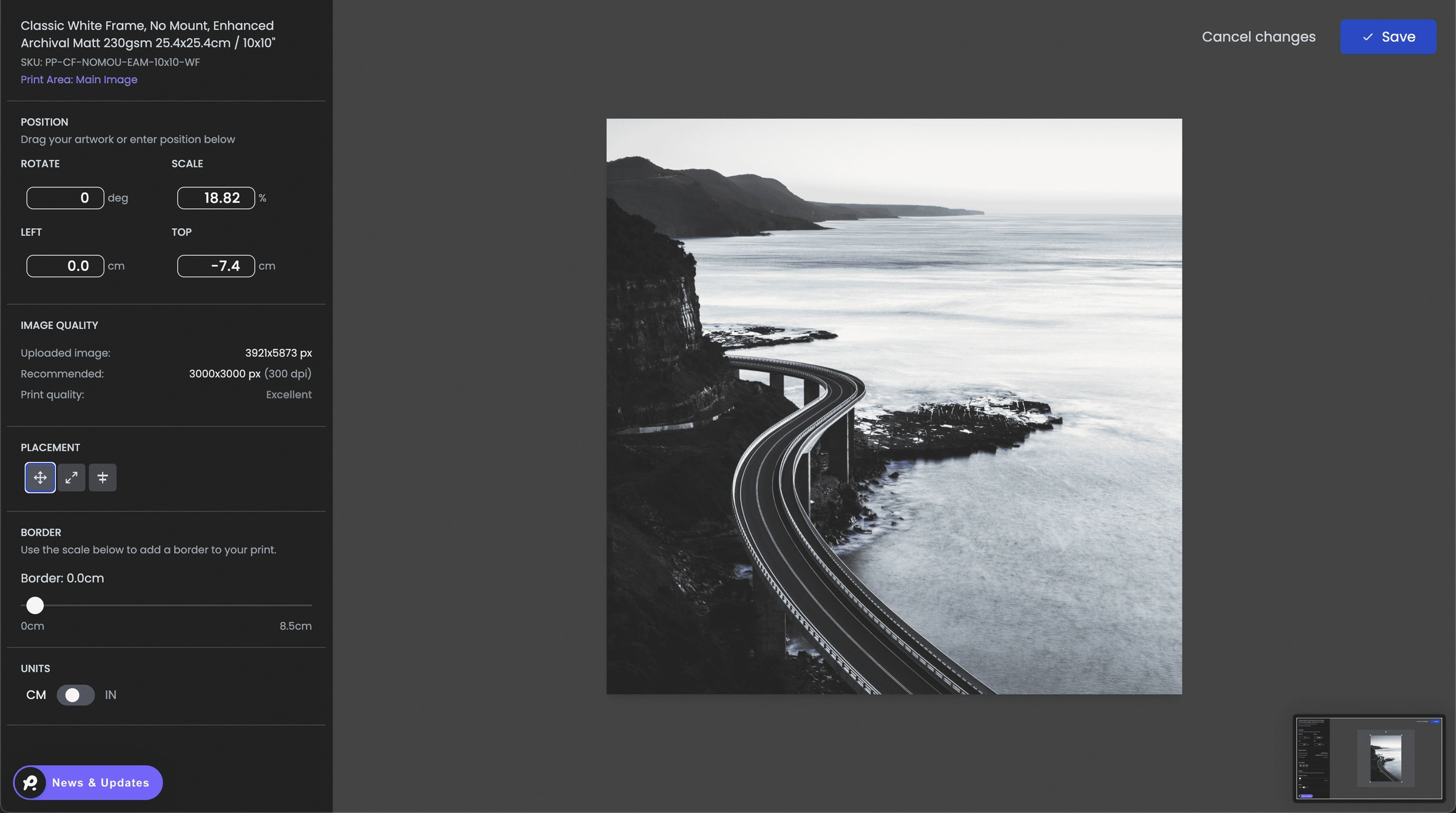
7. This opens the images editor – You can use the placement tools to move and crop your image to the template – Click “Save“.
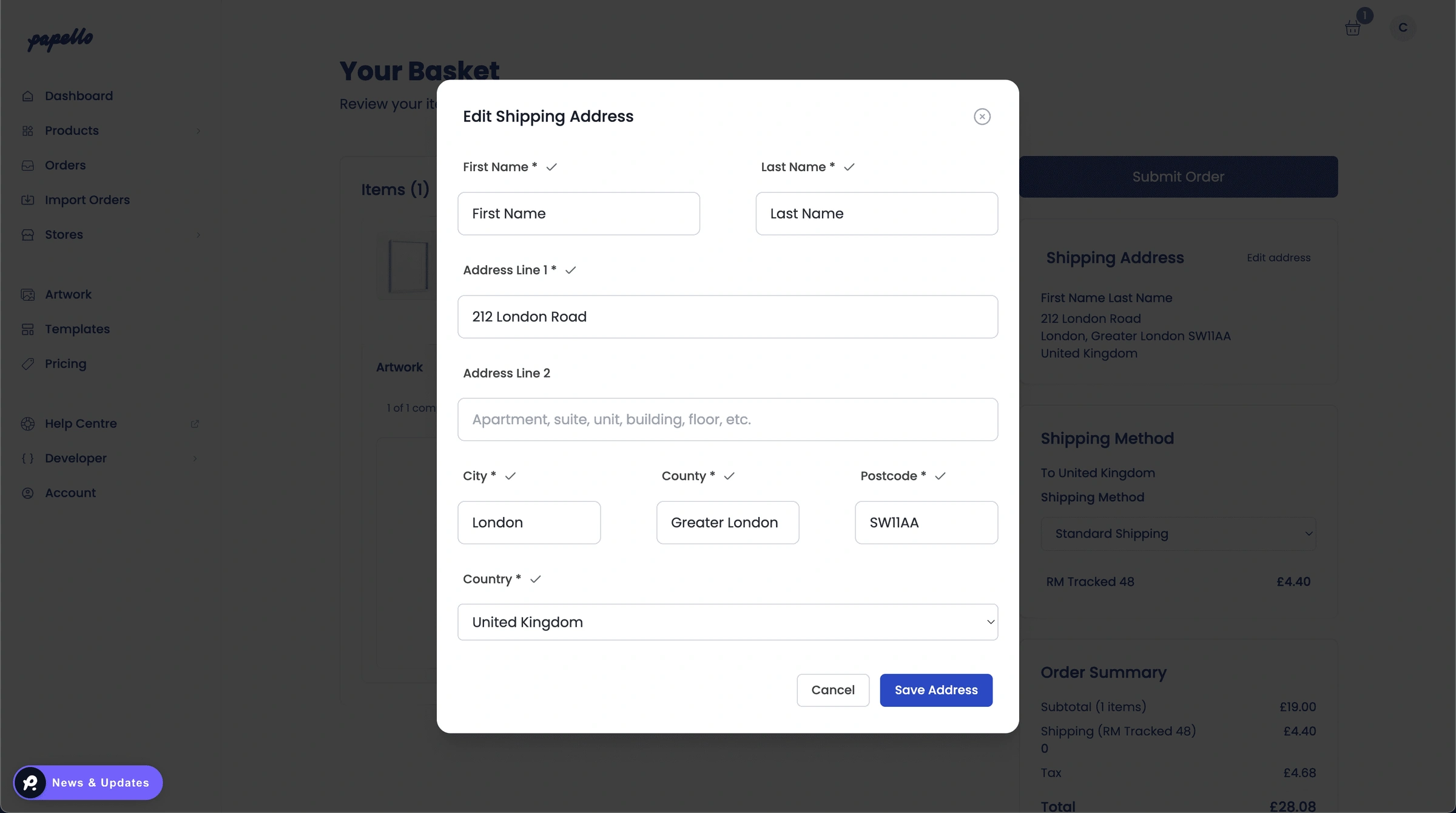
8. On the basket page – Click “Edit Address” – a address pop-up allows your to enter or update the shipping address.
10. Finally, click “Submit Order” to submit and pay for your order.
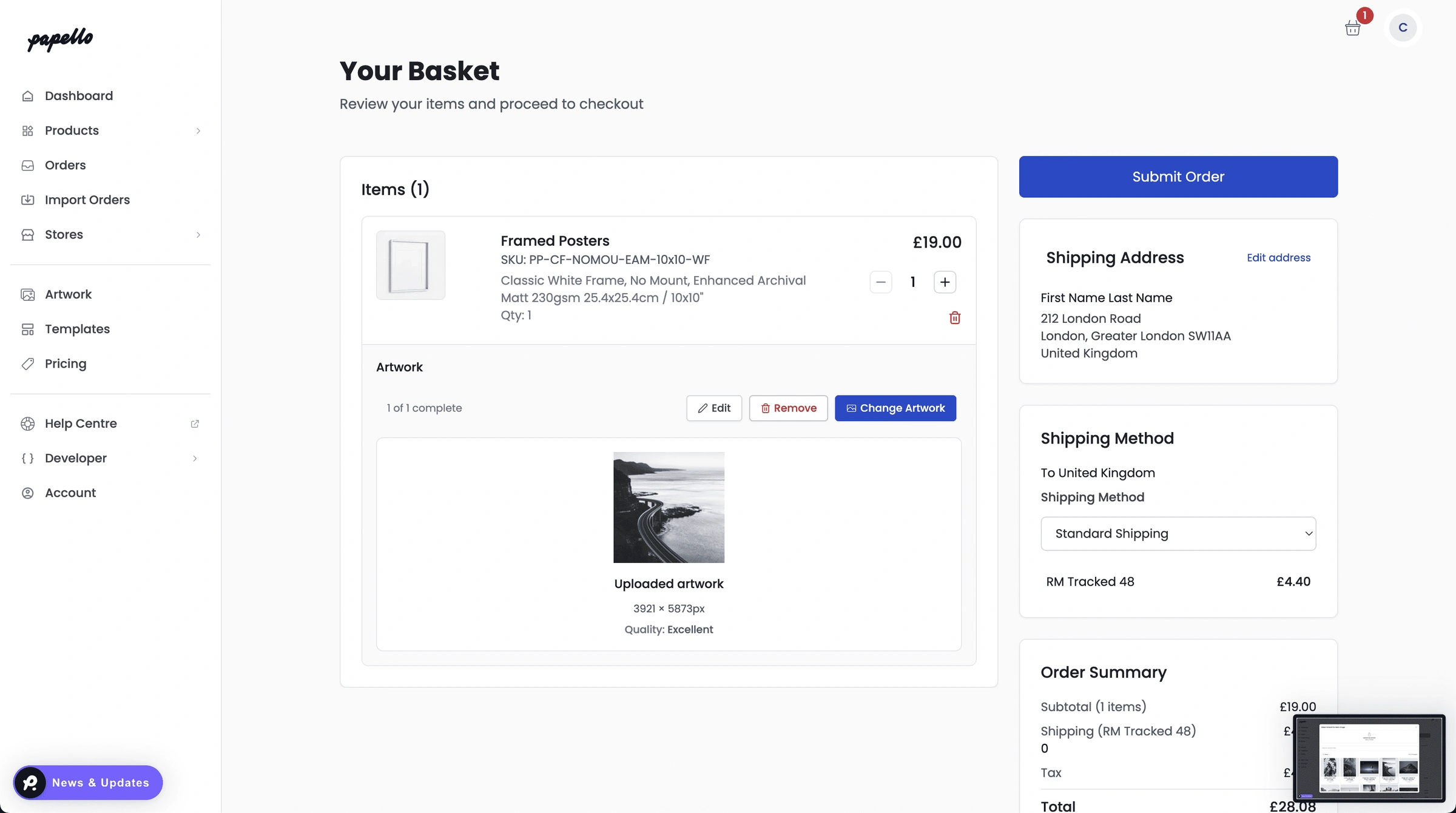
That’s it! You’ve just created a simple manual order. Your order is now in-production and will be processed in our in-house print labs.