
This guide explains how fulfilment works after you have published a product from Papello to Shopify, and what to do when a new order arrives.
By default, publishing a product listing directly from Papello to your Shopify store sets up automatic fulfilment.
New Products: Any product published via the Papello dashboard is automatically synced for "no-touch" fulfilment.
Existing Products: If you have products already listed in Shopify, you can enable automation by going to your Stores page in the Papello dashboard and clicking "Automate Store."
What Happens When a Customer Places an Order
When a sale occurs, Papello is instantly notified and scans the order for automated products:
Fully Automated: If all items in the order have automation enabled, the order is submitted to Papello immediately. Your payment method is charged, and production begins.
Mixed Orders: If an order contains both Papello products (automated) and other items (fulfilled by you or another third party), Papello will only process the specific items we fulfil.
Skipped Orders: If none of the products in the order have been linked or automated within Papello, the order will be skipped.
Request Fulfilment in Shopify (Legacy)
While automation is the standard, you may sometimes need to manually trigger fulfilment (e.g., if automation was disabled or for a legacy product).
Important: Previously, Shopify merchants used the "Request Fulfilment" button in the Shopify Admin. While this still works, it is largely unnecessary for automated products and may cause duplicate submissions if an automation rule is already running.
Please note that this may cause duplicate order submissions as any automations may have already been processed.
Manual Fulfulment Request
If the order contains a Papello product, you will see a button labelled:
Request Fulfilment
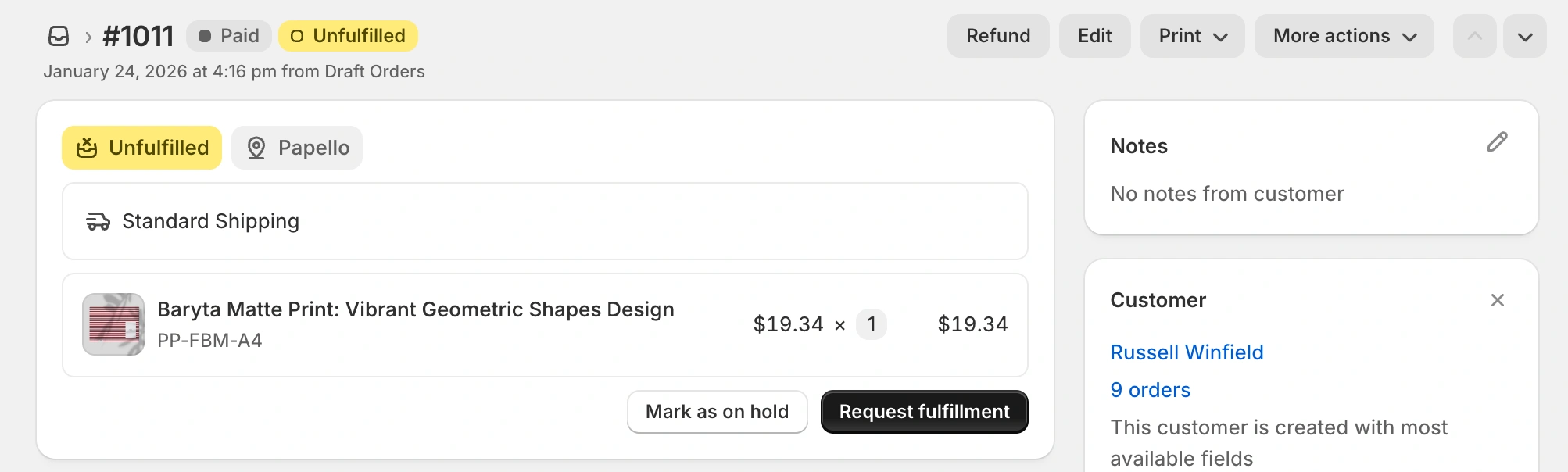
Click Send fulfilment request to send the order to Papello for production.
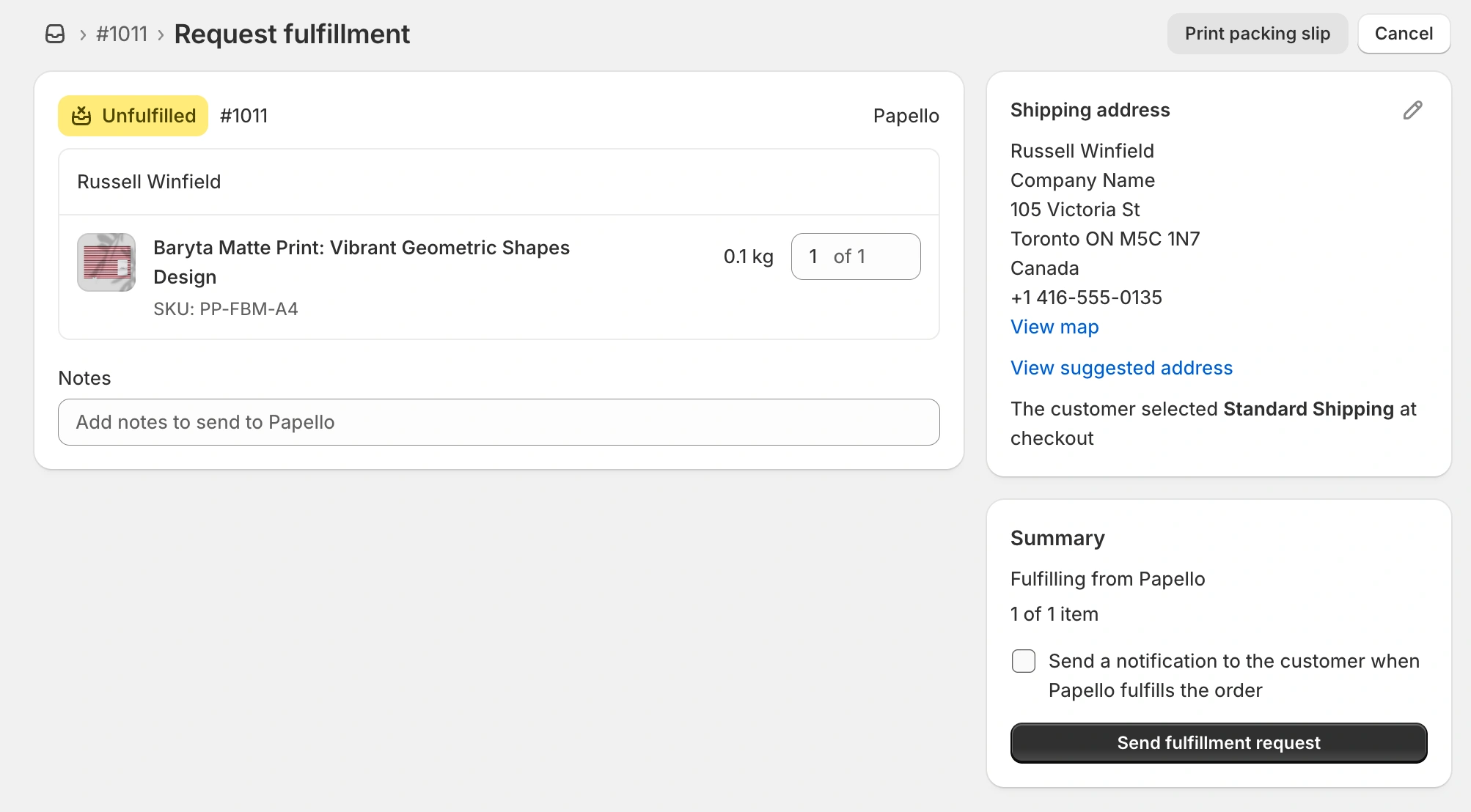
This tells Papello to:
Create the Papello order
Charge your saved payment method
Print and ship the item to your customer
Important: 1-Minute Fulfilment Delay
After clicking Request Fulfilment, there is a 1-minute delay before the fulfilment request is accepted.
This delay exists to allow time for:
Last-second address corrections
Quantity changes
Order edits
During this 1-minute window, you can click Cancel Fulfilment in Shopify if needed.
Once you’ve made your changes, you can request fulfilment again.
After Fulfilment Is Accepted
Once the fulfilment request is accepted:
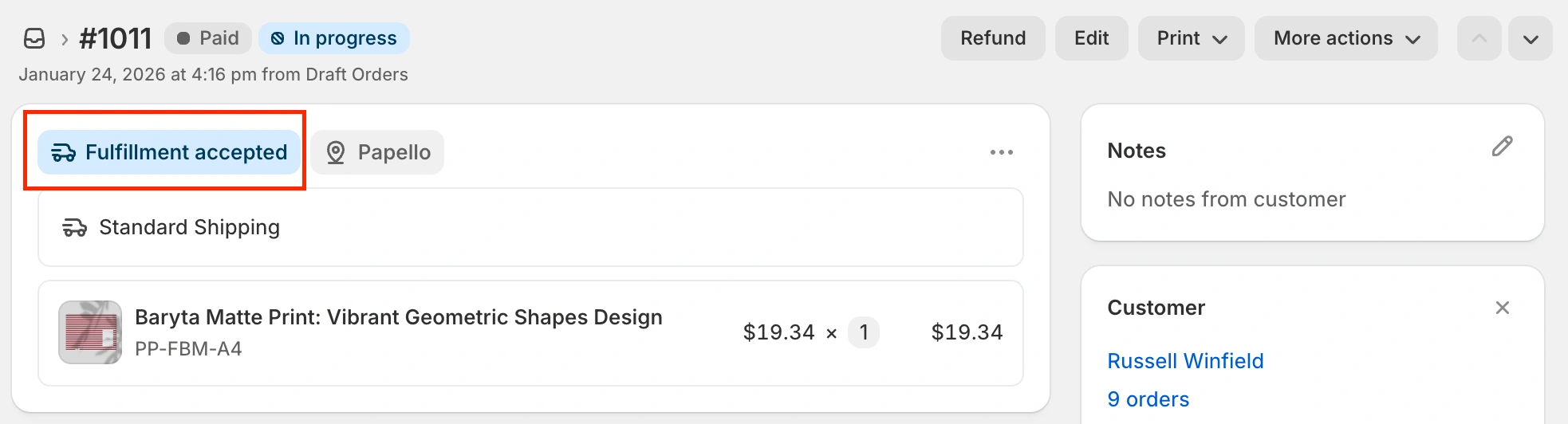
The order is sent to Papello – You will see the submitted request on the orders page.
The item enters the print and fulfilment process
Tracking and status updates will be returned to Shopify automatically
At this stage, fulfilment is considered in progress.
Cancelling After Fulfilment Has Started
If you need to cancel fulfilment after the request has been accepted:
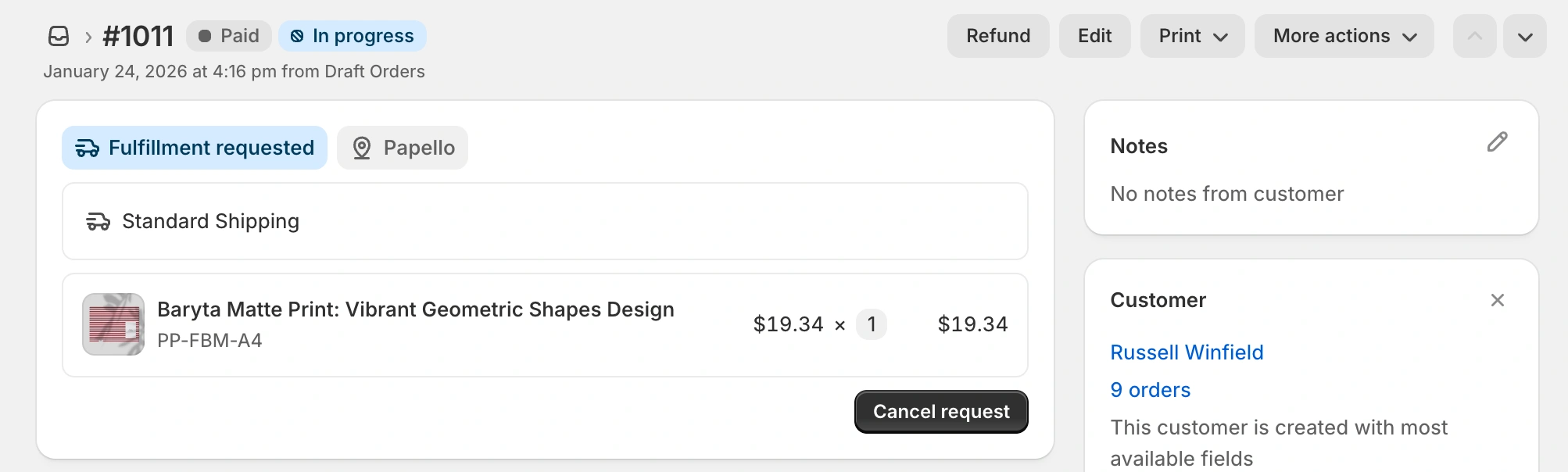
You must contact Papello support directly
Cancellation is only possible if the item has not yet entered production
If eligible, the order can be cancelled and refunded
Once production has started, the order can no longer be cancelled.
Common Reasons Fulfilment Fails
If fulfilment does not start, check the following:
The product was published from Papello (not created directly in Shopify)
Automation rules are enabled
You clicked Request Fulfilment in Shopify
The 1-minute delay has passed