Running an Etsy shop is exciting, but manually sending every order to your printer can quickly become time-consuming. That’s why Papello makes it simple to fully automate your store. With just a one-time setup, any new orders from your Etsy shop can be submitted automatically to Papello for fulfilment.
Here’s how to set it up
Step 1. Go to Your Stores Page
Head over to https://dash.papello.com/dashboard/stores.
You’ll see a list of all the stores you’ve connected.
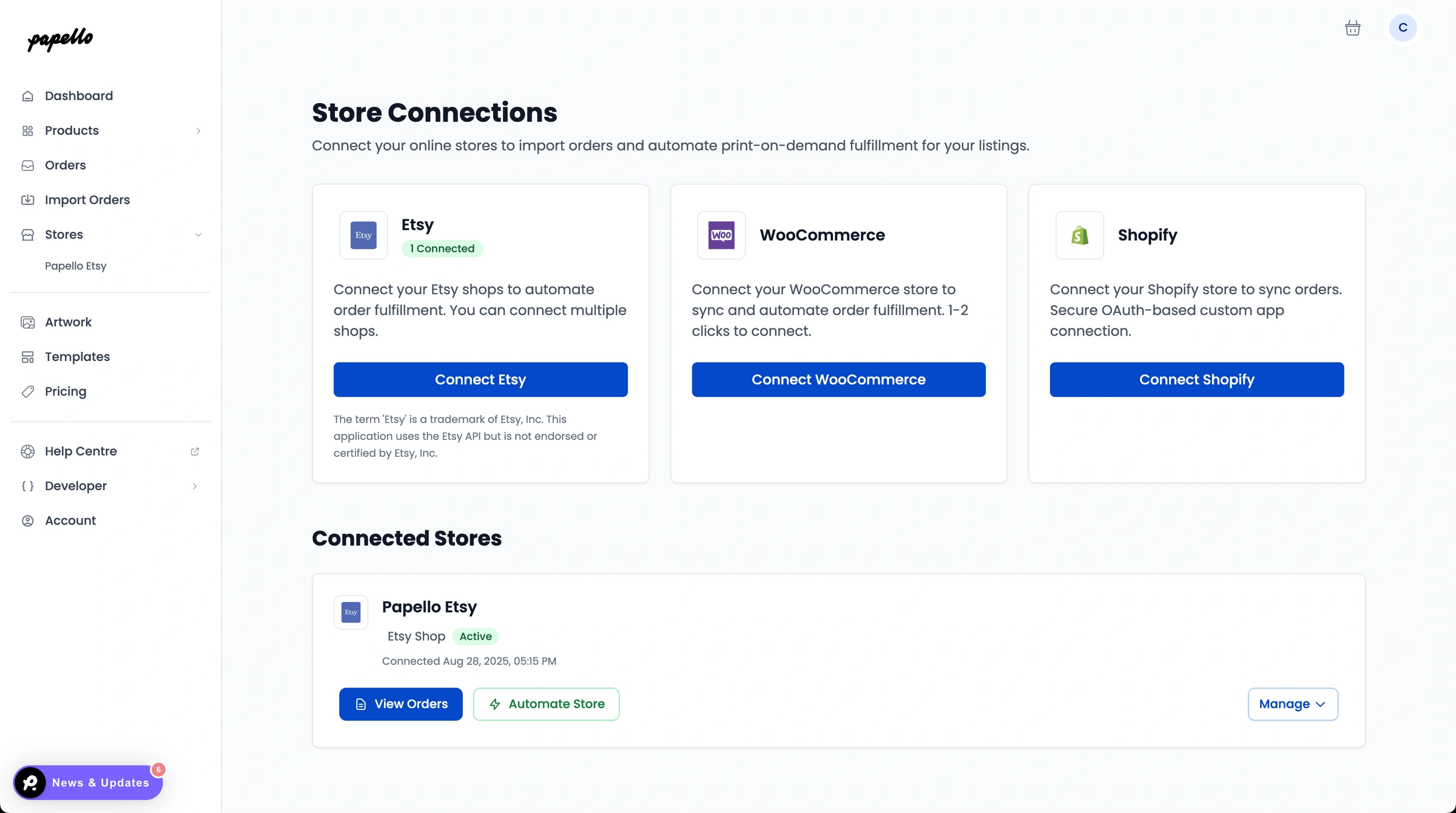
Step 2. Select a Store to Automate
Find your Etsy store in the list and click “Automate Store.”
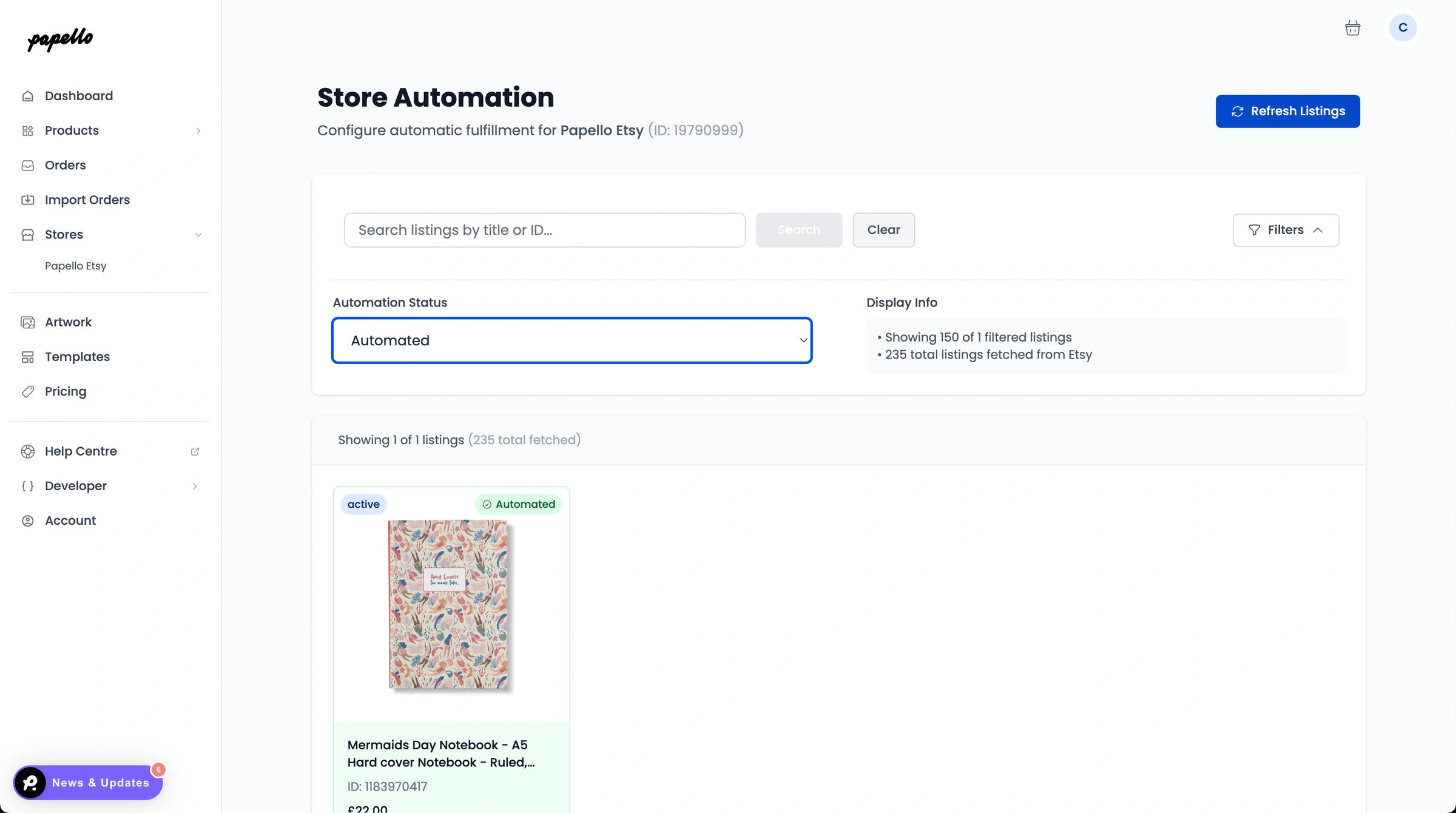
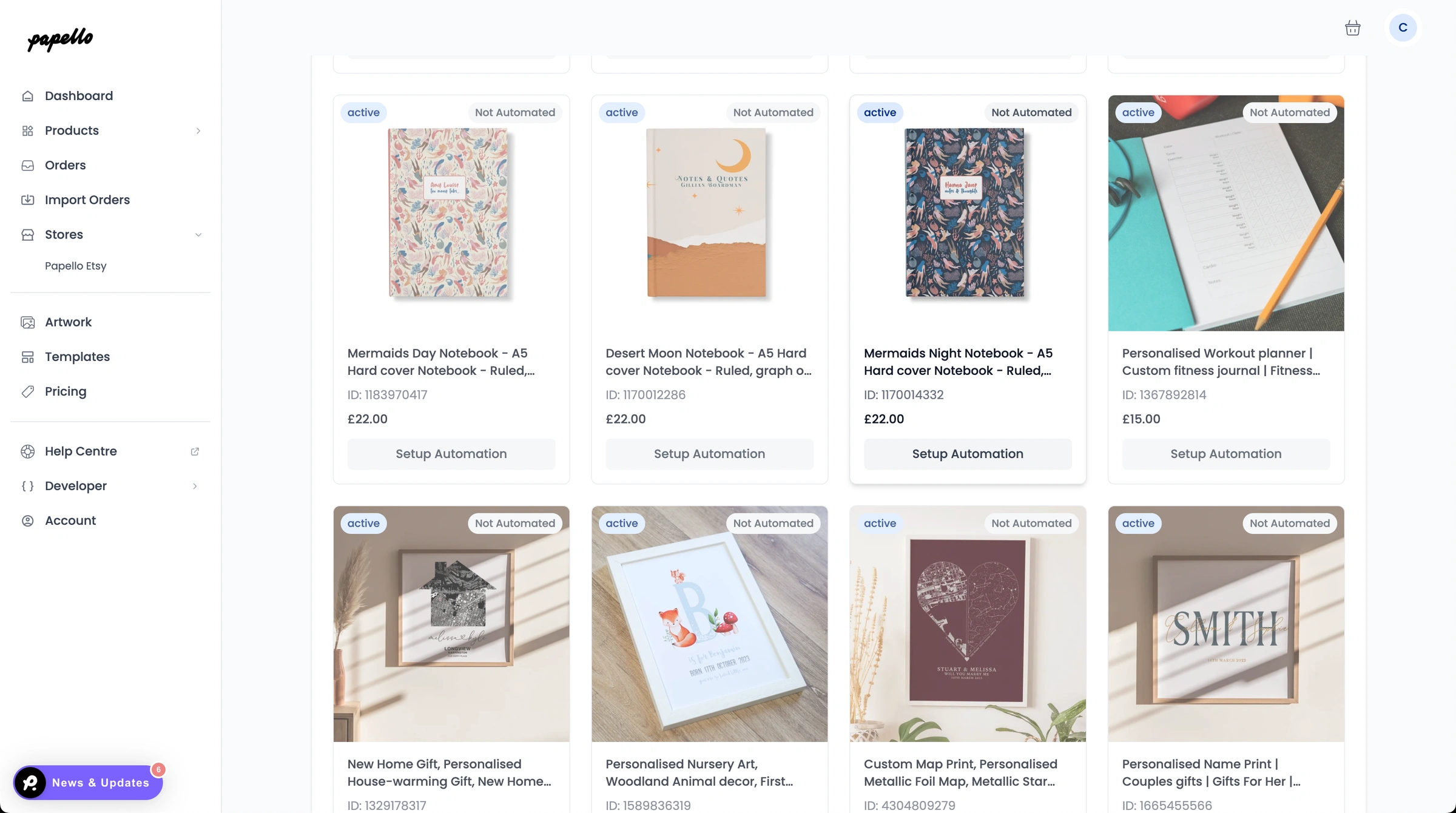
Step 3. View Your Listings
You’ll now see all of your store’s listings displayed. Click “Setup Automation” next to the listing you’d like to automate.
Step 4. Review Variations
The listing will open and display all available variations (e.g. different sizes, colours, or formats).
Use the toggles to enable the variations you’d like Papello to automate
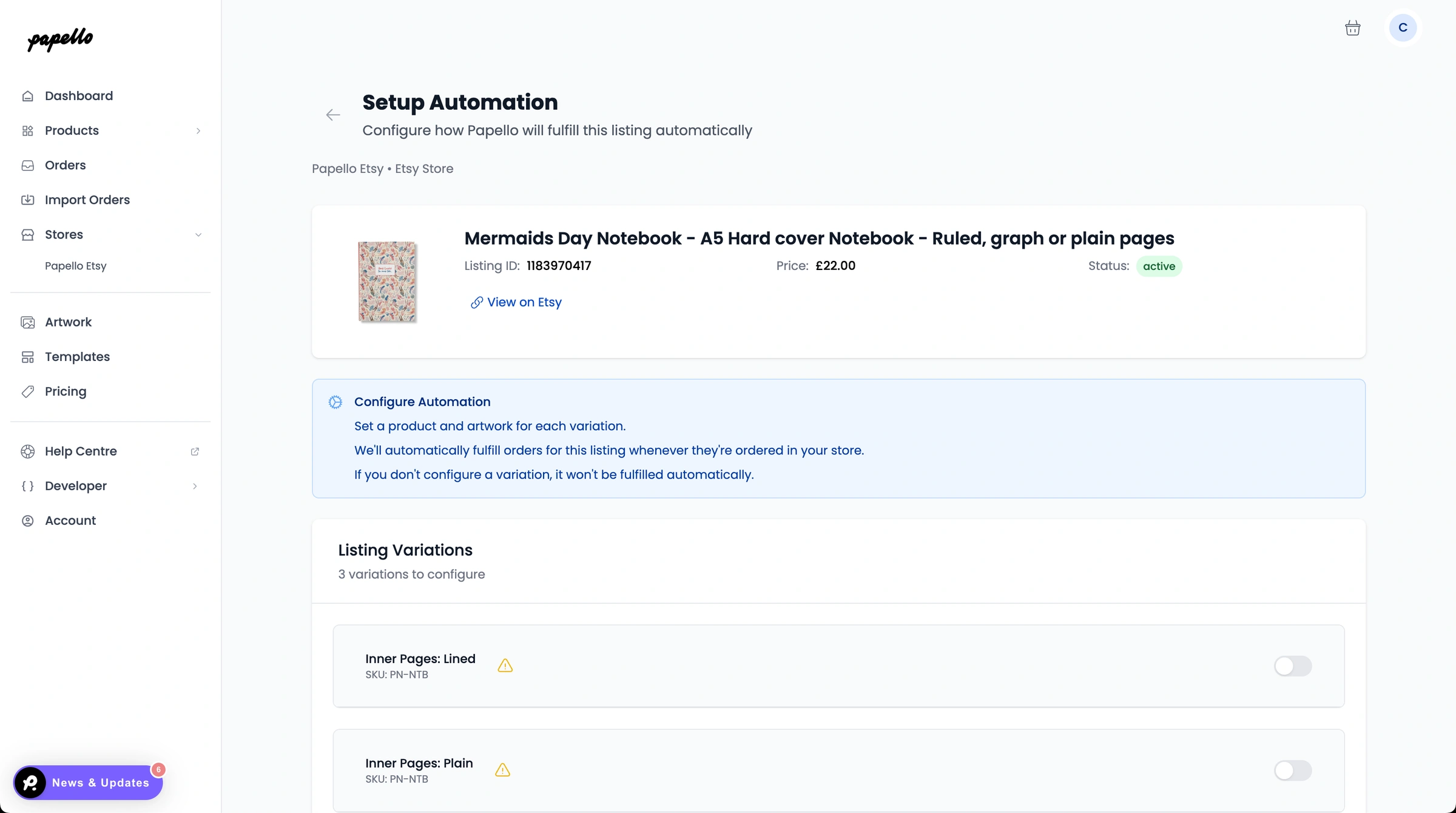
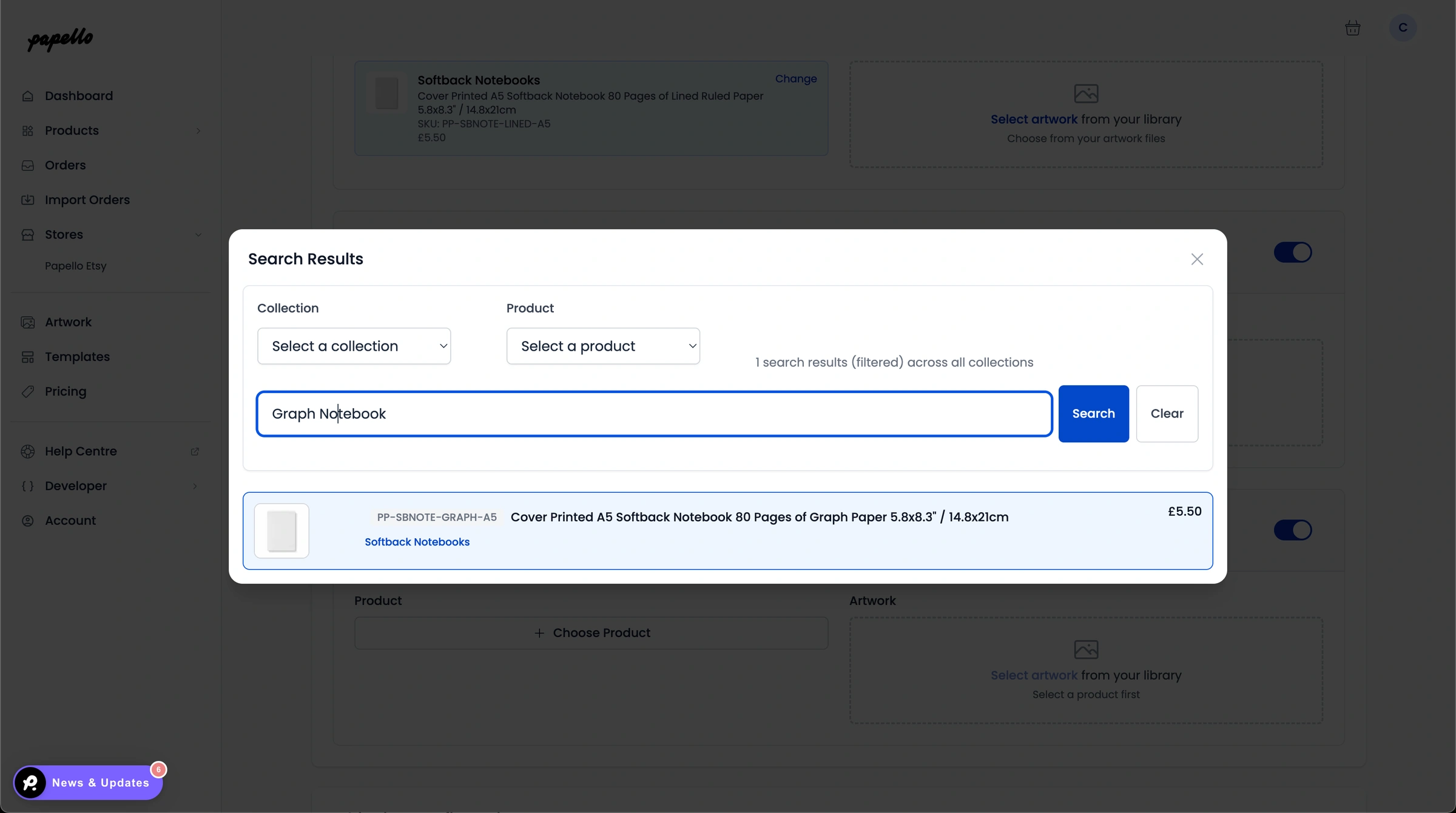
Step 5. Assign Papello Product Variations
For each store variation, choose the matching Papello product variation.
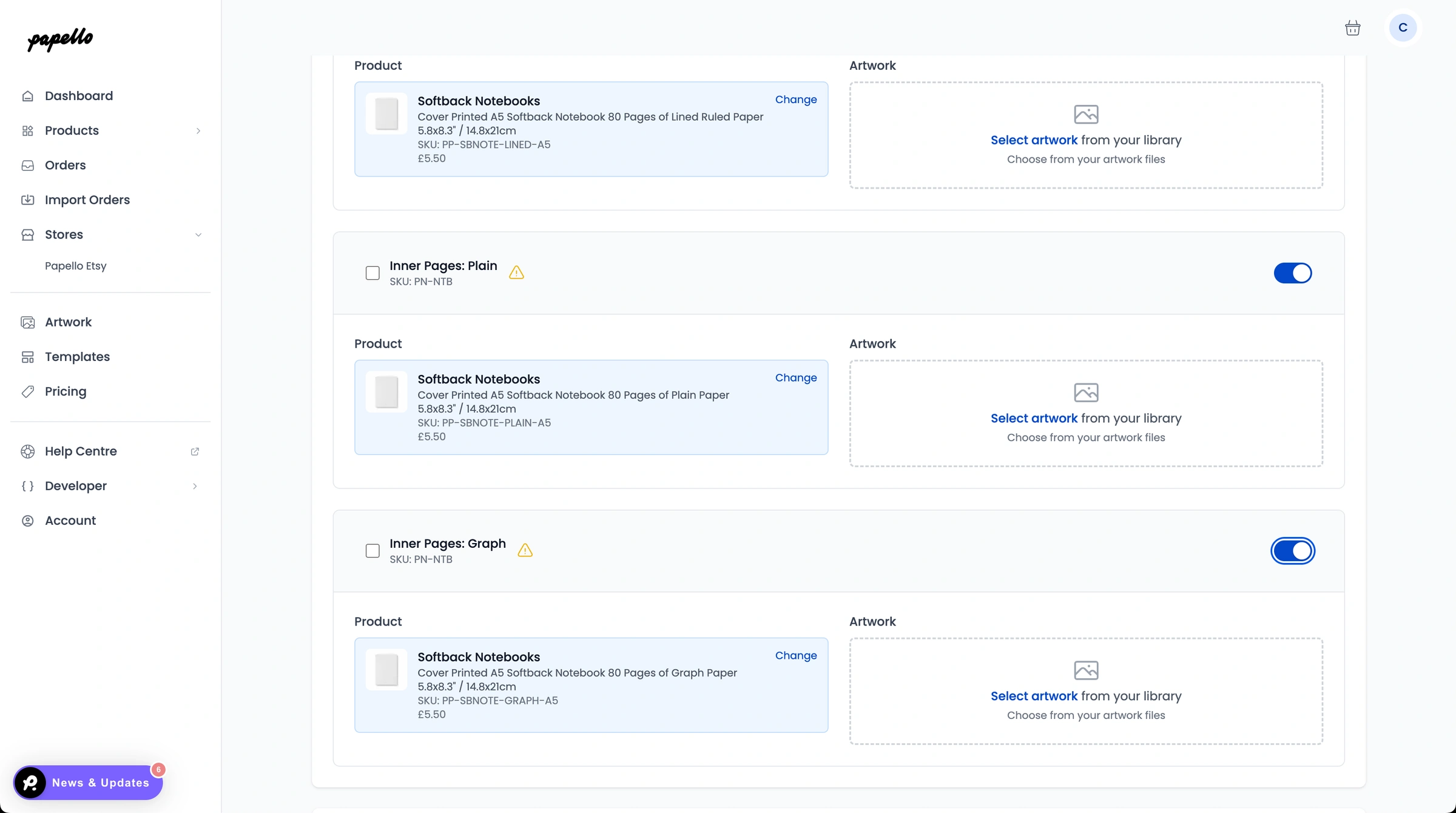
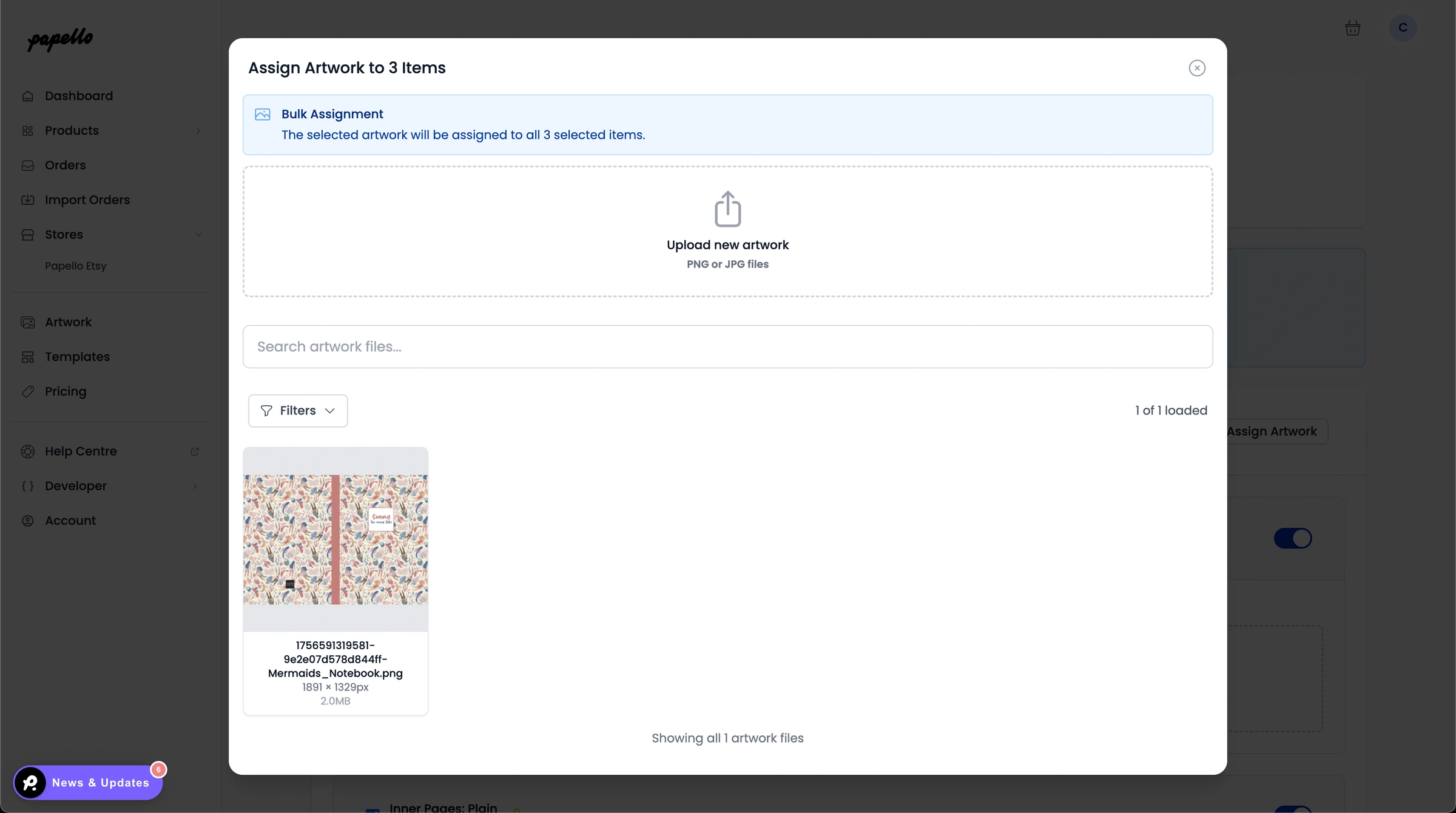
Step 6. Add Your Artwork
Each variation also needs artwork.
If your artwork is the same across multiple variations, you can save time with the bulk edit tool:
Select all the variations you want.
Click “Assign Artwork” to apply the file to each one.
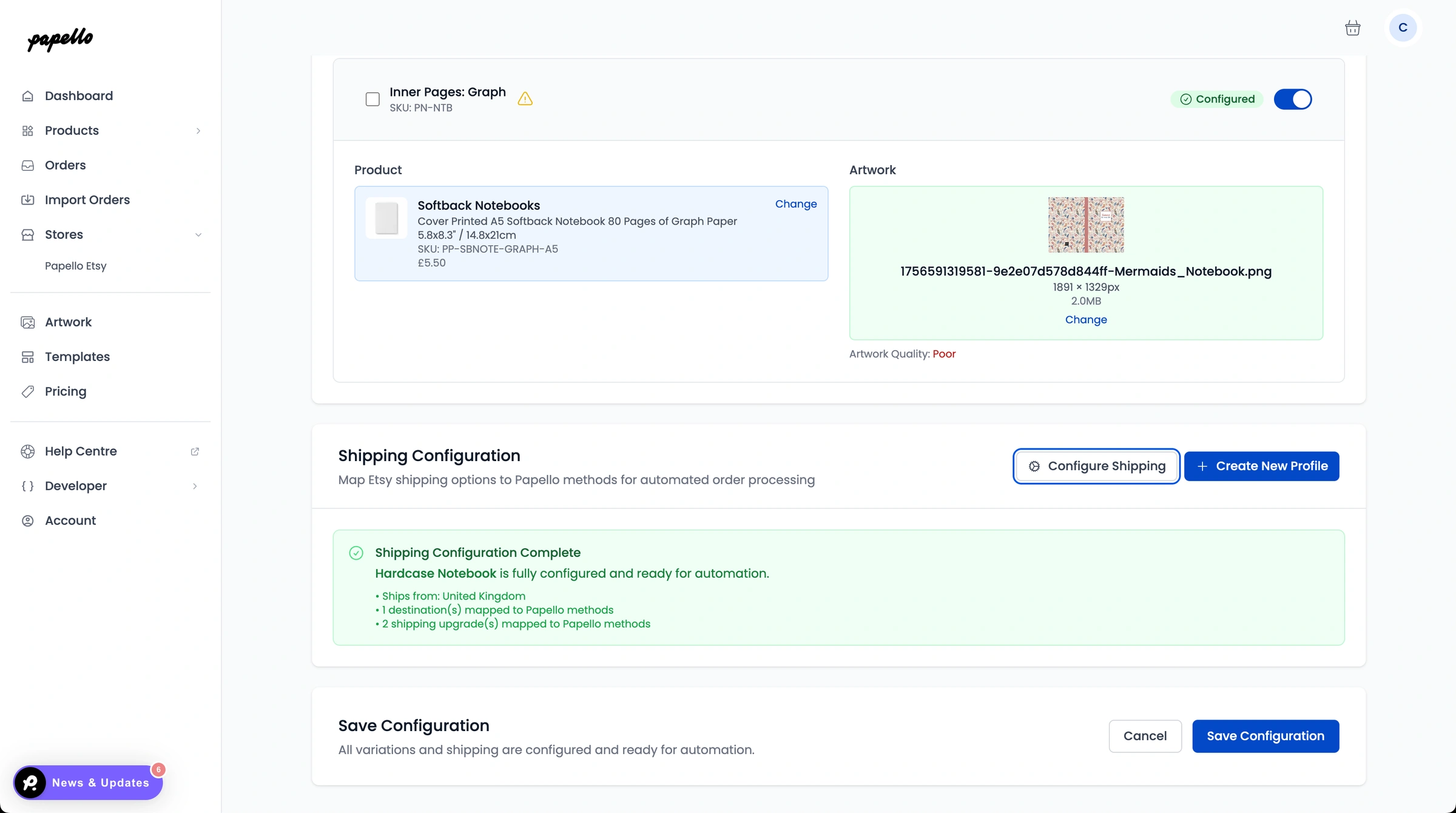
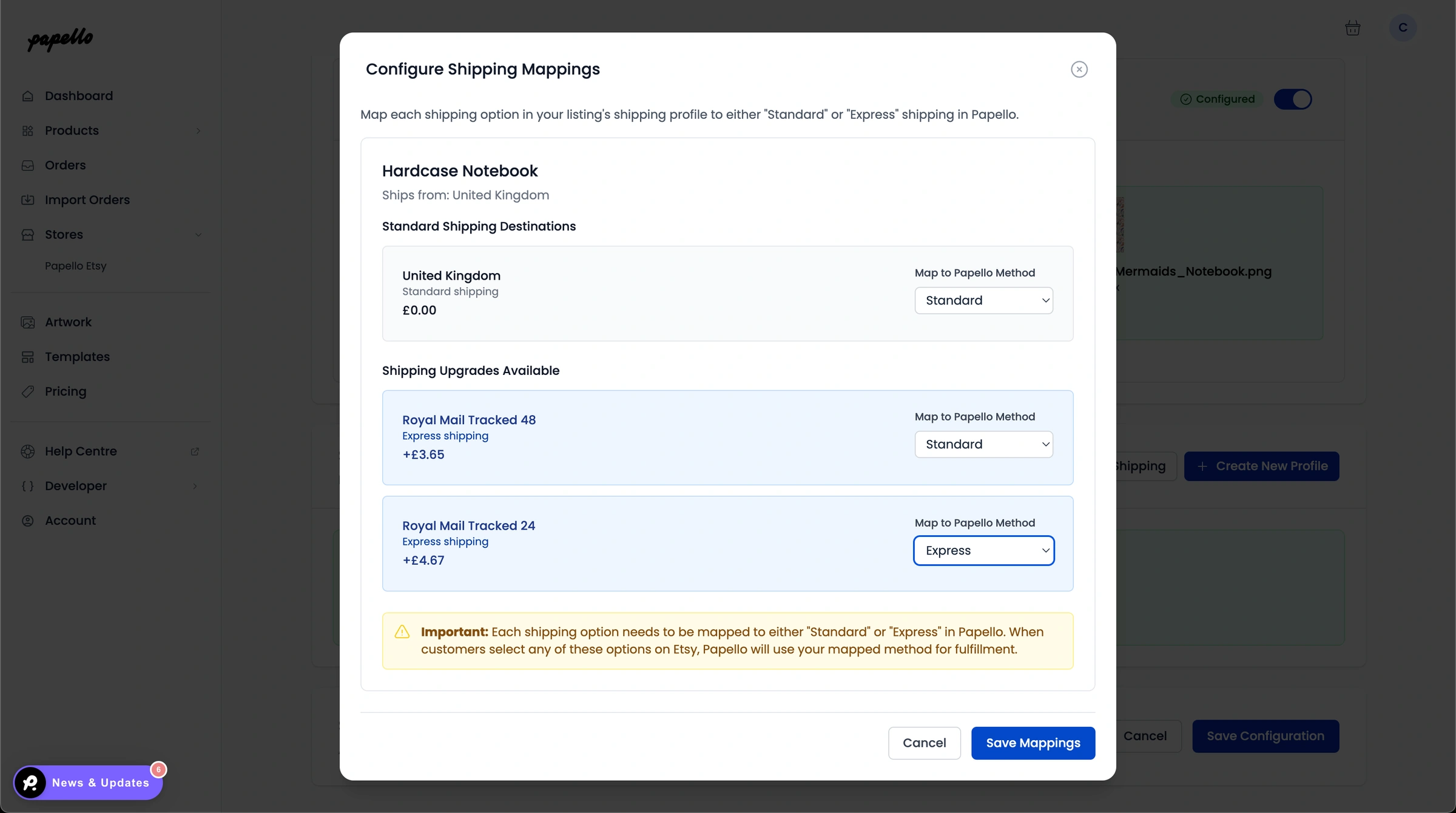
Step 7. Configure Shipping
Next, match your store’s delivery settings with Papello’s shipping options.
Papello supports Budget, Standard, and Express delivery.
You can either match these to your existing delivery methods or create new ones.
Click “Configure Shipping” to open the shipping modal, then pair each of your store’s shipping methods with the appropriate Papello option.
Step 8. Save Your Configuration
Once everything is set, click “Save Configuration.”
Your automation is now live! 🎉