
Integrating your WooCommerce store with Papello is the simplest way to automate your print-on-demand workflow. We use a one-click OAuth setup, which is the only way to connect your store. This ensures a secure, encrypted connection without you ever needing to handle complex API keys or technical code.
Follow these steps to link your store and start selling.
1. Start the Connection
To begin, log into your Papello dashboard and follow these steps:
Navigate to the ‘Stores’ page.
Click the ‘Connect WooCommerce’ button.
Enter your Store URL: Type in your website address (e.g.,
https://yourstore.co.uk) and click connect.
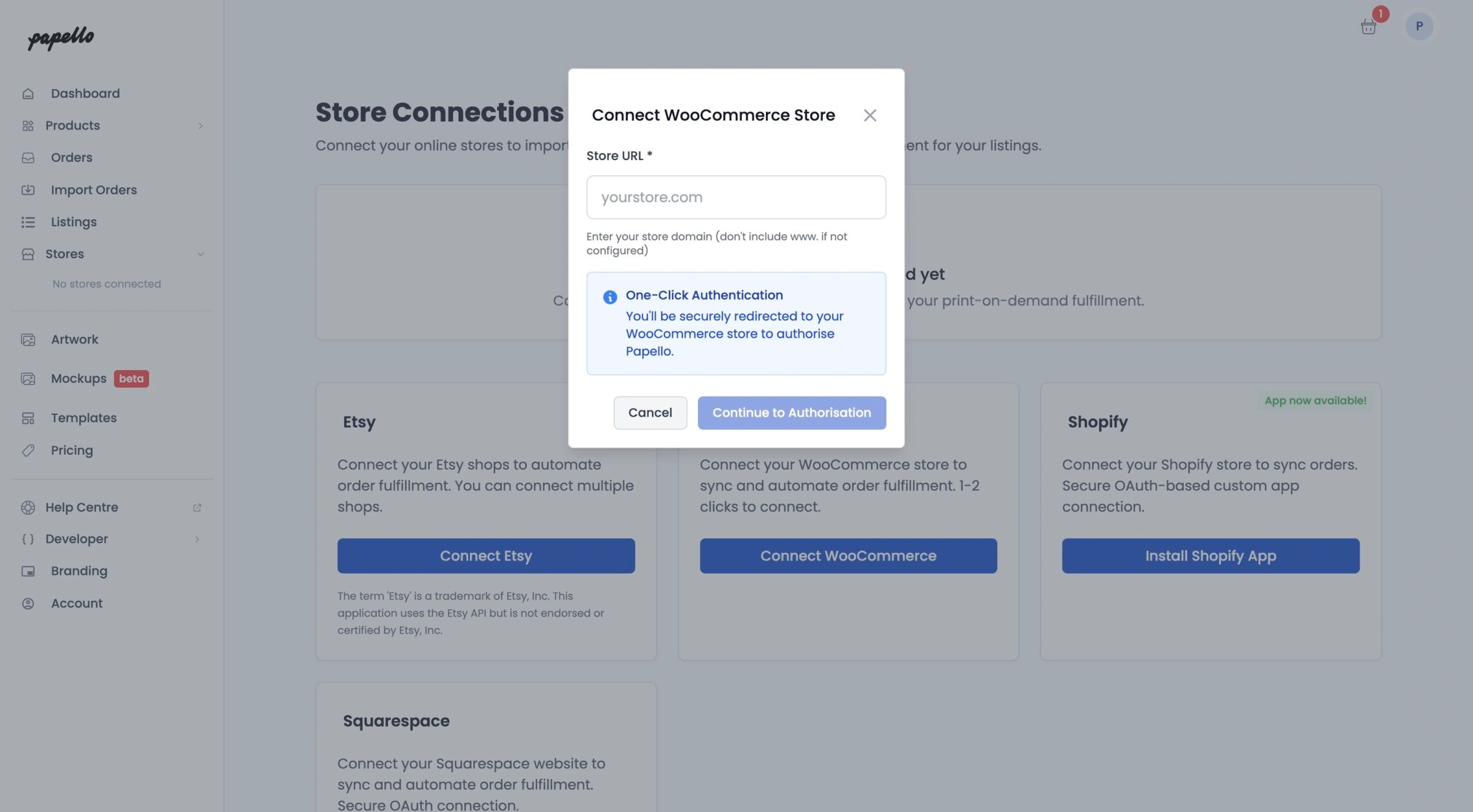
2. The One-Click Authorisation (OAuth)
Once you’ve entered your URL, Papello uses the official WooCommerce OAuth process to create a secure link:
Redirection: You will be automatically redirected to your own WordPress website.
Login: If you aren’t already logged into your WordPress admin, you’ll be asked to do so now.
Approve Access: A WooCommerce screen will appear asking for permission to connect to Papello. Simply click ‘Approve’.
Finish: You’ll be whisked back to Papello, and your store will now be listed as ‘Connected’.
3. Creating and Publishing Products
Once connected, you can manage your product catalogue directly from the Papello dashboard:
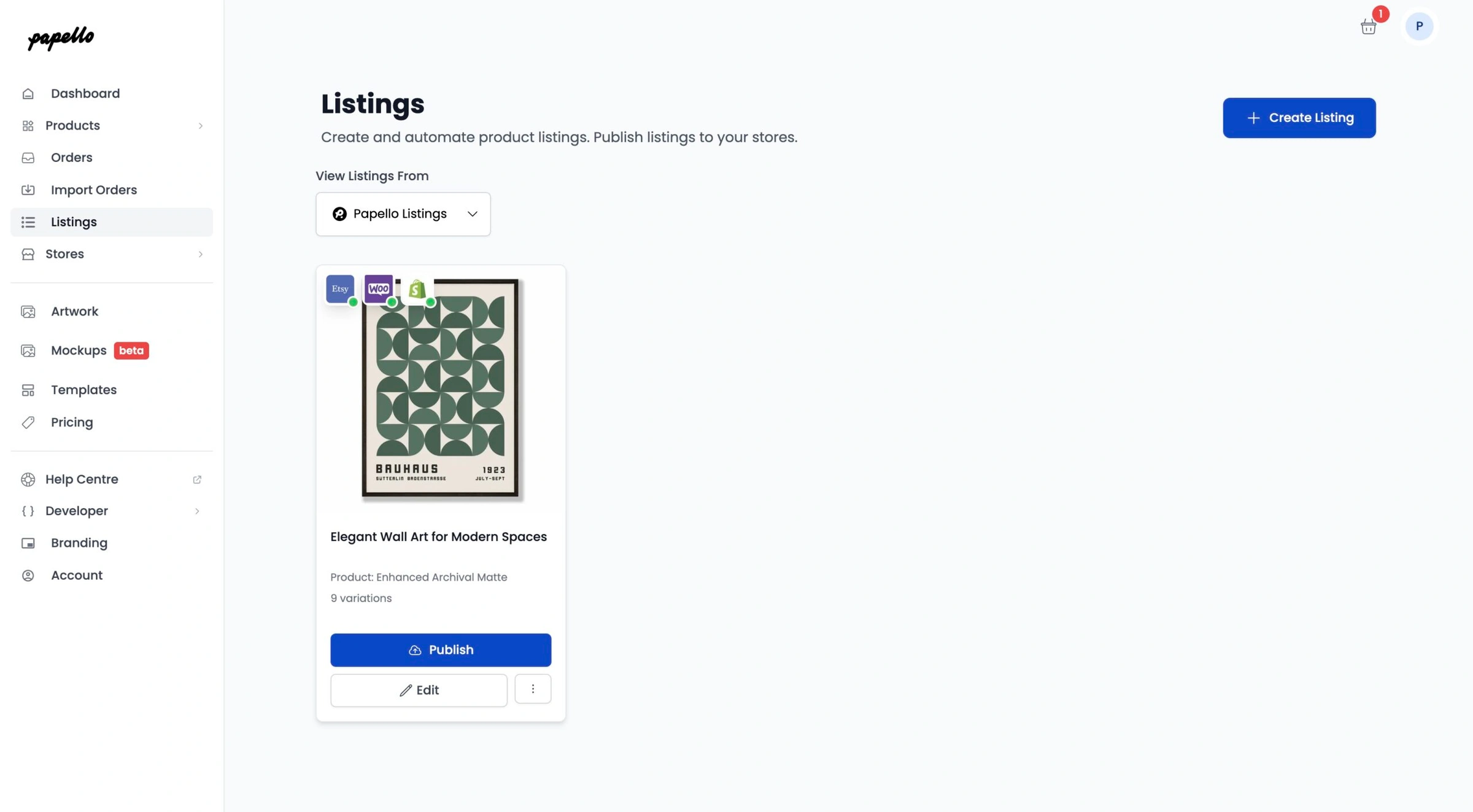
Design & Create: Head to the Listings page to create your products.
One-Click Publish: When you’re ready, click Publish. This automatically pushes the product details, descriptions, and high-quality mockups straight to your WooCommerce store.
4. Managing Orders and Fulfilment
When you make a sale on your website, getting it to our production team is easy:
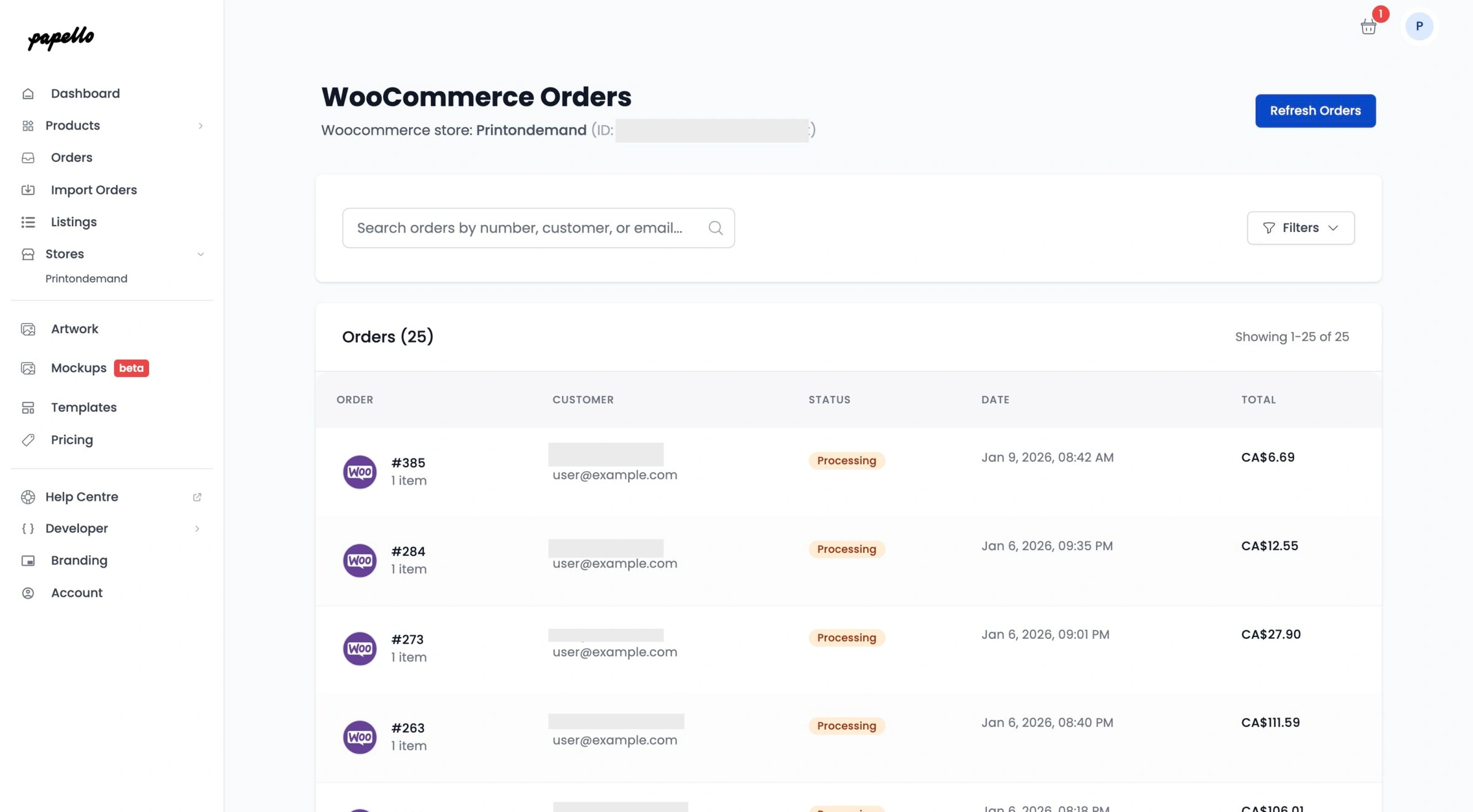
Order Syncing: Your WooCommerce orders will appear in the Orders list on your Papello dashboard.
Submit for Production: You can review the details and submit the order for fulfilment directly from the dashboard.
Requesting Fulfilment: Alternatively, you can trigger the fulfilment request directly from your WooCommerce order admin page.
Tracking Updates: As soon as we dispatch your order, we’ll update your WooCommerce store with the courier tracking details. The order status will update automatically, and your customer will stay informed.
Why use the OAuth Connection?
Maximum Security: Your login credentials stay private to your own site; the OAuth “handshake” is the most secure way to link apps.
Seamless Syncing: Because it’s an official integration, your stock and order data stay perfectly in sync.
No Technical Fuss: You don’t need to be a developer to get up and running in minutes.
Top Tip: For the best experience, ensure your WordPress “Permalinks” are set to ‘Post name’ (found in Settings > Permalinks) before you start the connection process.