
Before you begin, you should open a separate tab and login to your Squarespace shop account
1. From the dashboard page, select “Stores“
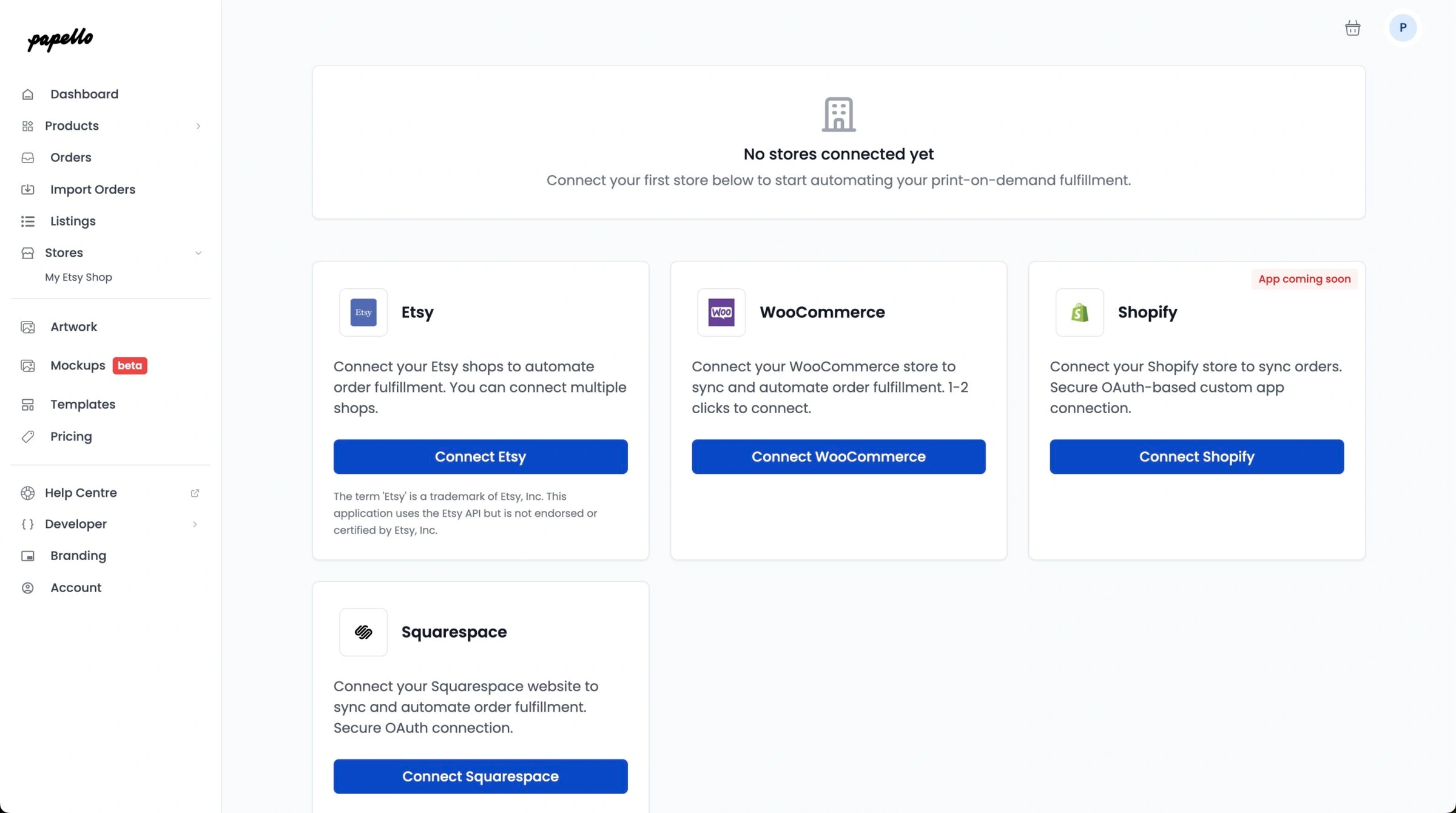
2. Click “Connect Squarespace” – Give your Squarespace store a name (This can be any name)
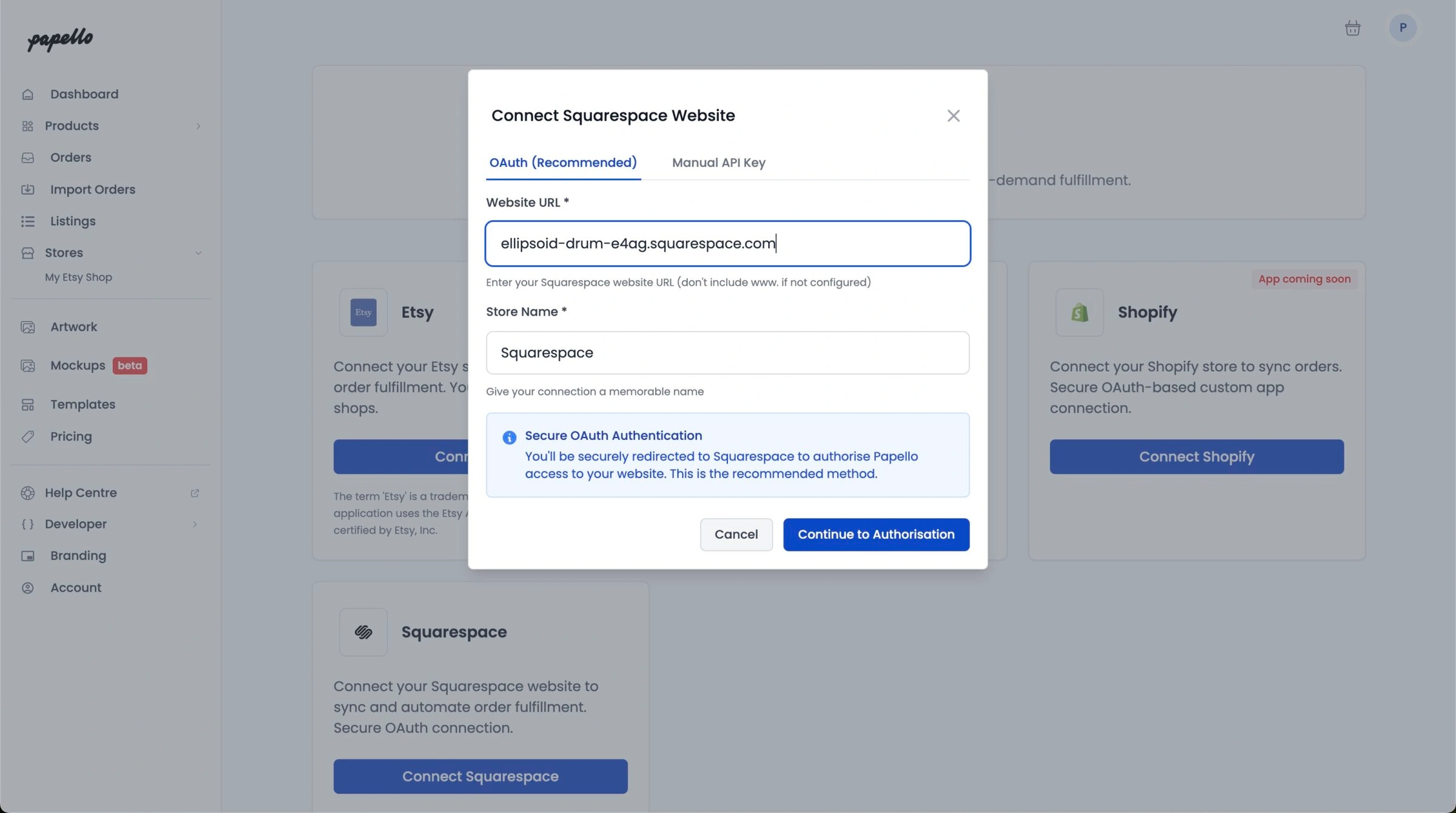
2. You will be redirected to Squarespace to authorise the connection to Papello. Click “Allow“

3. You will be redirected back to the Papello Dashboard. Your Squarespace shop is now connected to Papello!
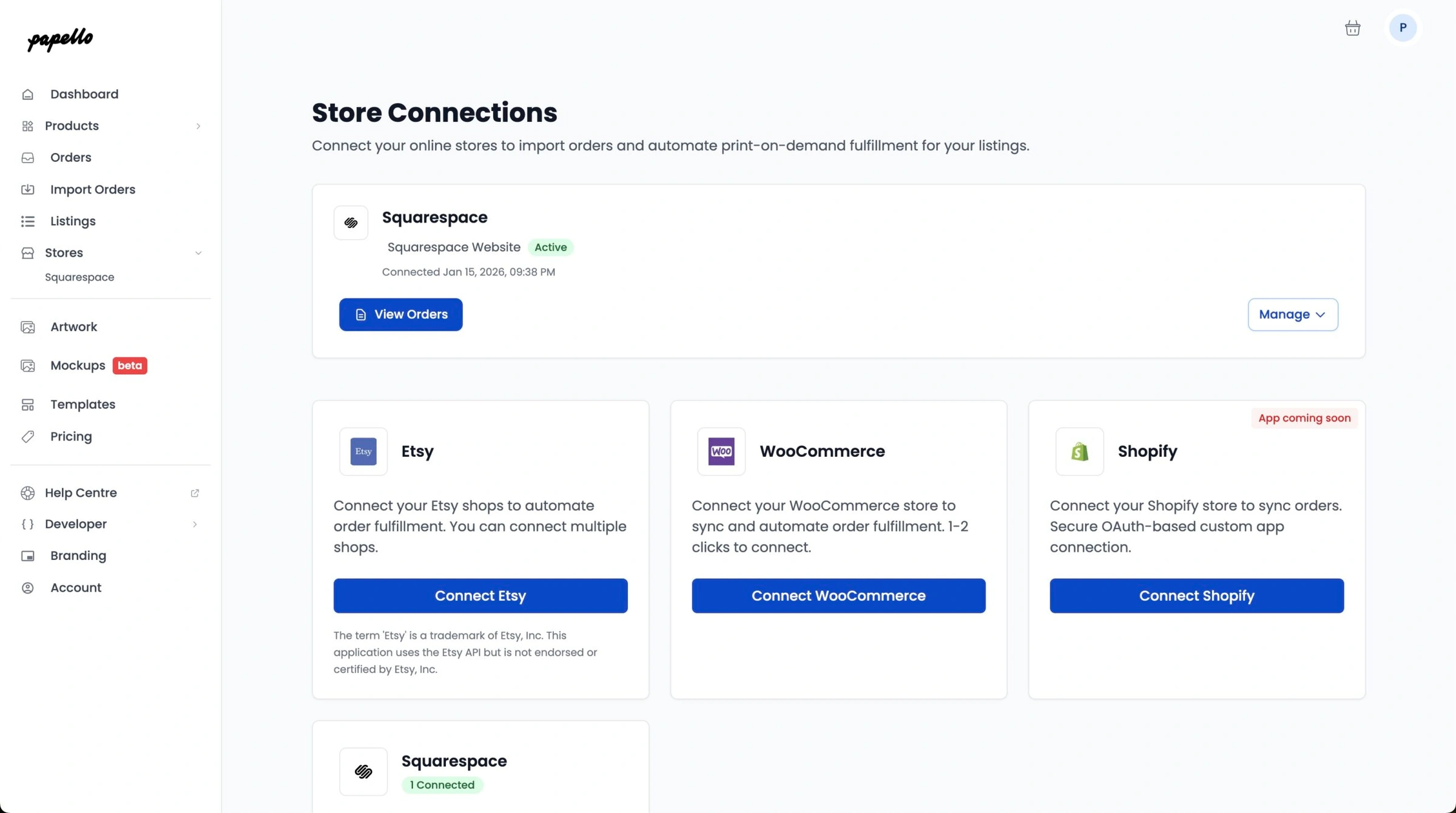
4. You can now view any pending Squarespace orders from your store by clicking “View Orders”
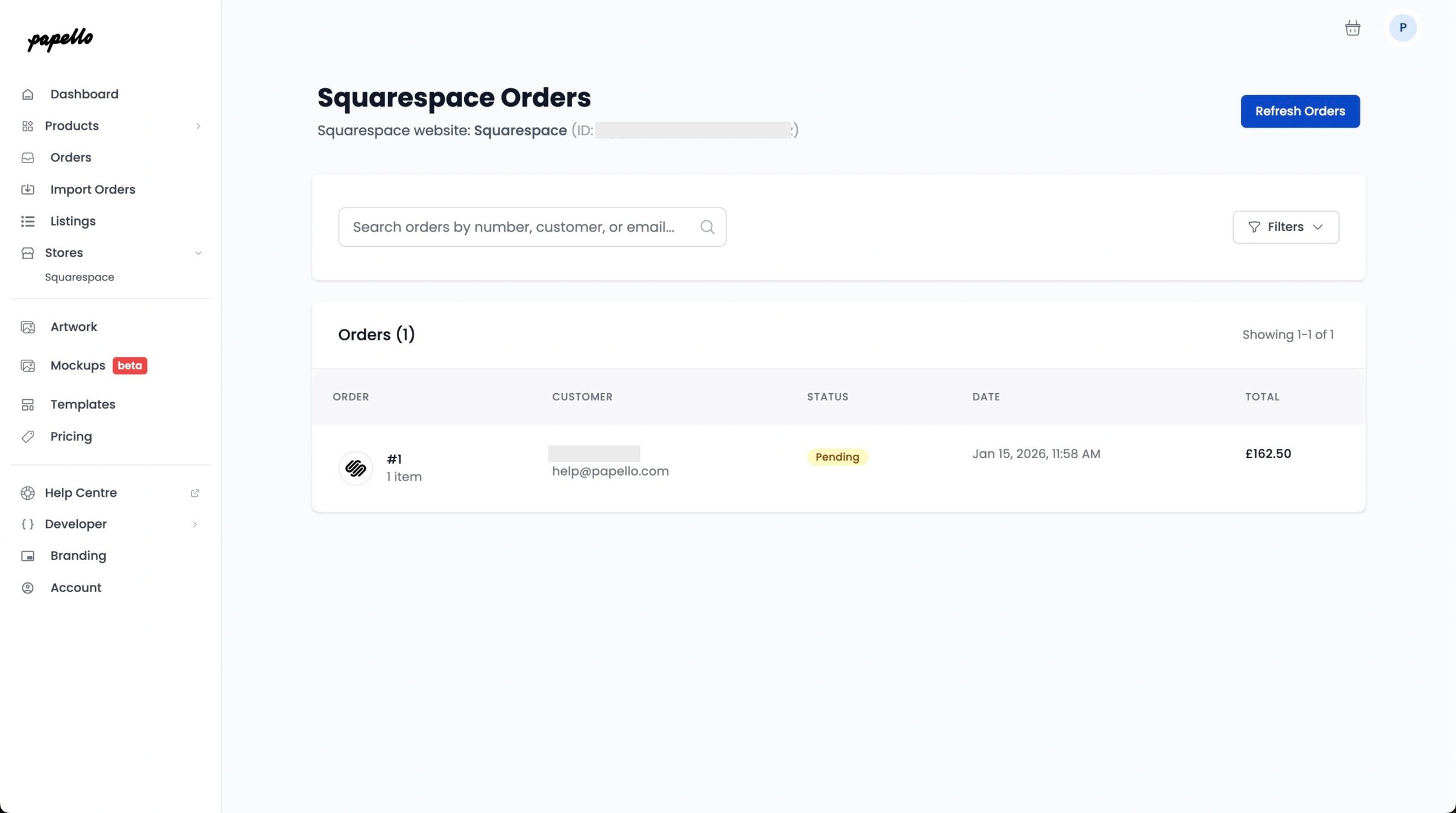
To have Papello fulfil any of your Squarespace orders, click to open the order
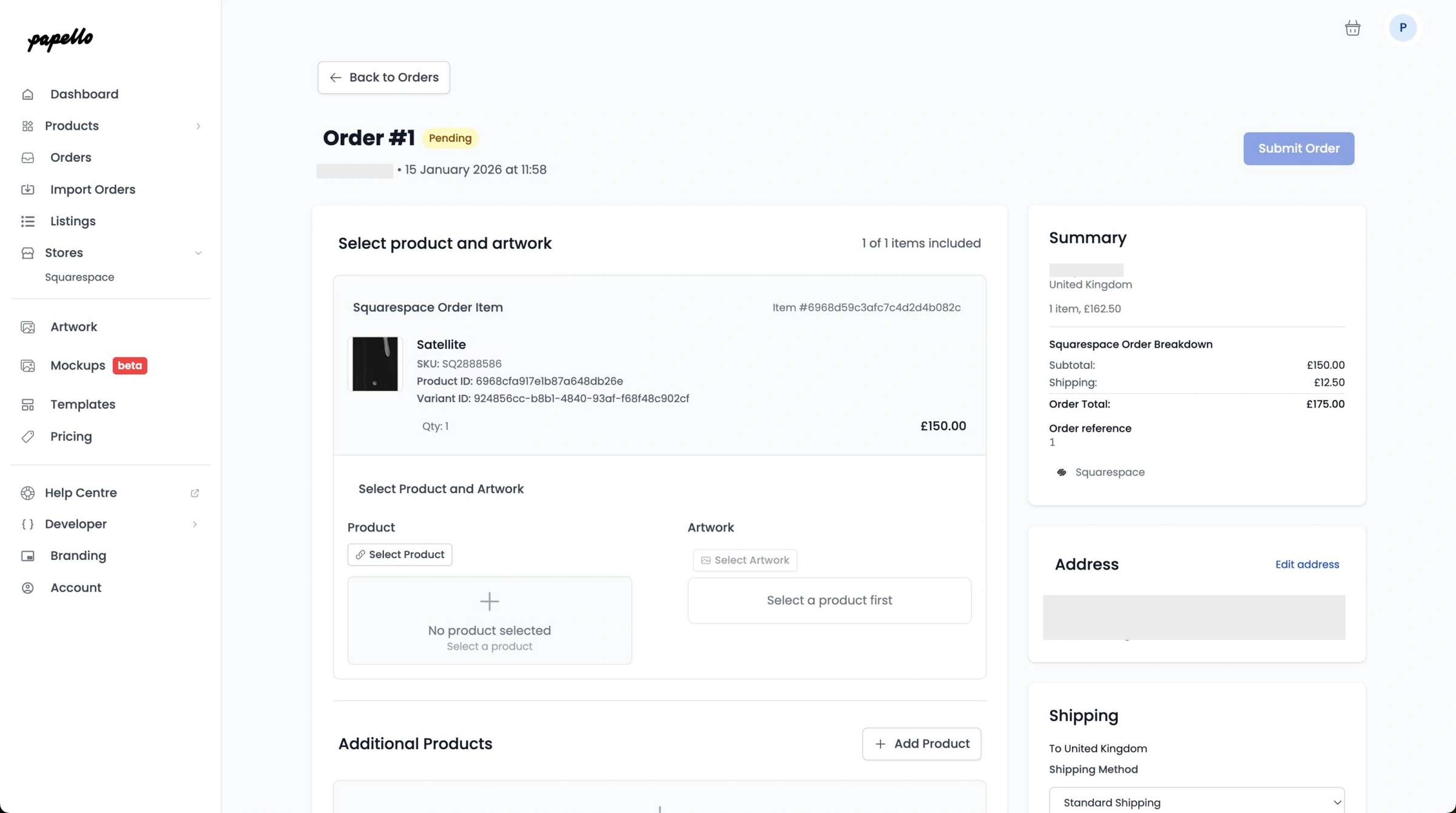
Now find the matching Papello product and add upload the artwork file (the file that will be printed) to the item
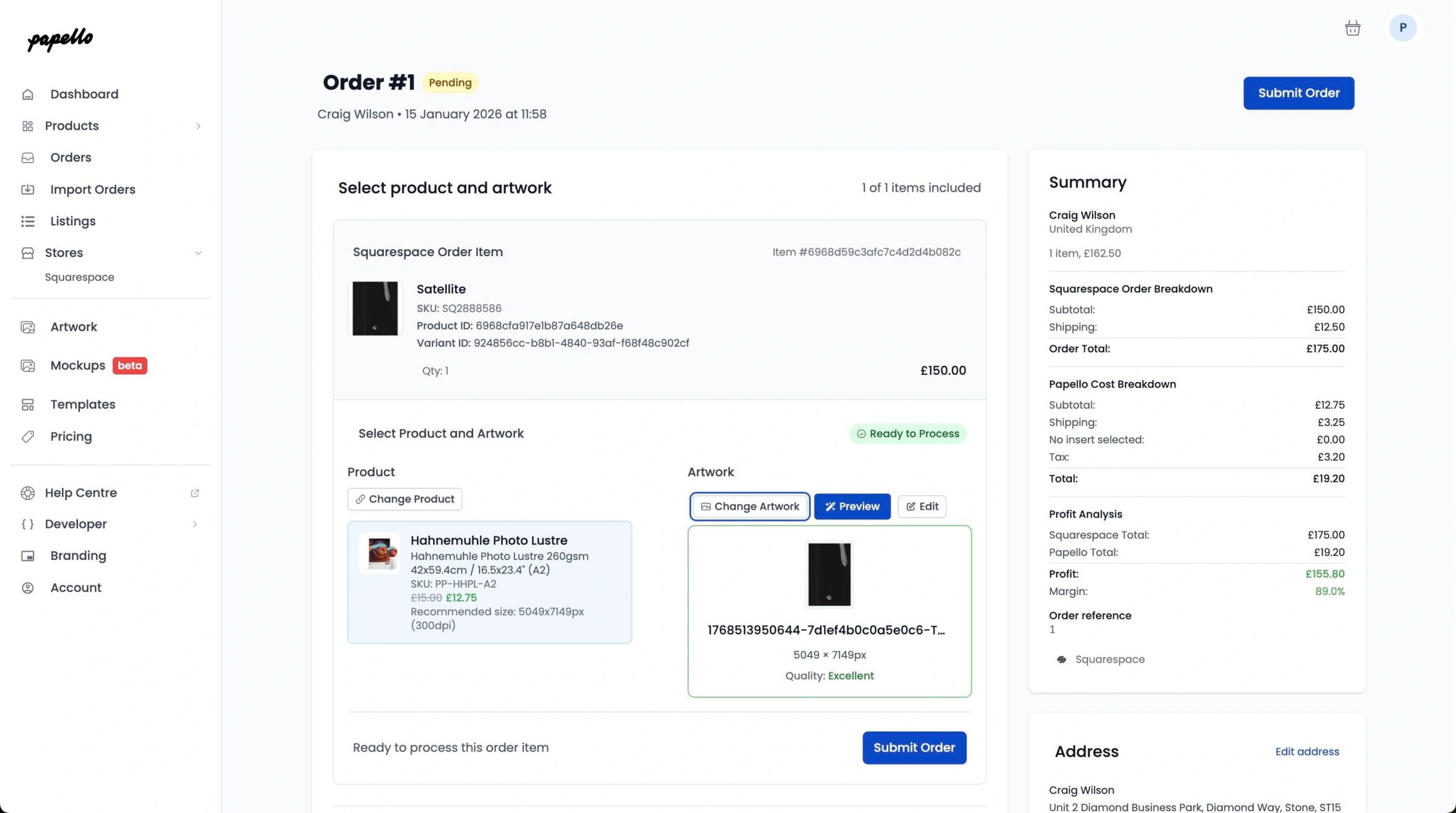
Click Submit Order to submit the order to Papello for fulfilment.
Once your order is shipping, the order status on your Squarespace website status will be updated, along with any courier tracking details.