
Once you’ve created your product listing in Papello, you can publish it directly to your WooCommerce store.
Publishing a listing to WooCommerce enables full automation. When a customer purchases the item on your website:
- The order is automatically submitted to Papello
- Your saved payment method is charged
- The item is printed and shipped directly to your customer
- No manual fulfilment is required
Automation Overview
When a Papello listing is published to WooCommerce:
- Orders are automatically imported into Papello
- Fulfilment is handled end-to-end by Papello
- Order status and tracking are updated automatically
If supported, prices will be converted to the currency set in your WooCommerce settings. You should ensure that you have set the correct currency before connected your WooCommerce store.
Currency rates are updated daily and subject to change.
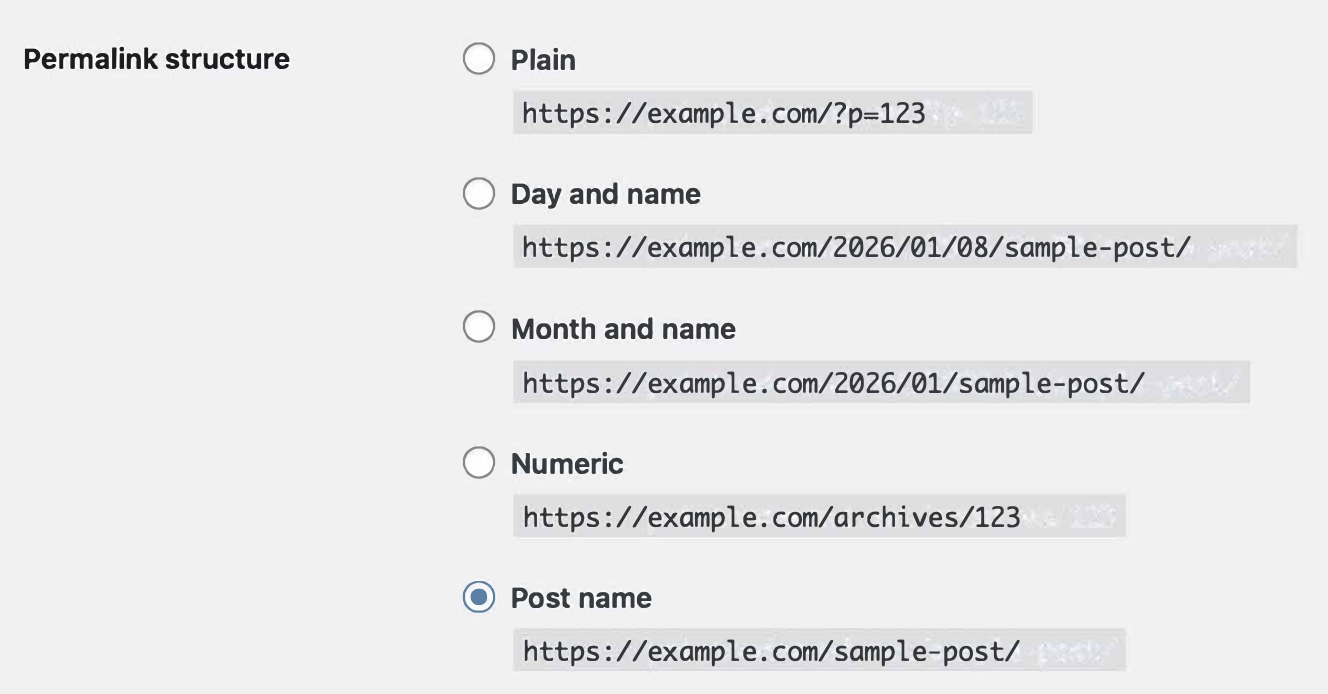
You should ensure that your WordPress permalink setting are set to “Post Name”
Ensure you are using the latest WordPress & WooCommerce versions – Tested to V6.8.3 and V9.9.6
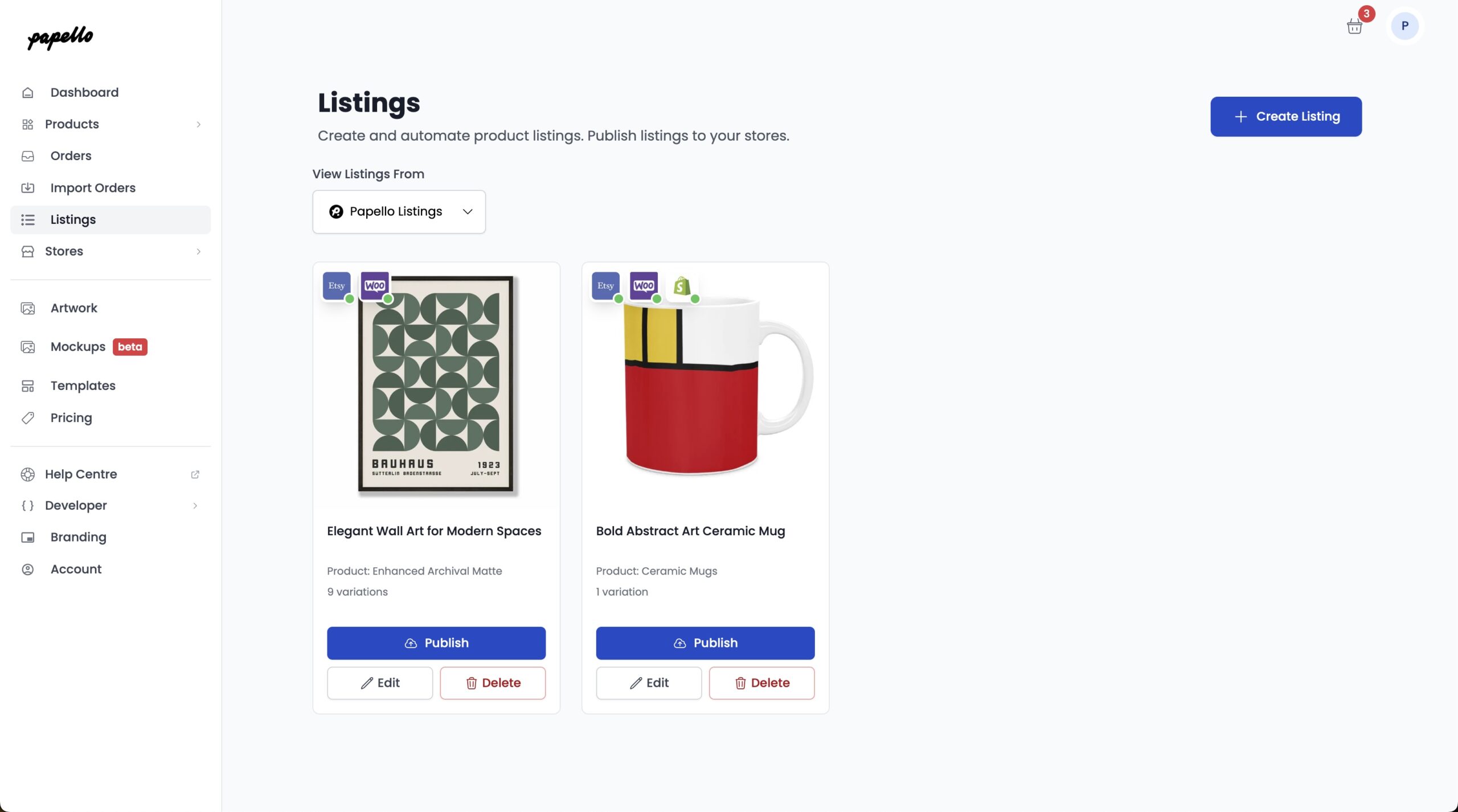
Step 1: Choose a Listing to Publish
From the Listings page in the Papello dashboard, locate the listing you want to publish.
Click Publish on the listing.
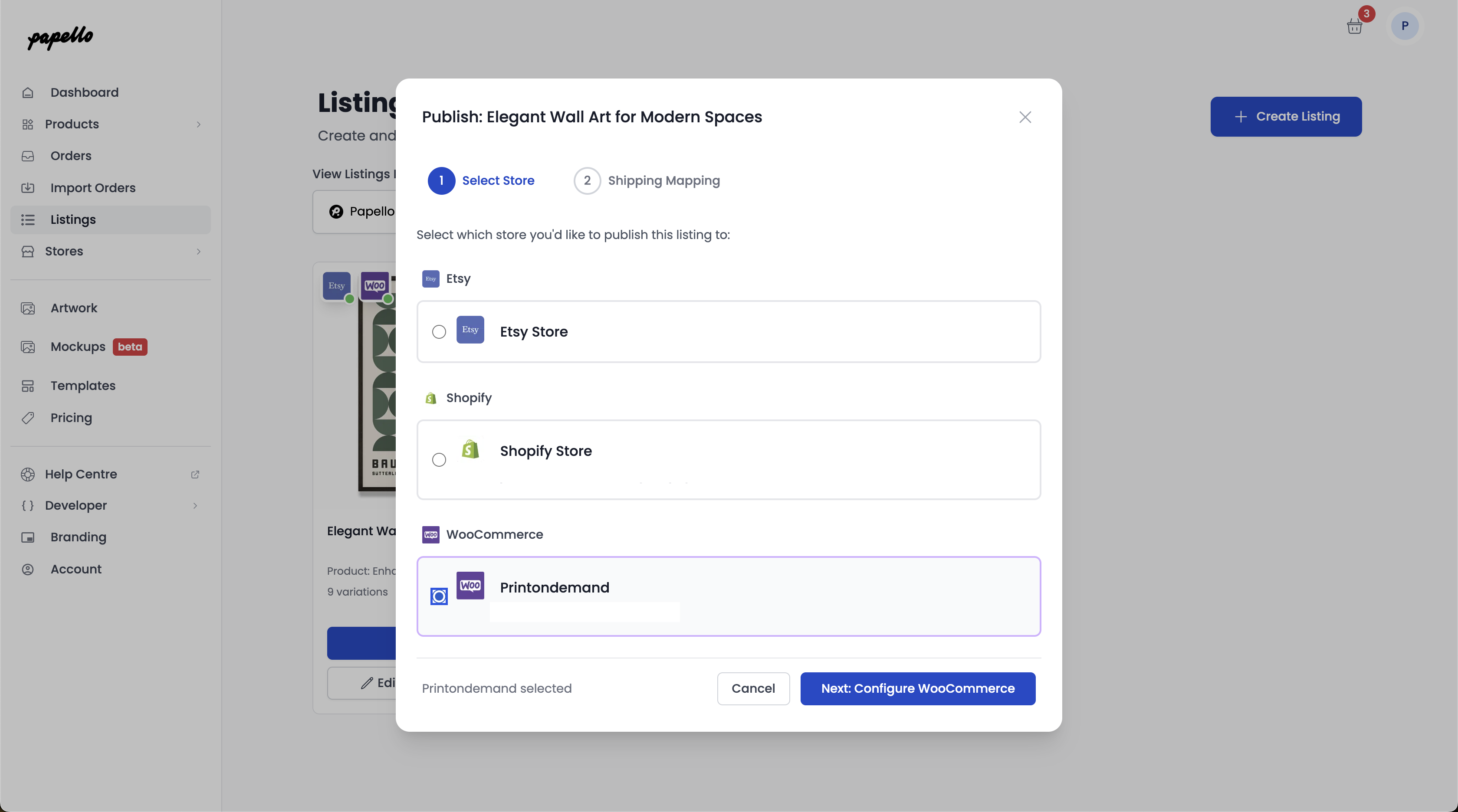
Step 2: Select Your WooCommerce Store
A pop-up window will appear showing all of your connected stores.
Select your WooCommerce store.
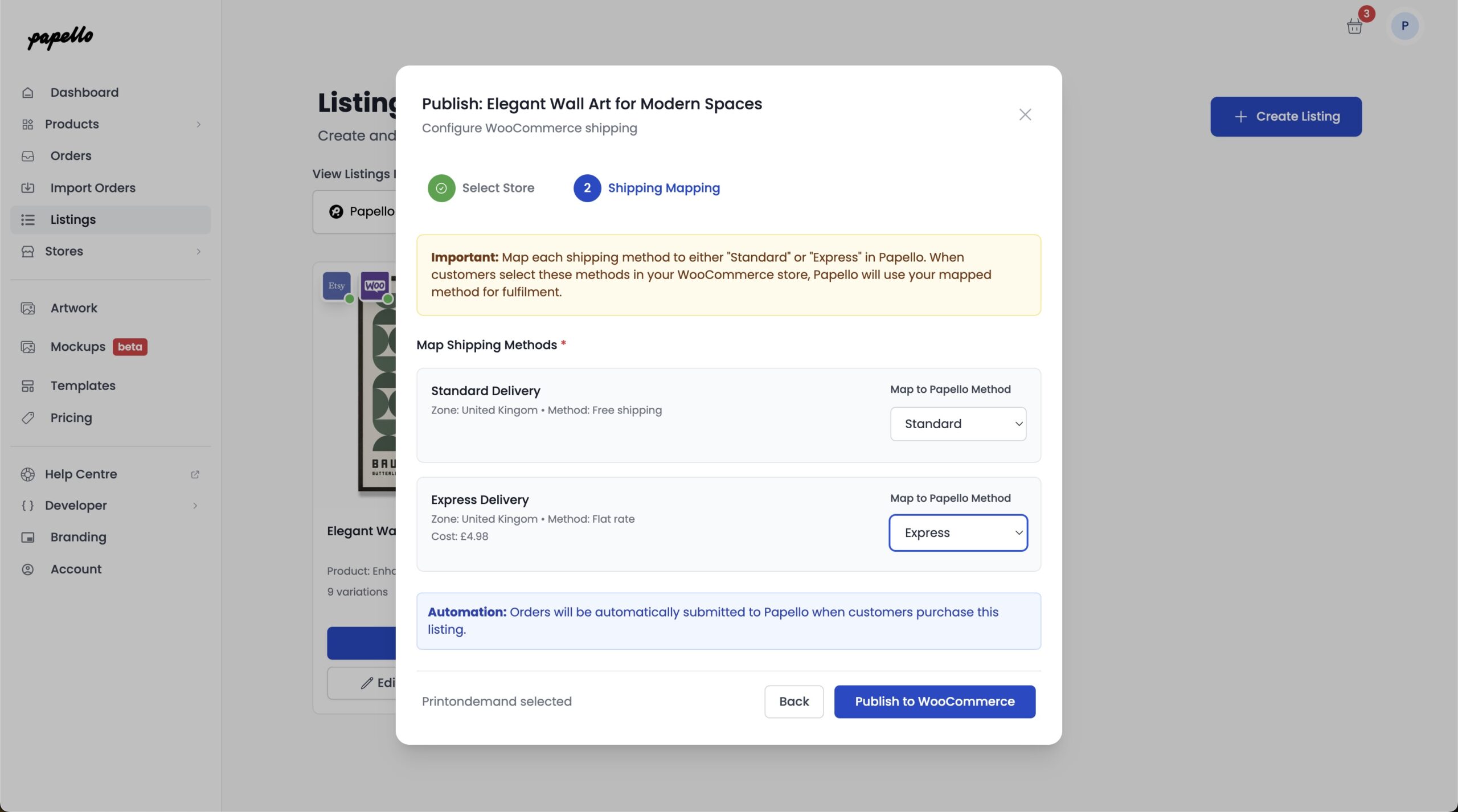
Step 3: Configure the Listing for WooCommerce
Product Settings
Papello will automatically create the product in WooCommerce using the listing details you’ve set (title, images, description, pricing, and variations).
Shipping Method Mapping (Important)
WooCommerce requires shipping methods to be created in your store before publishing.
In this step, you must match your existing WooCommerce shipping methods to the relevant Papello shipping methods.
For example:
- Papello Express Tracked Shipping → WooCommerce “Express Shipping”
- Papello Standard Shipping → WooCommerce “Standard Delivery”
This ensures:
- Correct shipping options are shown to customers at checkout
- Orders can be fulfilled automatically by Papello
Important:
If a Papello shipping method is not mapped, the listing cannot be published.
Step 4: Publish to WooCommerce
Once all shipping methods are mapped, click Publish to WooCommerce.
Your listing will be added to the publishing queue and will appear in your WooCommerce store within a few minutes.
Finished 🎉
That’s it — your Papello listing is now live in your WooCommerce store.
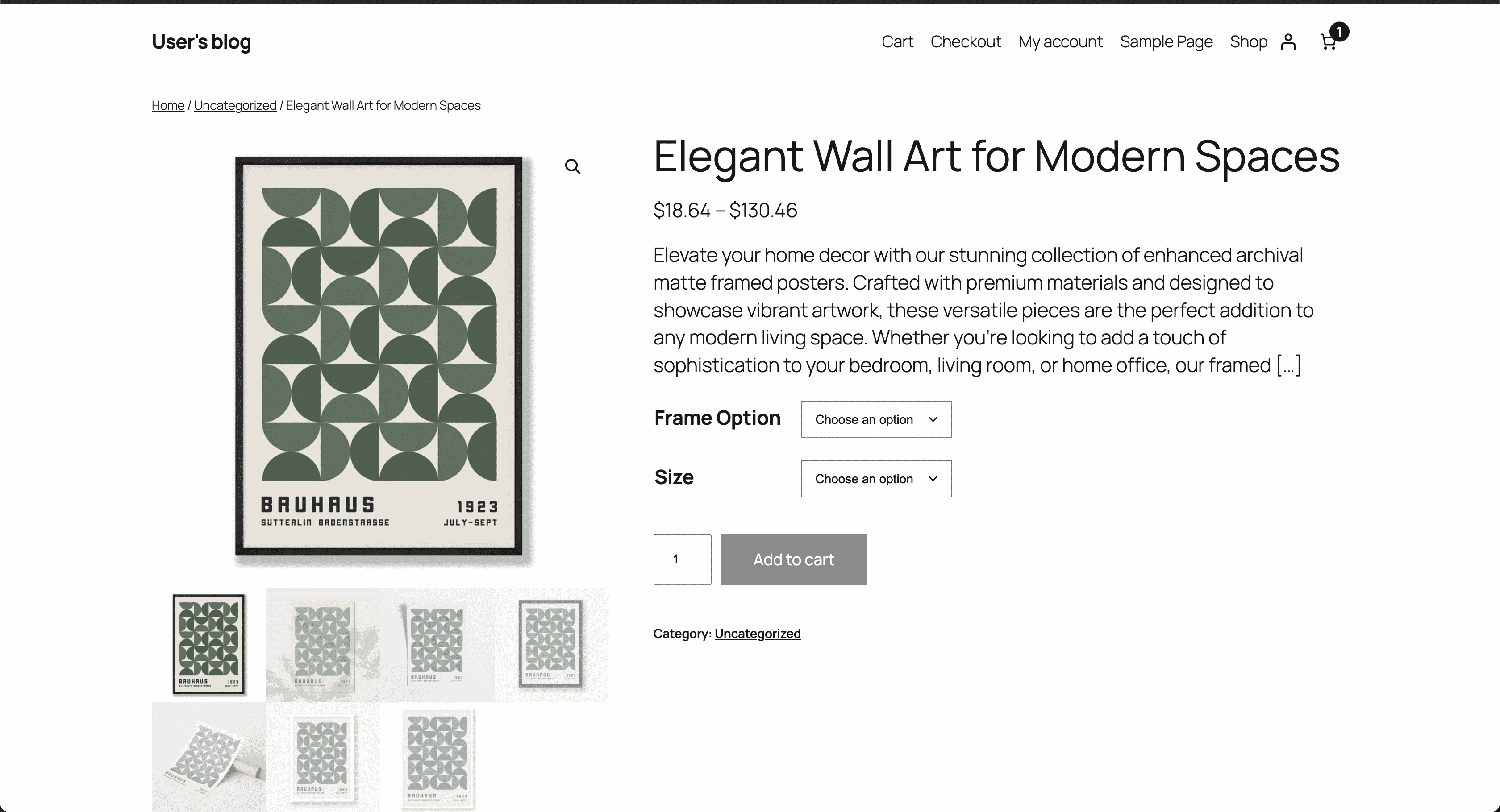
From this point on:
- Orders are sent to Papello automatically
- Fulfilment is fully automated
- You don’t need to manually create or manage orders
Before You Publish (Quick Checklist)
- WooCommerce shipping methods are already created
- All Papello shipping methods are correctly mapped
- Pricing and variations have been reviewed