
You can import orders from a CSV file directly into the Papello Dashboard.
Your CSV must match the template to ensure order details are correctly mapped to Papello’s order submission.
CSV Format Requirements
- File must be in CSV format with comma-separated values
- First row must contain the exact column headers shown in the template
- All required fields must be provided for each order
- The print file must be public, not requiring any authorisation.
- File size limit: 10MB
- For multi-print area products, use print_area_1, print_area_2, etc. columns
- To include inserts, set up API Orders Inserts in Brand settings
- Click on “Import Orders” from the dashboard sidebar
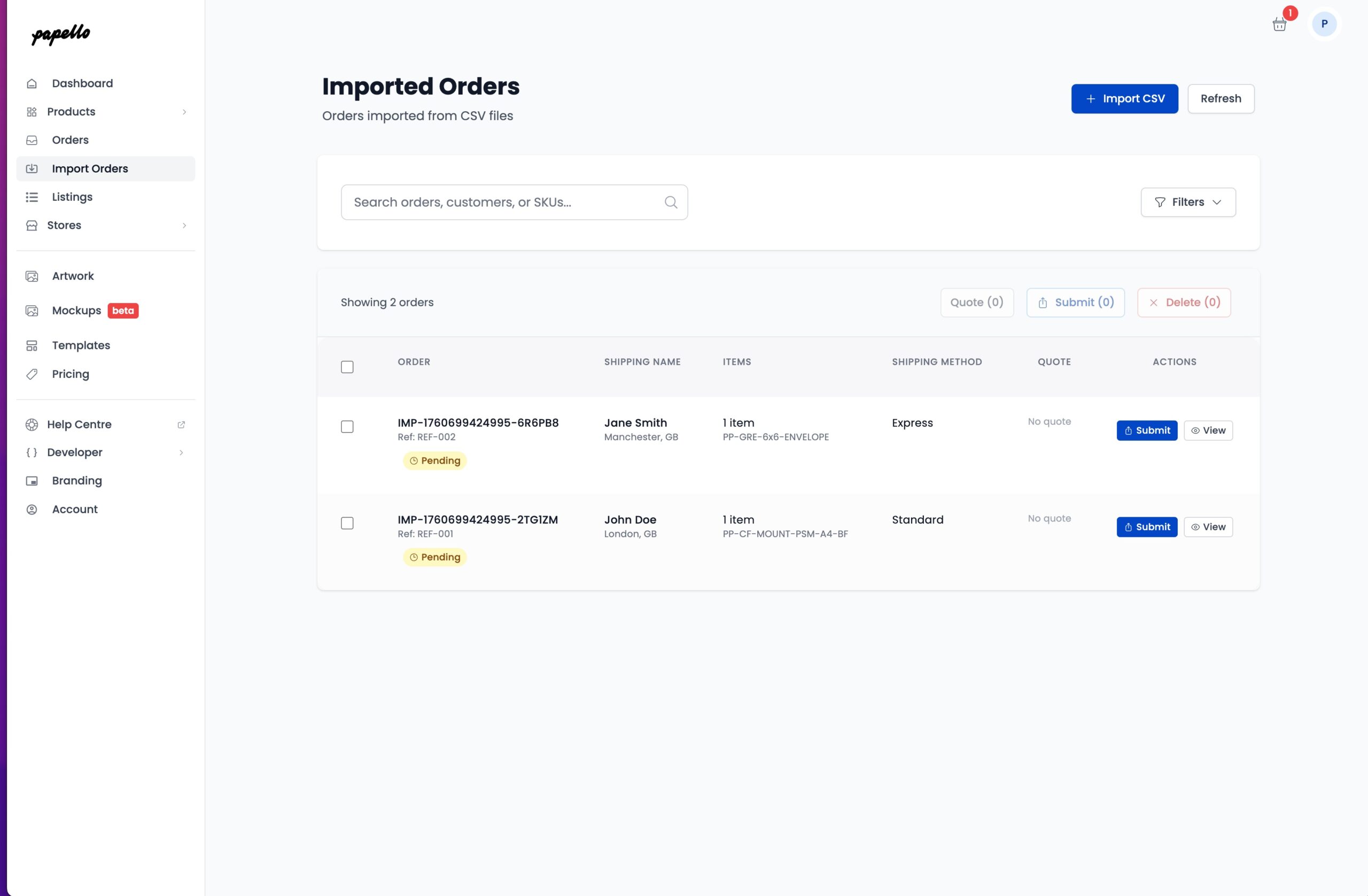
2. Click “+ Import Orders”
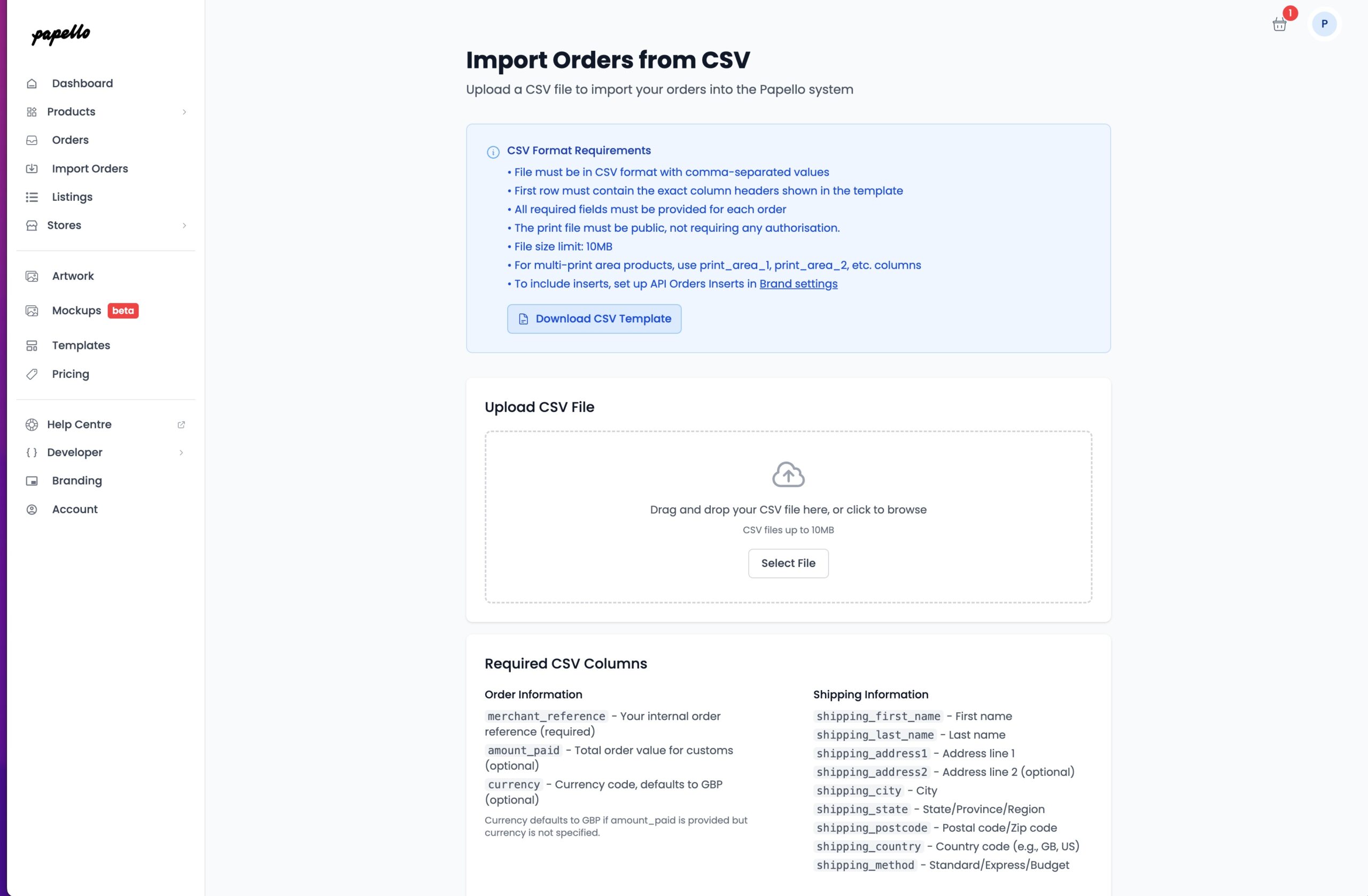
3. Drag and drop or Select the CSV file from your computer
Any errors in your CSV will be highlighted before you can import the order, you will need to make changes and fix your CSV to match the template.
Warning such as “Missing Artwork” will be displayed if not present in the CSV. You can continue to import these orders, however you will need to add the artwork from your artwork library for each one missing.
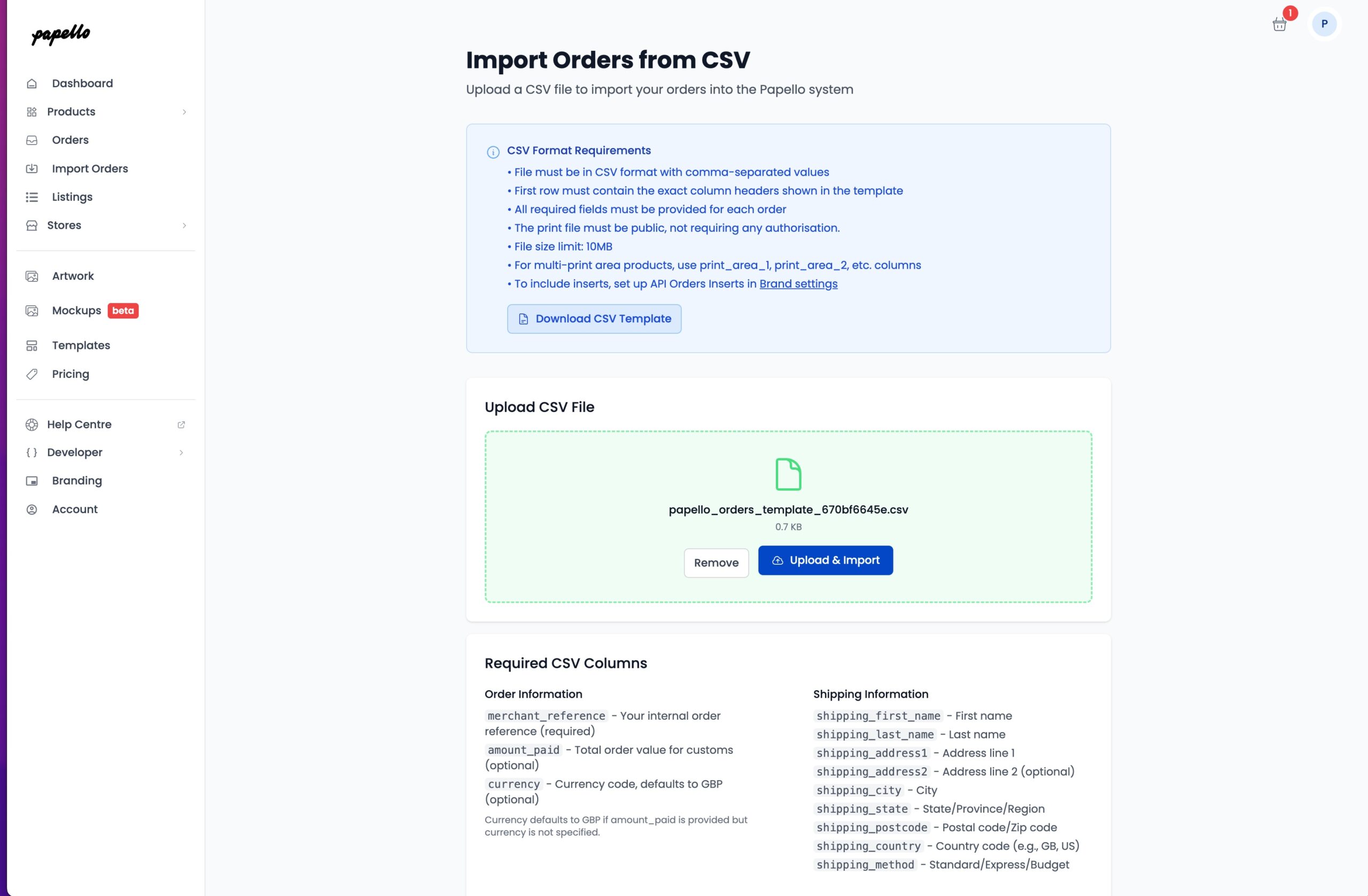
4. Click – “Upload and Import” to import orders into the Papello Dashboard
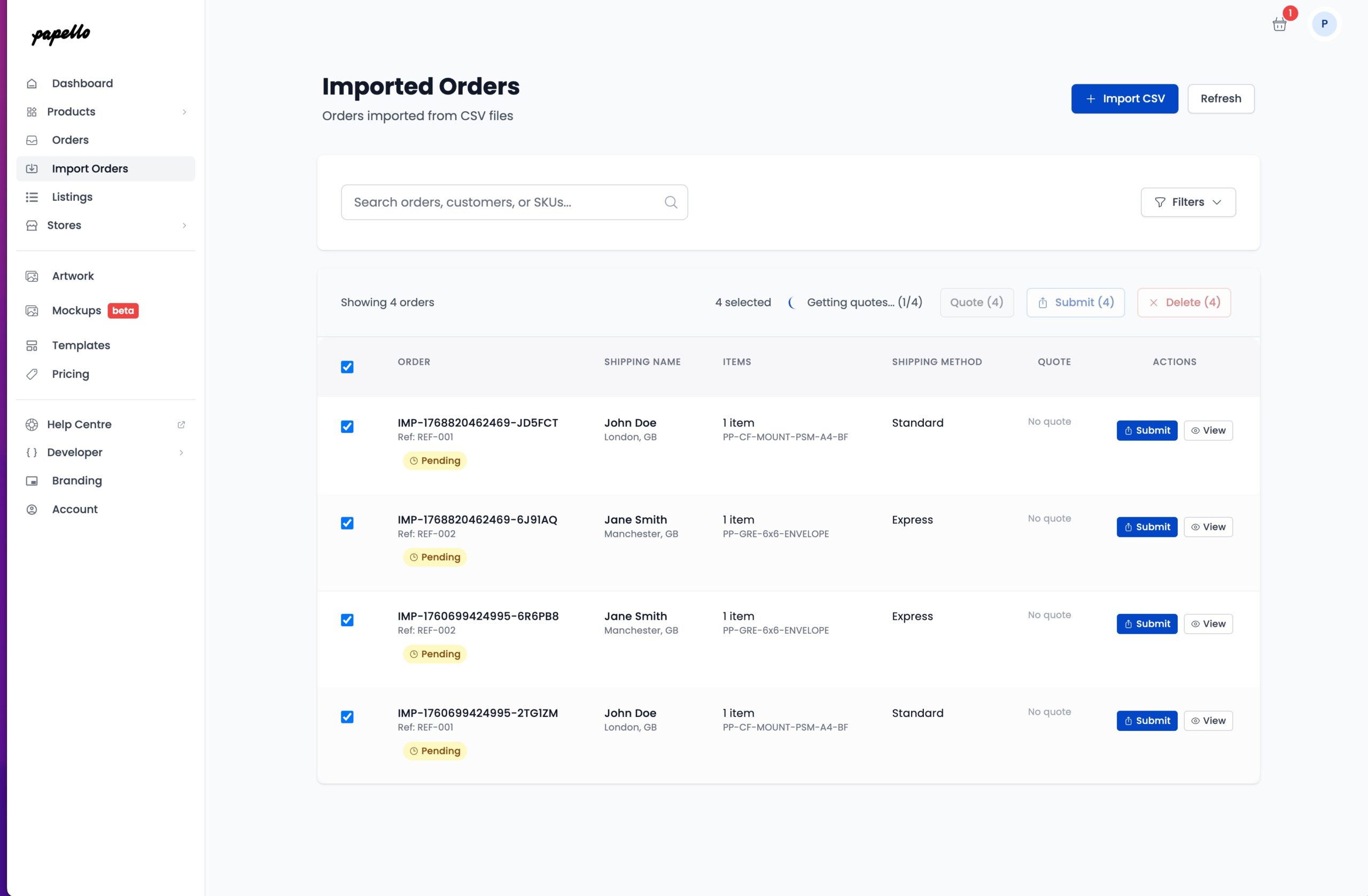
Once imported you can fetch Quotes for each order – this is the total cost of the order that will be charged to your saved payment method.
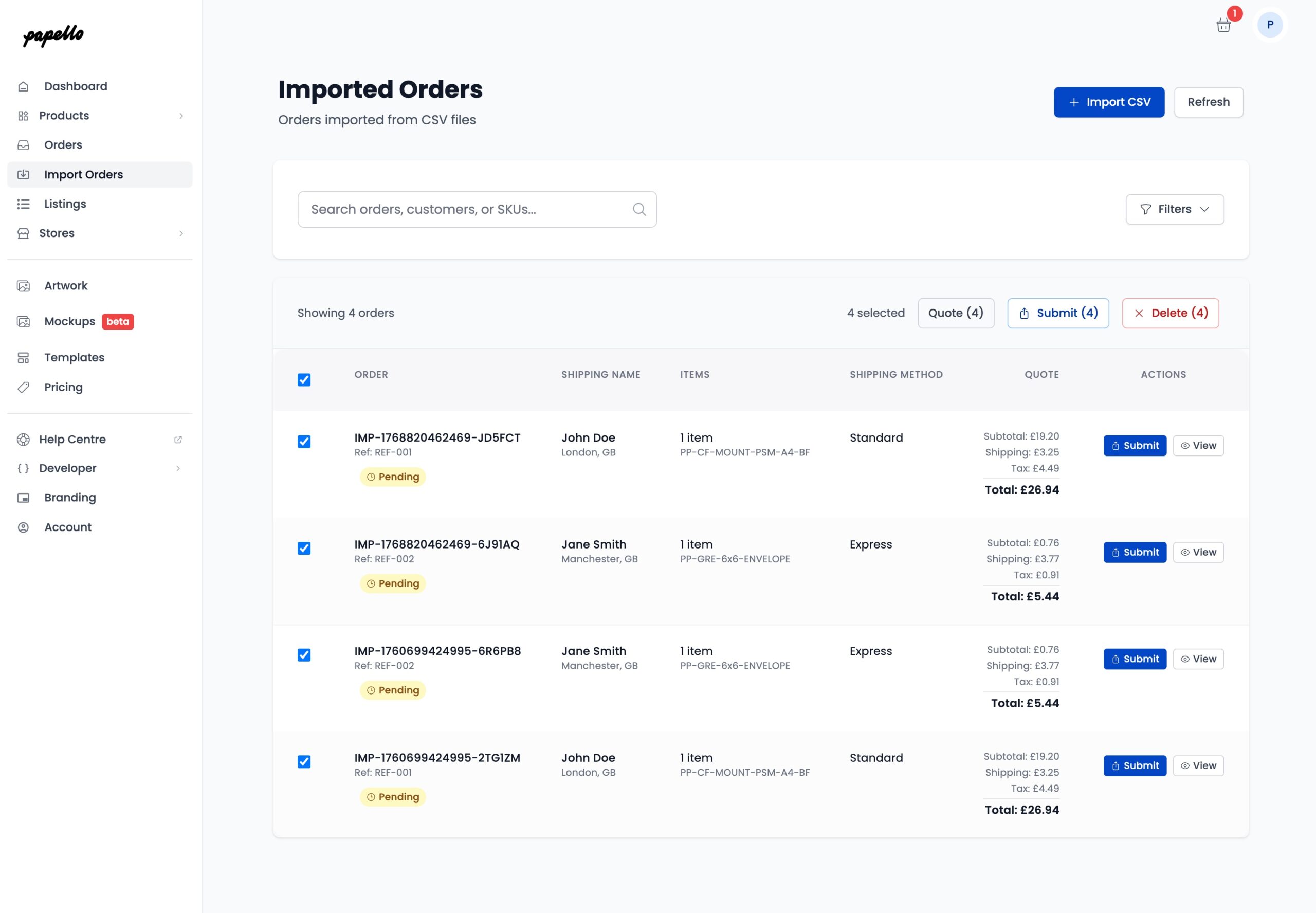
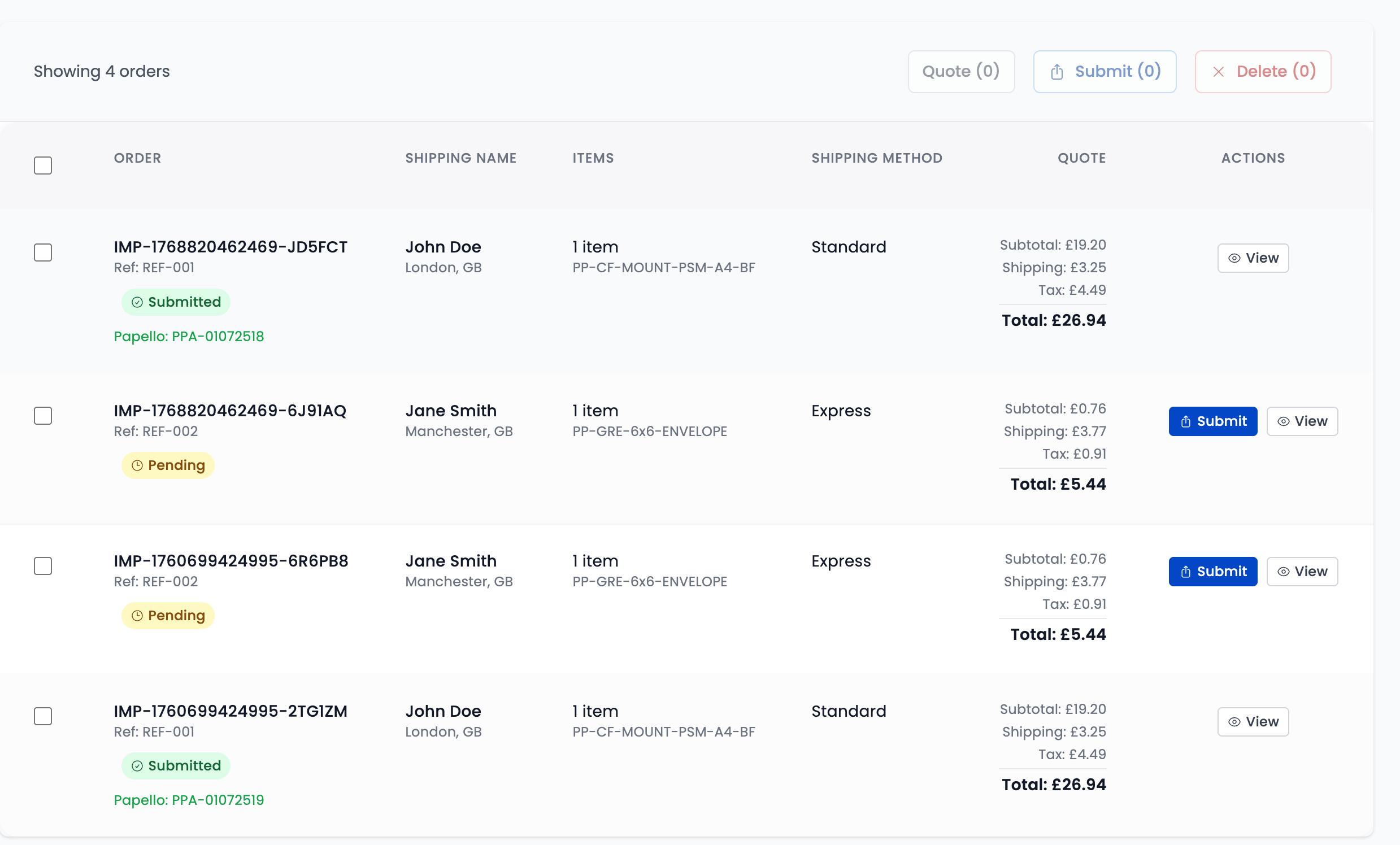
Once you’re ready, click “Submit” and your order will be submitted for fulfilment!
You will see the status of the order change from “Pending” to “Submitted” if the order was submitted successfully.
Common Errors
Common when importing orders from a CSV include:
| Issue | Solution |
|---|---|
| print_ready_file image address is not public | Ensure your image address is full and public. The URL should end with the file type (i.e .jpg, .png etc) |
| shipping_country is not set to the country code (i.e “United Kingdom”) | The shipping_country field should be the 2 digital country ICO code (i.e “GB”) |
| Missing print_ready_file image – Warning | You can upload your CSV with image URLs missing – you will need to add the images from your Artwork Library but Viewing the order and assigning artwork to each item |
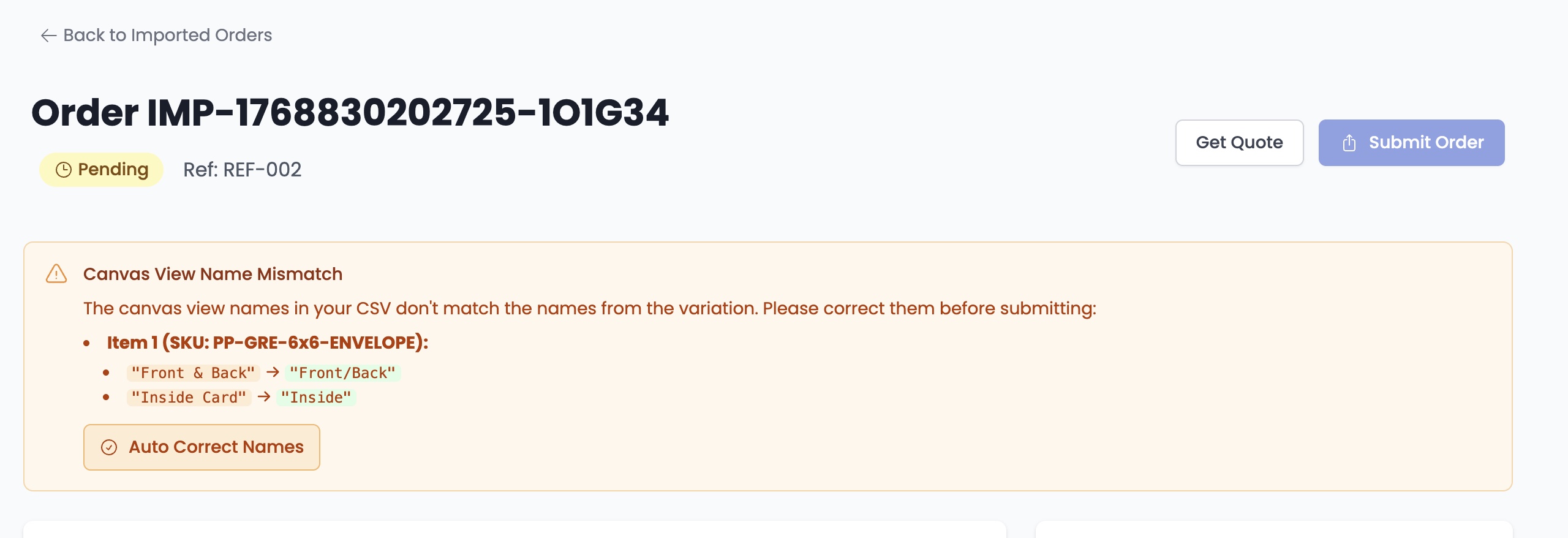
| Incorrect print area name. You must match the print_area_name to the name on Papello for your item. For example a greetings card may have 2 print area names “Front/Back” and “Inside” – If the name doesn’t match it will show an error. | Use the “”Auto Correct names” button to correctly update the print_area_names to the SKU. Alternately, update your CSV with the correct name and re-upload |
Once submitted – you can see your orders progression from the Orders page.
Required CSV Columns
Order Information
merchant_reference– Your internal order reference (required)amount_paid– Total order value for customs (optional)currency– Currency code, defaults to GBP (optional)
Currency defaults to GBP if amount_paid is provided but currency is not specified.
Shipping Information
shipping_first_name– First nameshipping_last_name– Last nameshipping_address1– Address line 1shipping_address2– Address line 2 (optional)shipping_city– Cityshipping_state– State/Province/Regionshipping_postcode– Postal code/Zip codeshipping_country– Country code (e.g., GB, US)shipping_method– Standard/Express/Budget
Item Information
item_sku– Papello product SKUitem_quantity– Quantity to order
Product names and prices are fetched from SKU when quotes are generated.
Artwork Files
print_ready_file– Single print area file URL (required for single print area products)print_area_1– First print area URL (required for multi-print area products)print_area_1_name– First print area name (required when using print_area_1)print_area_2– Second print area URL (optional)print_area_2_name– Second print area name (required when using print_area_2)print_area_3– Third print area URL (optional)print_area_3_name– Third print area name (required when using print_area_3)
Important: Print area names are required for order submission. Use either print_ready_file OR print_area_1+ columns, not both.