
Variable product listings allow you to sell a single product with multiple options – such as size, colour, frame type, or design, under one listing.
This is ideal for products like:
- Prints with different sizes
- Framed and unframed artwork
- Products available in multiple colours or finishes
Papello supports:
- Up to 2 variation types
- A maximum of 70 total variations per listing
👉 For instructions on creating single product listings, see: How to create a Single Product listing on Papello
Step 1: Choose a Variation Product
From the Listings page, click Create Listing.
At the top of Step 1, use the toggle to switch from Single to Variation Product.
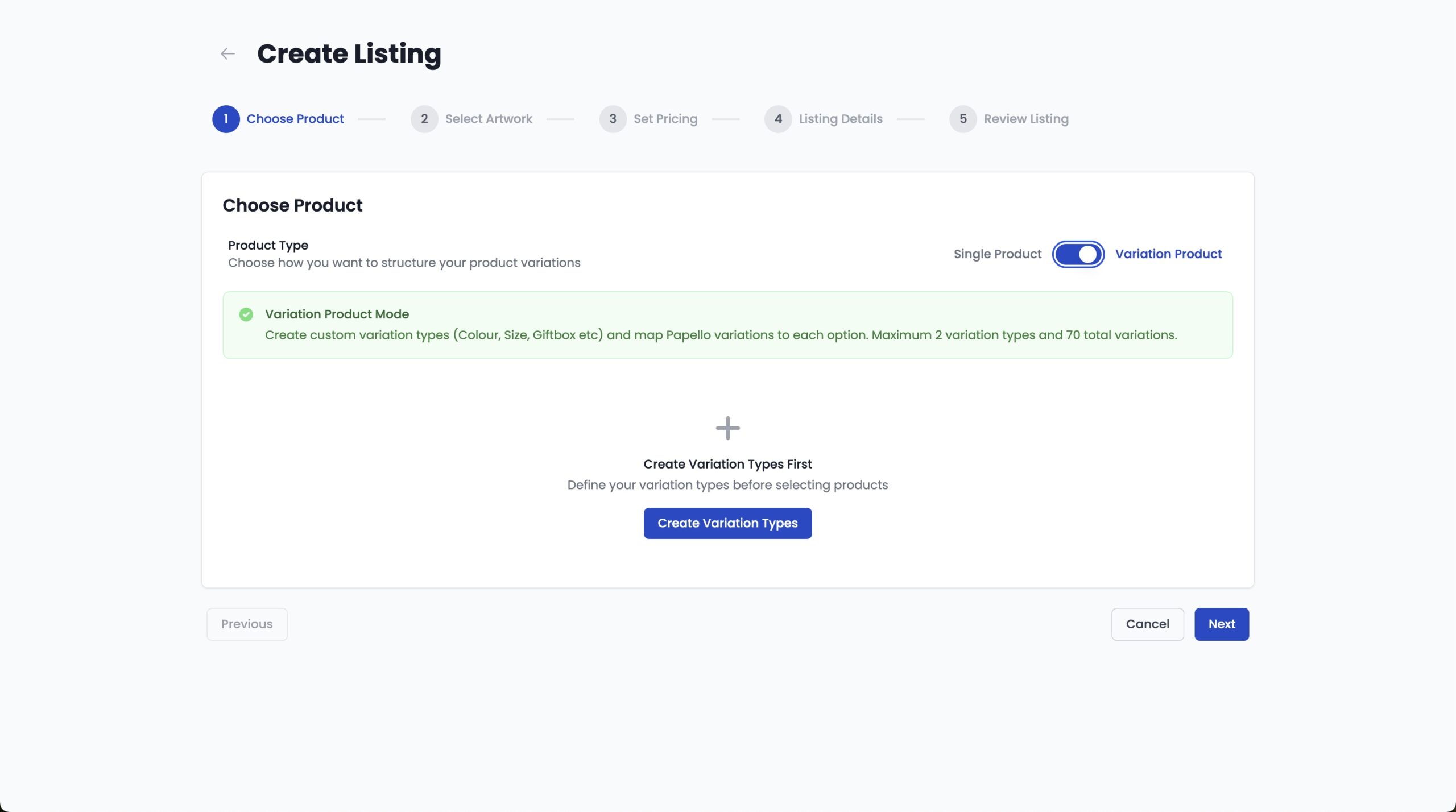
Create Your Variation Types
Variation Types define the options your customers will choose from (for example, Size or Colour).
Common examples:
- Colour (White, Black, Blue)
- Size (A4, A3, A2)
- Frame Option (Unframed, Black Frame, White Frame)
In this example, we’ll create a listing with:
- Variation Type 1: Frame Option
- Variation Type 2: Size
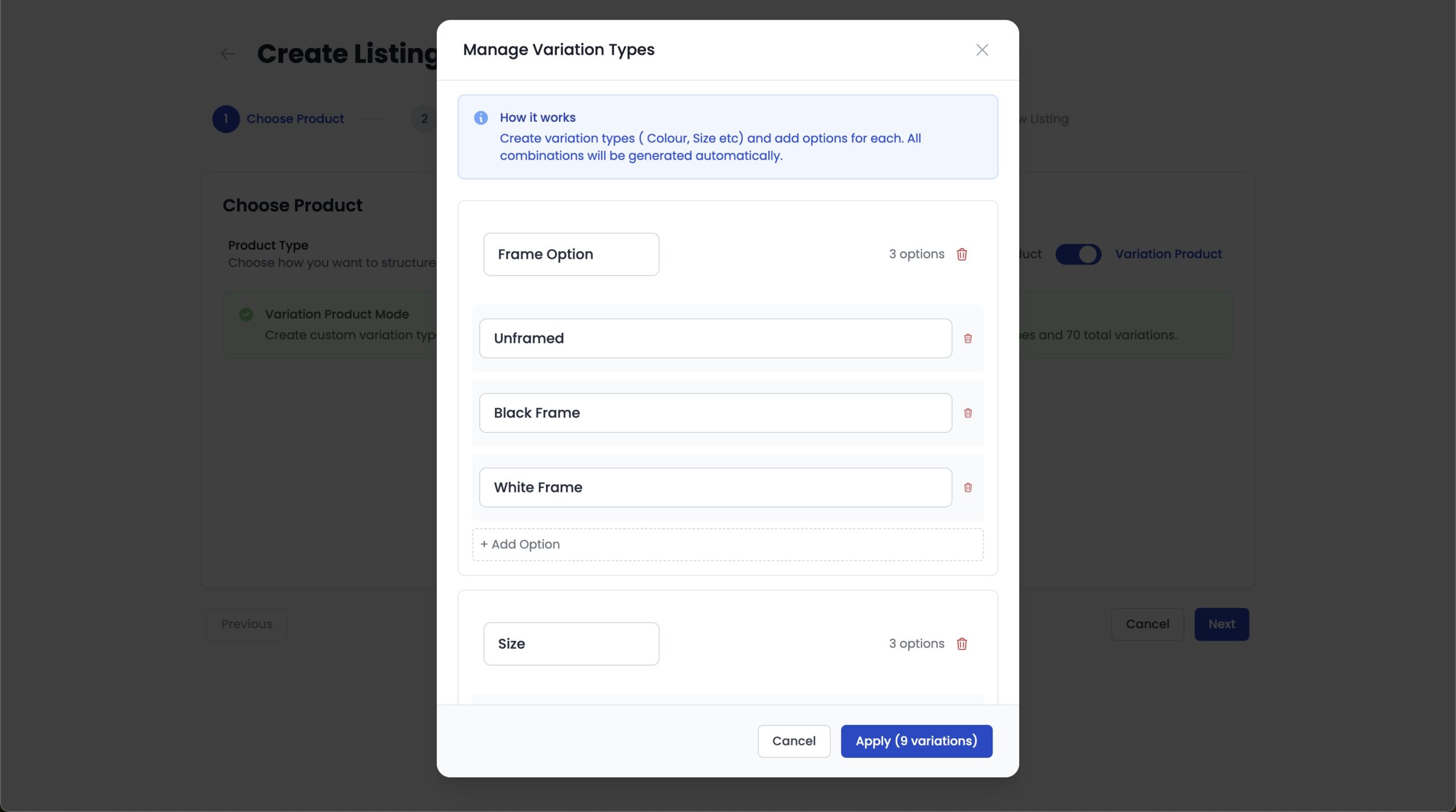
Add Variation Options
Now add options to each variation type:
Frame Option
- Unframed
- Black Frame
- White Frame
Size
- A4 (Small)
- A3 (Medium)
- A2 (Large)
From these options, Papello will automatically generate 9 variations.
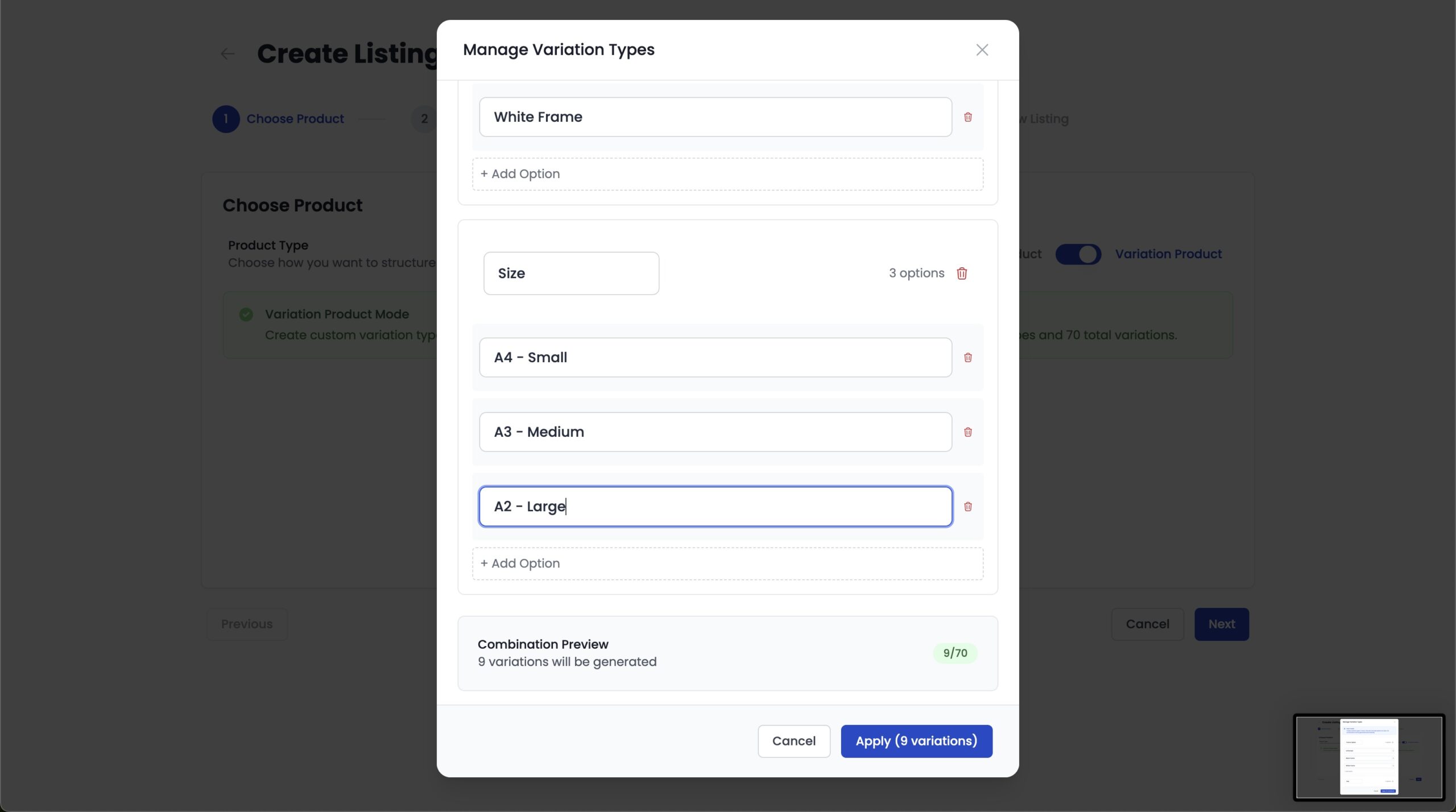
Review Generated Variations
Papello will now create all possible combinations, for example:
- Unframed – A4, A3, A2
- Black Frame – A4, A3, A2
- White Frame – A4, A3, A2
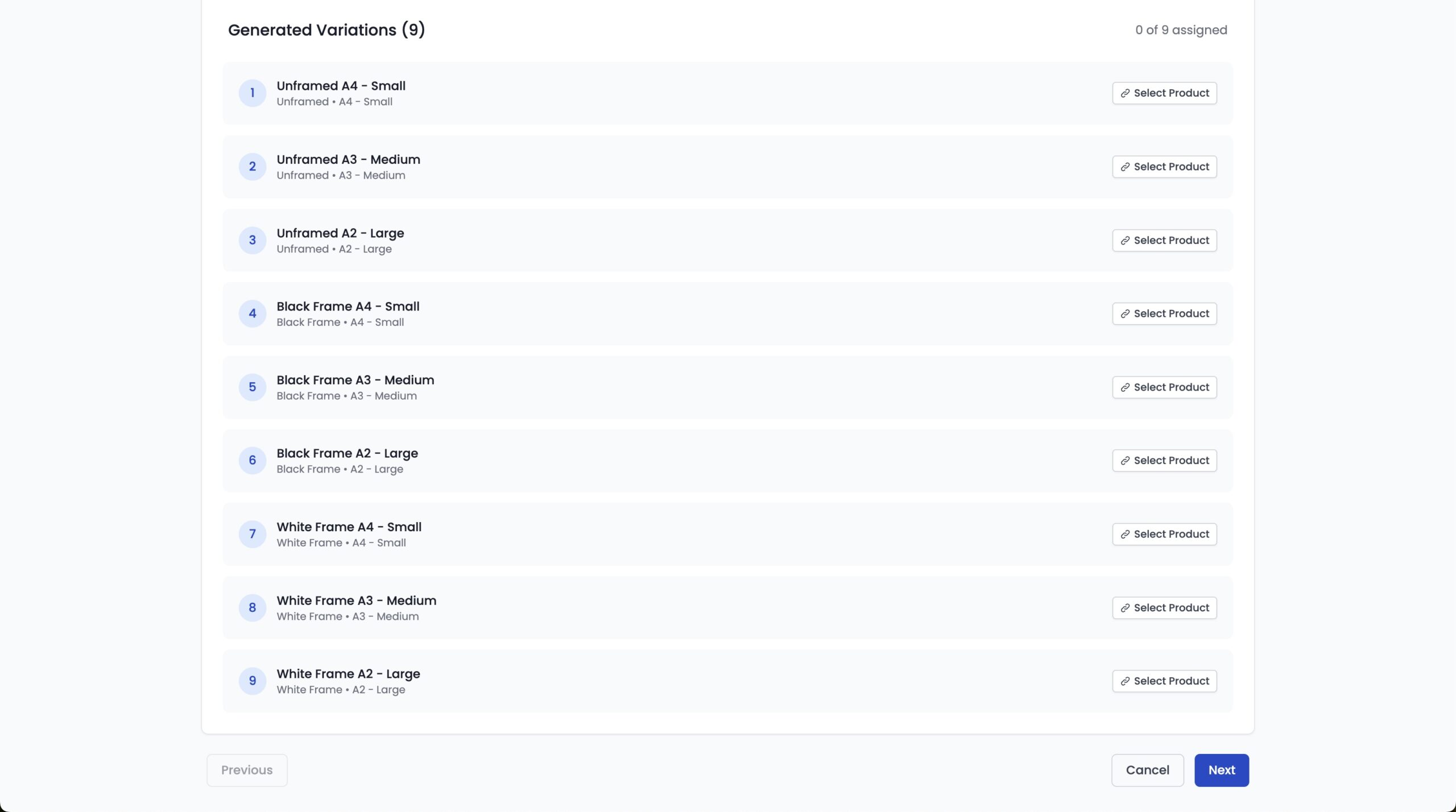
Each variation represents a sellable product option.
Assign a Papello Product to Each Variation
Each variation must be mapped to the correct Papello product.
Click Select Product next to a variation to open the product selector.
You can search or filter the catalogue to find the correct product for that option.
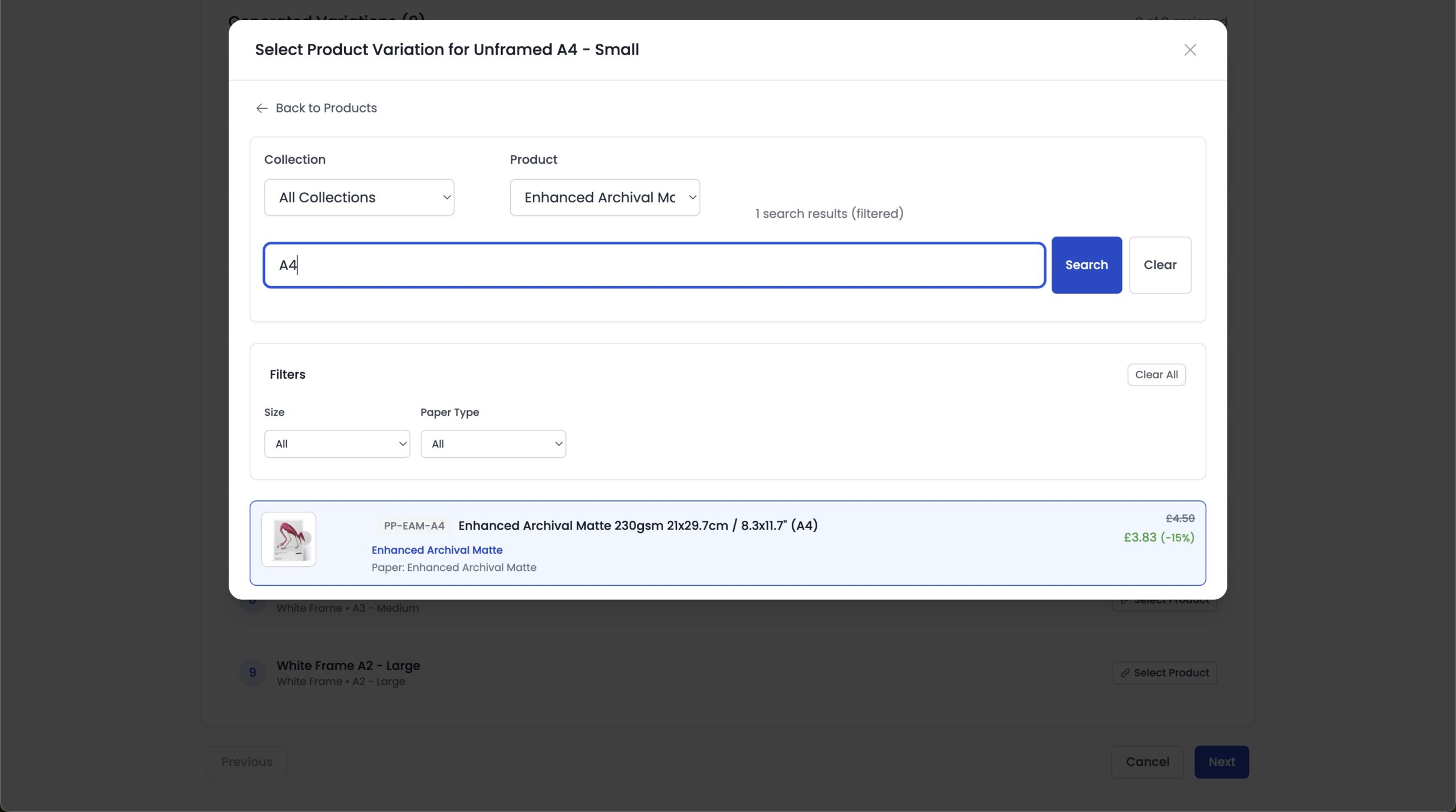
Repeat this step until all variations have a product assigned.
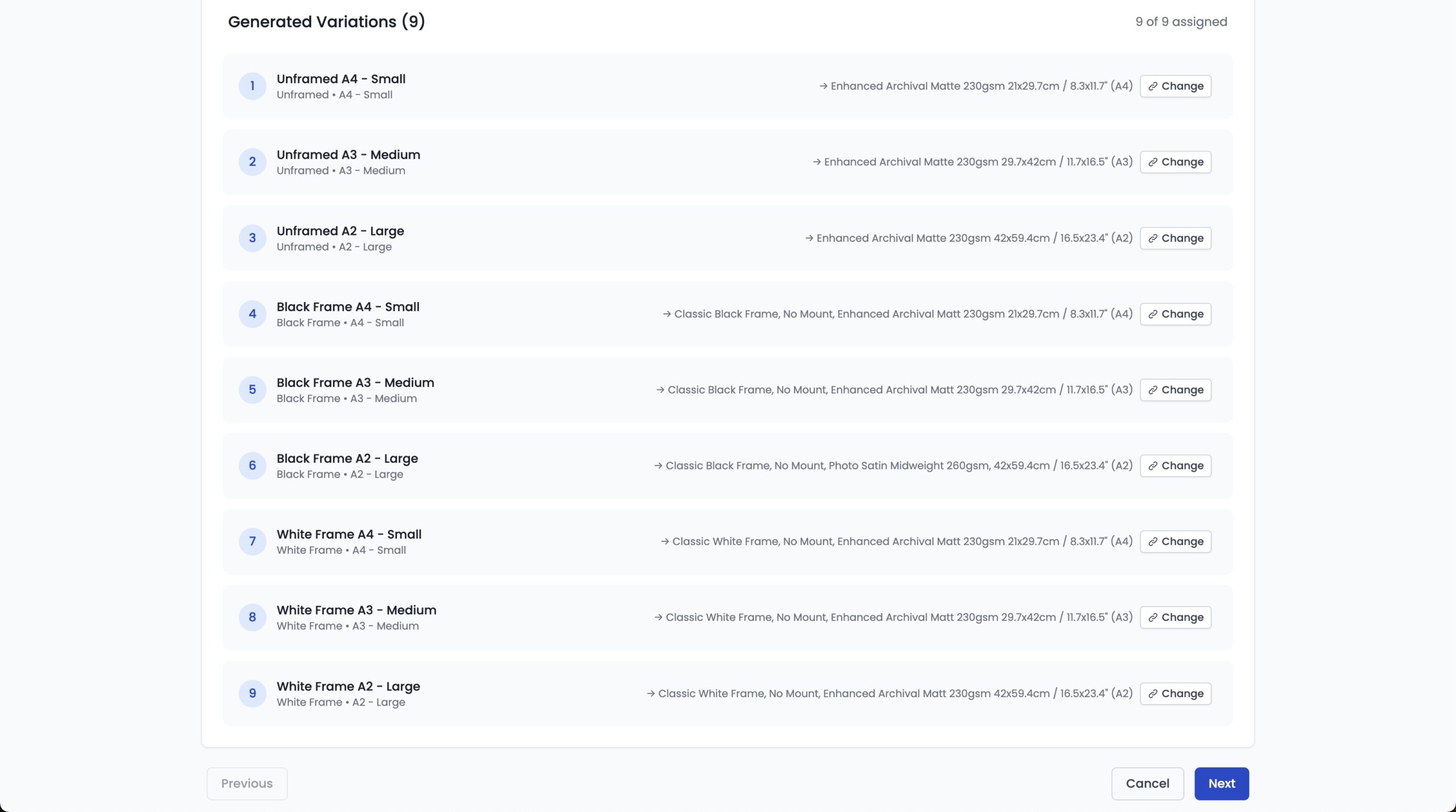
Once complete, click Next to move to Step 2 – Artwork Selection.
Step 2: Assign Artwork to Variations
Artwork must be assigned to every variation.
You can:
- Assign artwork individually
- Bulk assign artwork to multiple variations at once by selecting them and clicking Assign Artwork
If your product includes different sizes, ensure the artwork is suitable for each size.
The Artwork Checker will warn you if:
- Artwork resolution is too low
- Cropping may occur during production
If needed, upload or replace artwork for specific variations.
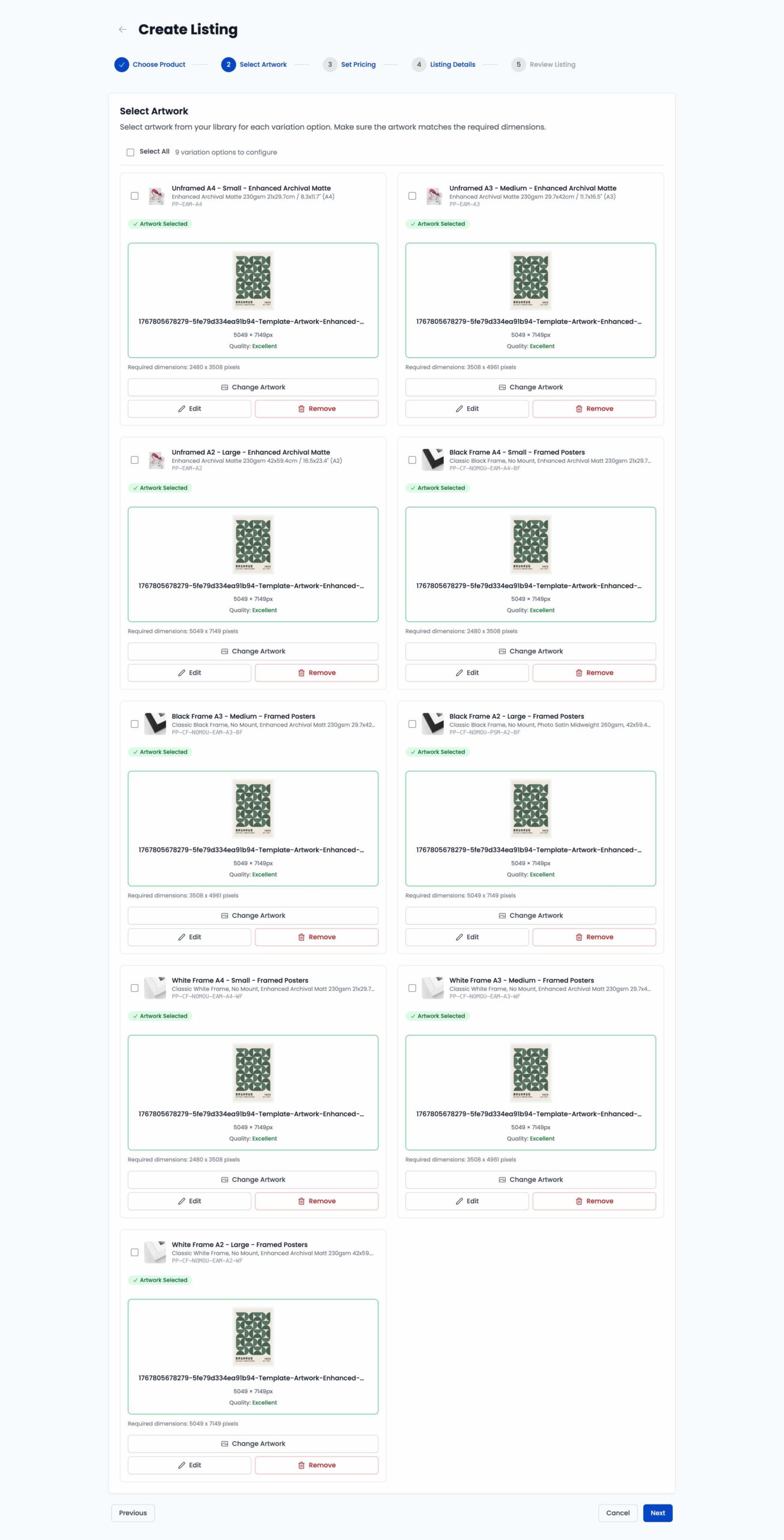
When you’re happy, click Next to continue to Step 3 – Pricing.
Step 3: Set Pricing for Each Variation
Set the Retail Price for each variation.
You can:
- Use Bulk Edit to apply pricing to all variations
- Enter prices individually per variation
Profit and margin calculations will update automatically as prices change.
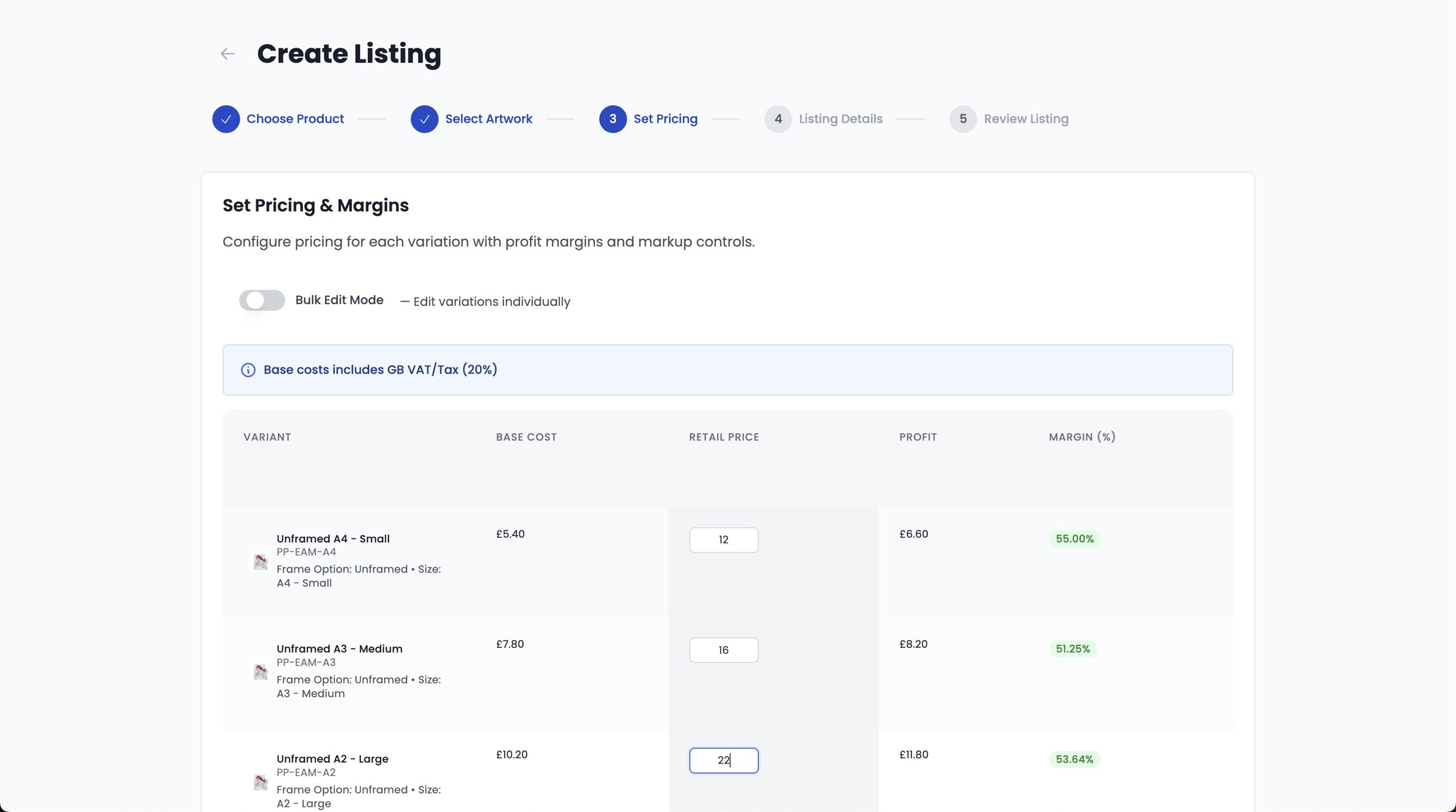
When finished, click Next.
Step 4: Add Listing Details
This step is the same as for single listings.
Add:
- Title
- Description
- Tags
- Listing images
Mockups will be generated for each variation (where available), giving you multiple listing images automatically.
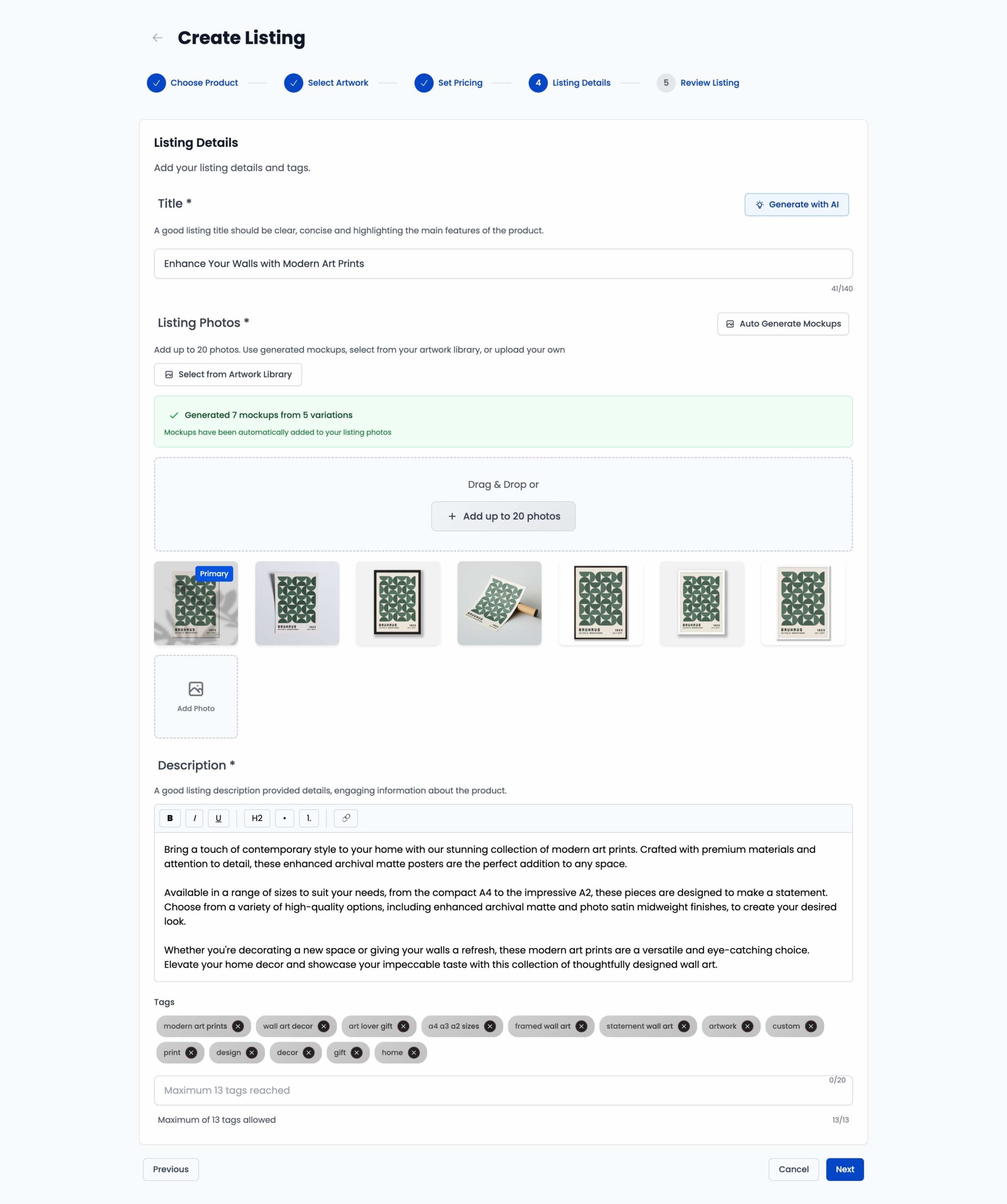
You can also:
- Use AI tools to generate titles, descriptions, tags, and image alt text
- Upload your own images
Tip: Always review and edit AI-generated content before publishing.
When ready, click Next.
Step 5: Review and Create Listing
Review all listing details carefully.
Once everything looks correct, click Create Listing.
Finished 🎉
You’ve successfully created a Papello Variable Product Listing.
You can now publish your listing to any connected marketplace store and take advantage of full automated fulfilment.
You can now publish your listing to any connected marketplace store.
Learn how to publish your listing to: