
Papello automation allows orders from your connected stores to be automatically submitted, charged, printed, and shipped without manual input.
This article explains:
- How automation works across Etsy, WooCommerce
- How to enable automation for existing products
- How to set a processing delay before orders are charged and fulfilled
See Shopify automation article
What Is Automation?
When automation is enabled for a product:
- Orders are automatically sent to Papello when a customer purchases
- Your saved payment method is charged
- The product is printed and shipped directly to your customer
- No manual order creation is required
Automation by Platform
Etsy and WooCommerce
For Etsy and WooCommerce:
- Automation can be enabled on existing products as well as products published from the Papello dashboard.
- You can link existing listings to Papello products and enable automation
- When the product sells, if automation is enabled – we process your order.
👉 Full step-by-step guide:
https://help.papello.com/article/how-to-fully-automate-your-etsy-store-with-papello/
(The process is the same for WooCommerce.)
Shopify (Important Difference)
For Shopify:
- Automation is only set up when the product is published from Papello
- Products created directly in Shopify cannot be automated
- Automation rules are created automatically during publishing
If a Shopify product was not published from Papello, it cannot be automated.
Where to Check Automation Status
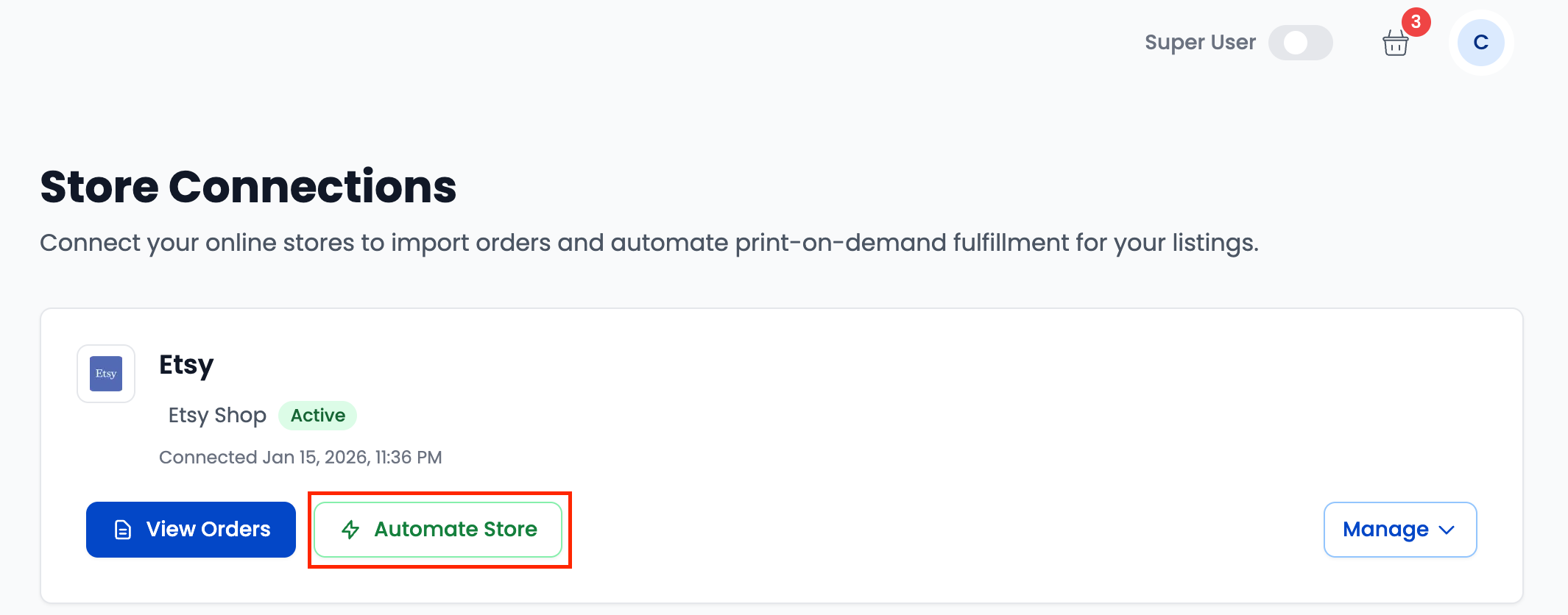
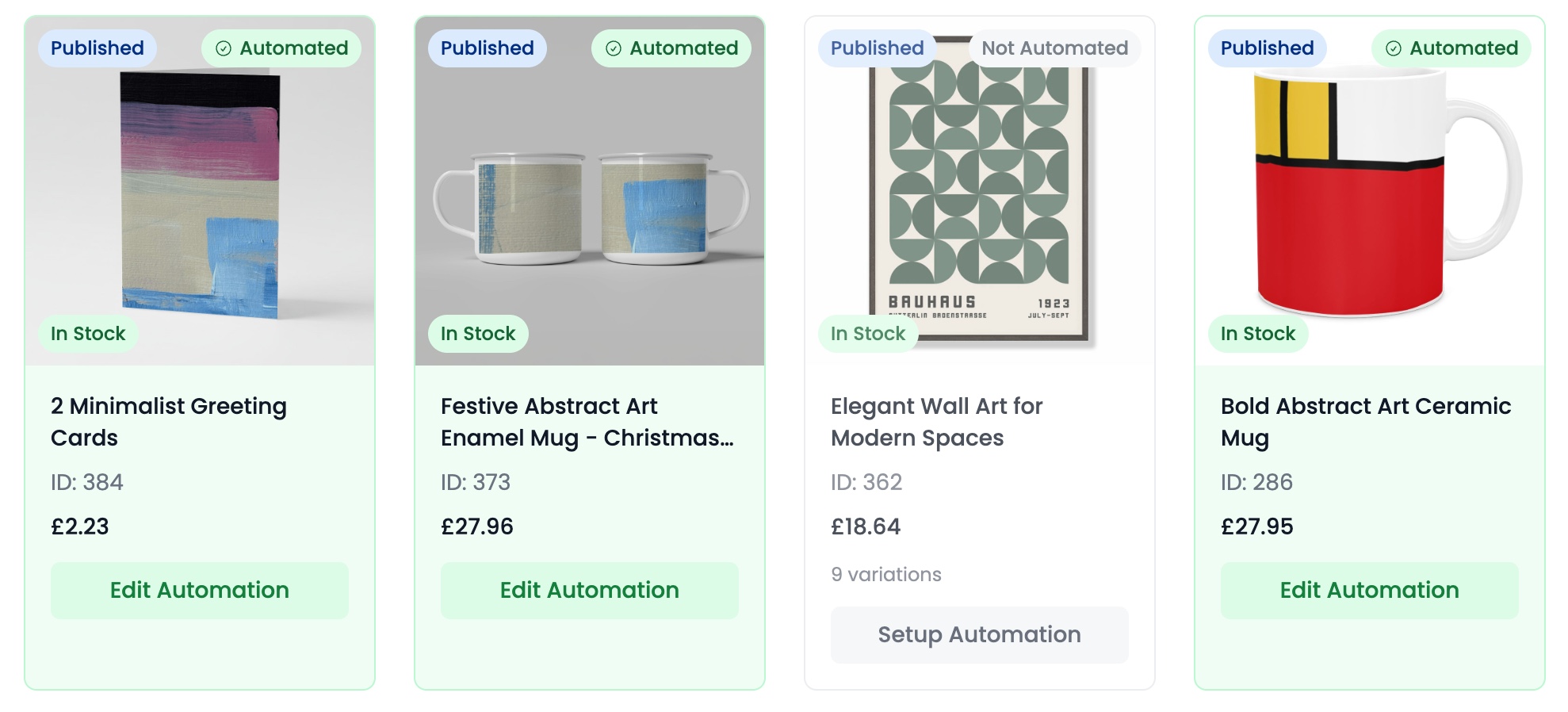
You can check automation is enabled from the stores page:
Find your store in the list and click “Automate Store“
This page shows all of your marketplace listings and whether they have automation rules setup.
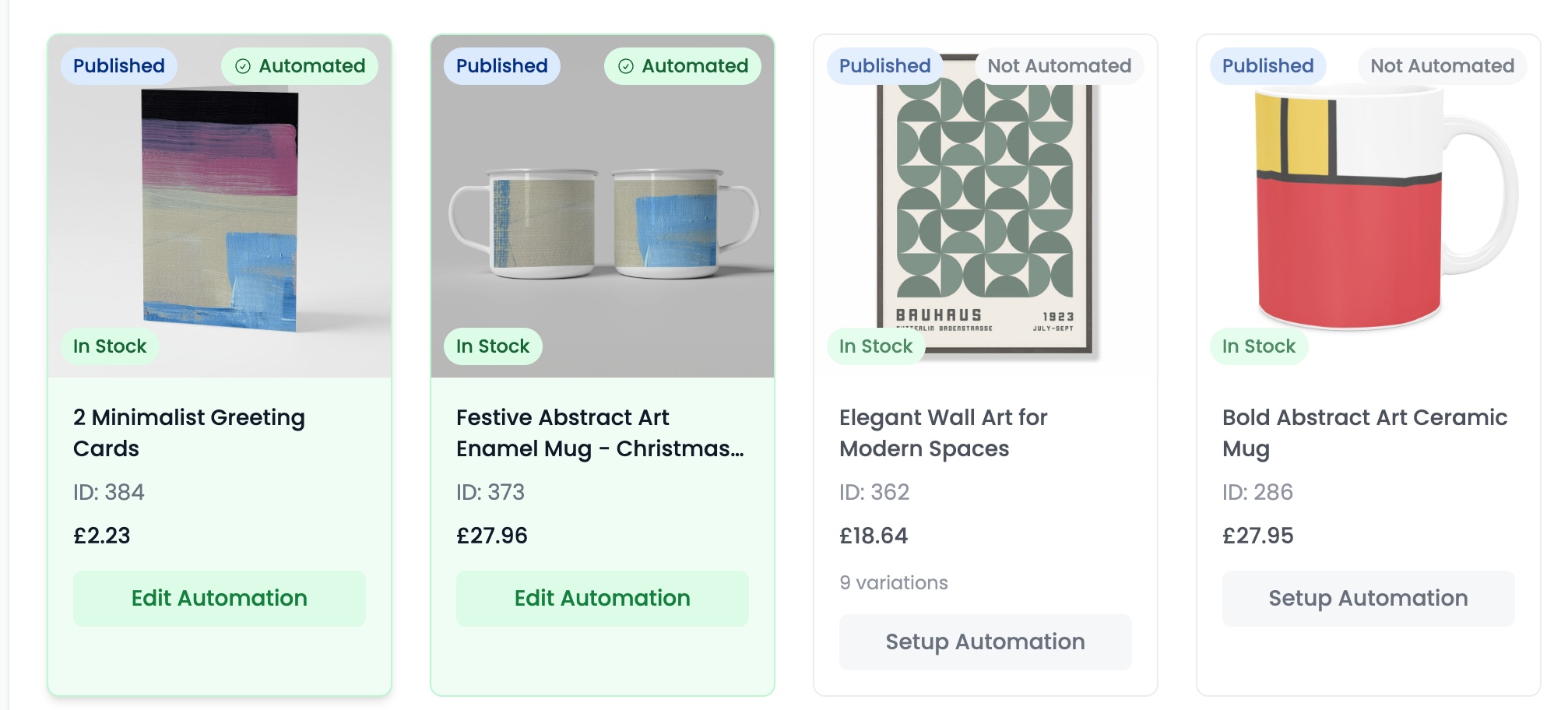
If automation has been disabled, orders will not be processed automatically.
Setting up automation
Let’s set up the automation for the existing mug item. Start by clicking “Setup Automation” which takes us to this page:
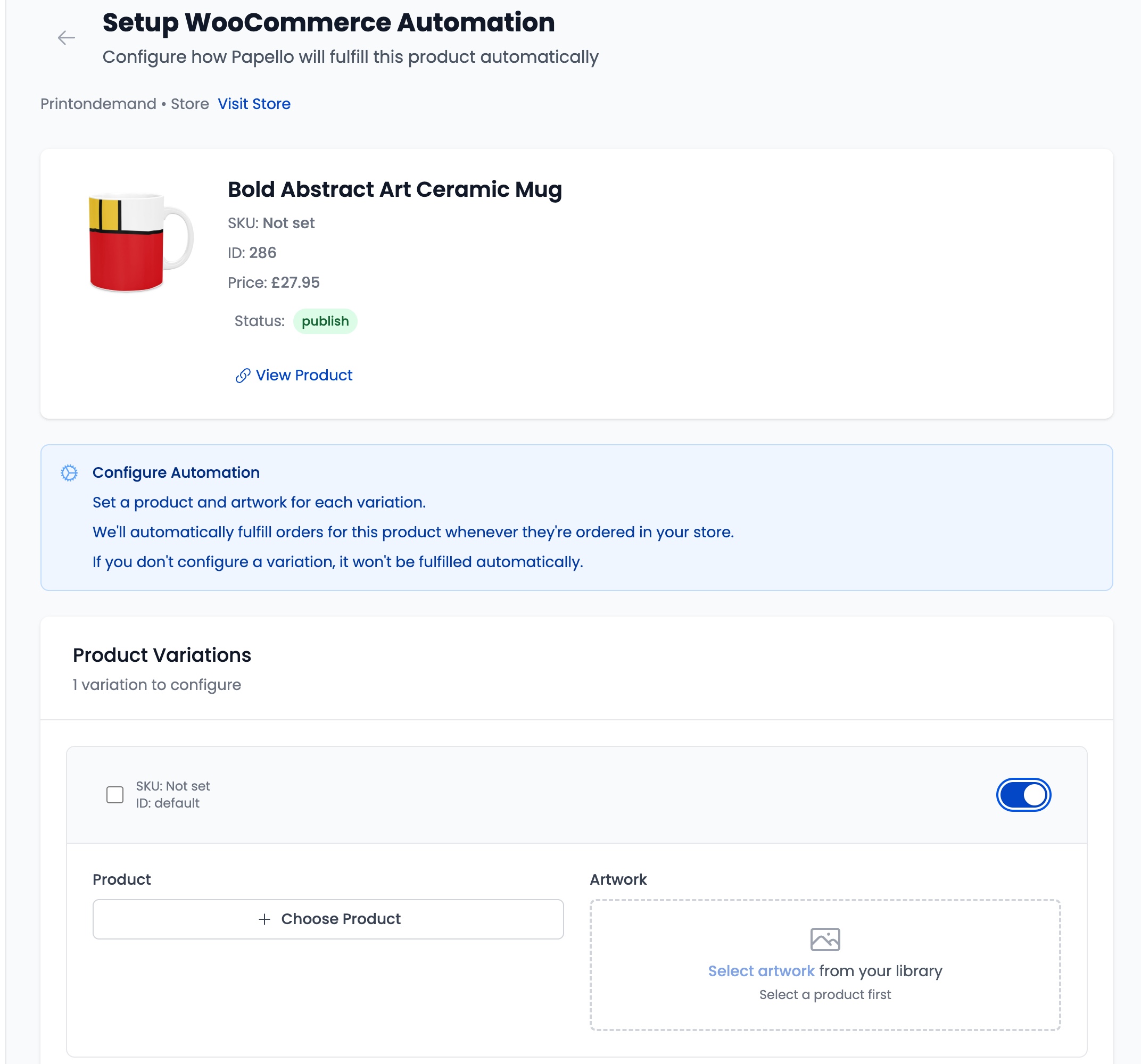
Next, we need to find the matching product – this listing is for an 11oz White Mug – Click “Choose Product” and find it from the catalogue of products.
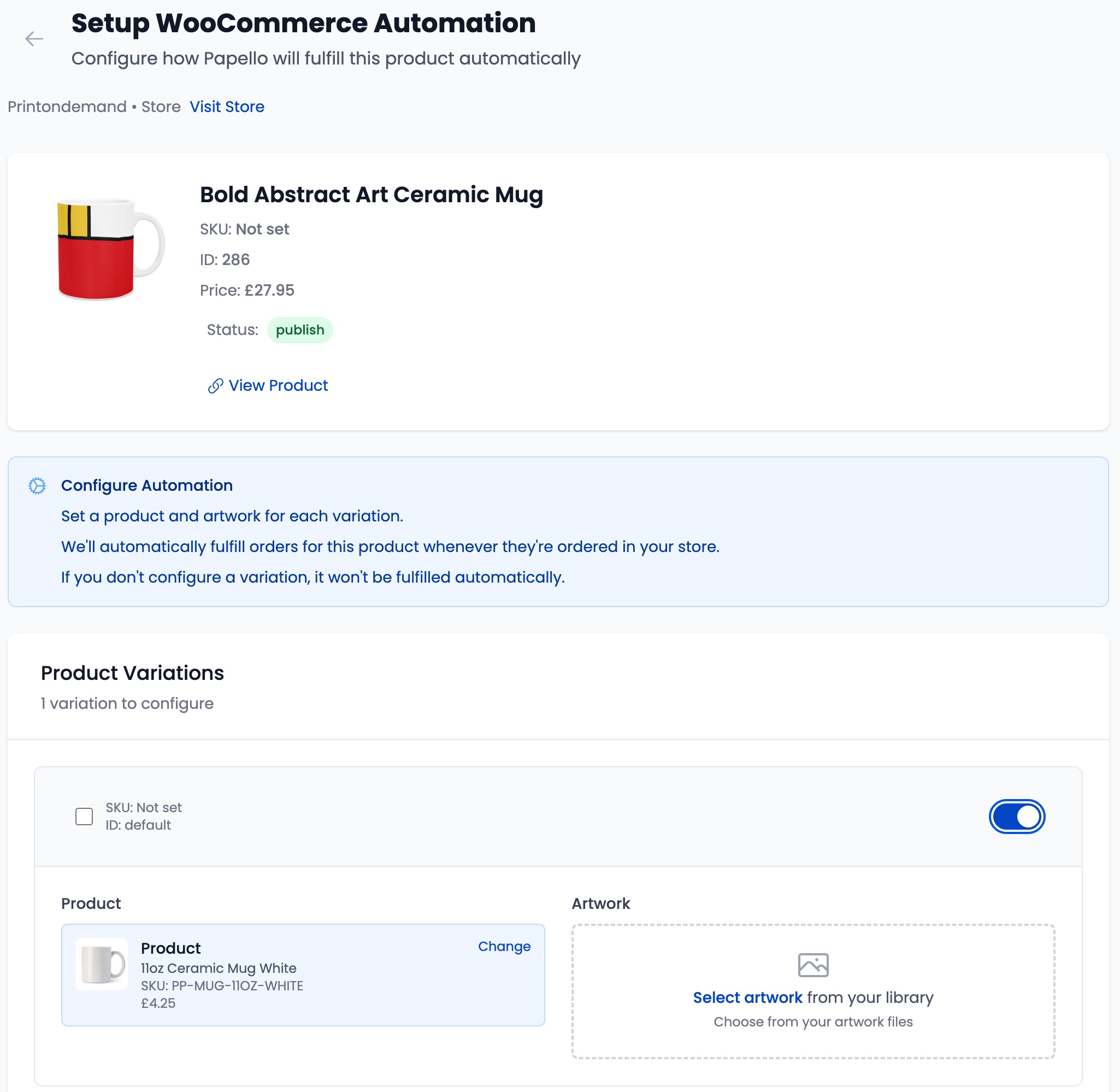
Next, let’s add the artwork. This is the actual file that will be printed onto the mug. It needs to be high quality and match the products’ artwork that your customer is expecting to be printed on the mug.
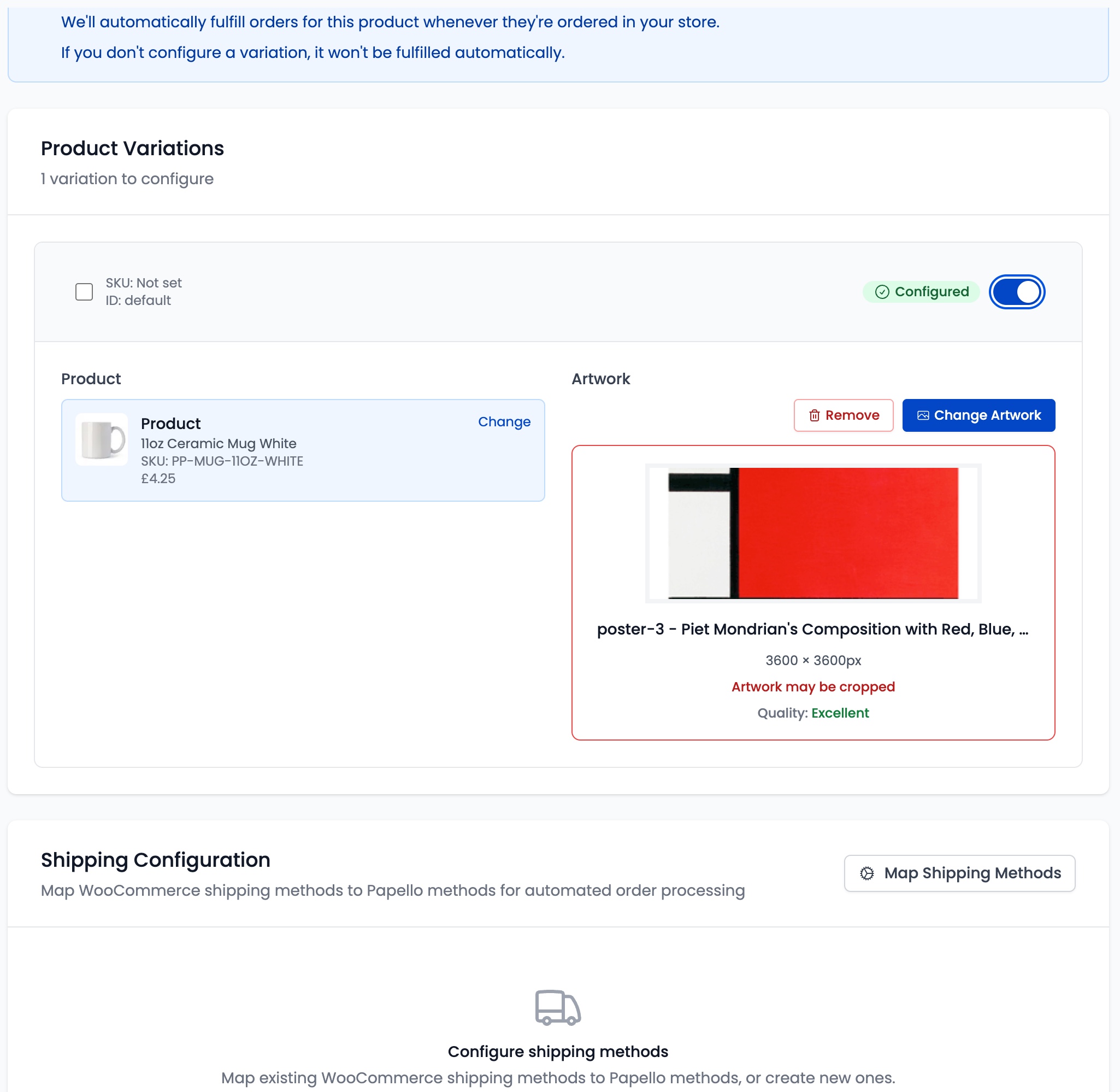
There’s a warning here on the artwork – It’s Excellent quality, however Artwork may be cropped – This is due to the aspect ratio not matching what’s expected. Learn about creating templates here.
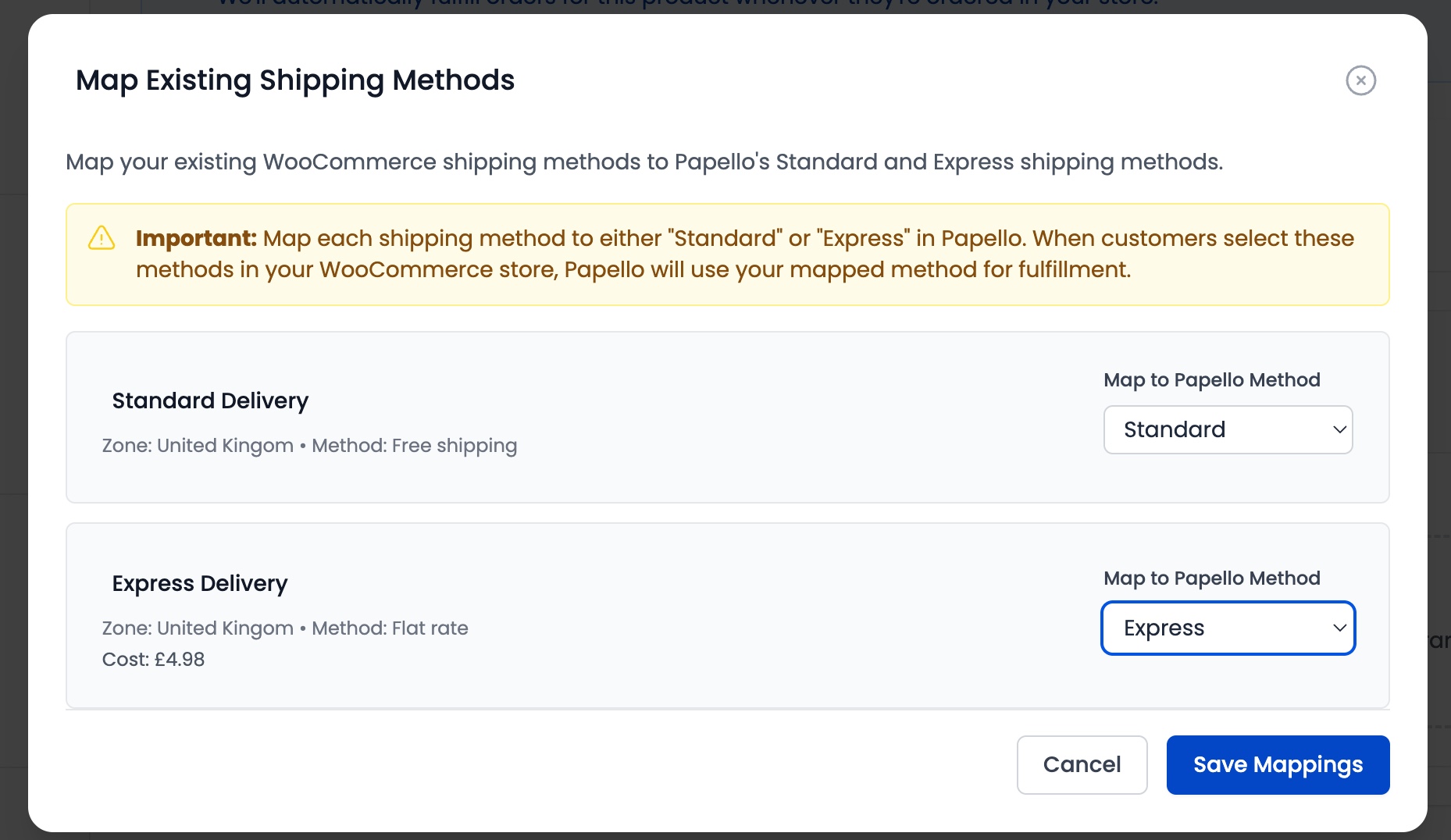
Next, we need to tell Papello which shipping method to use when your product sells. For Etsy you can create shipping profiles and publish them to tor store during this step. For WooCommerce you can match existing shipping methods by fetching them from your store.
WooCommerce example.
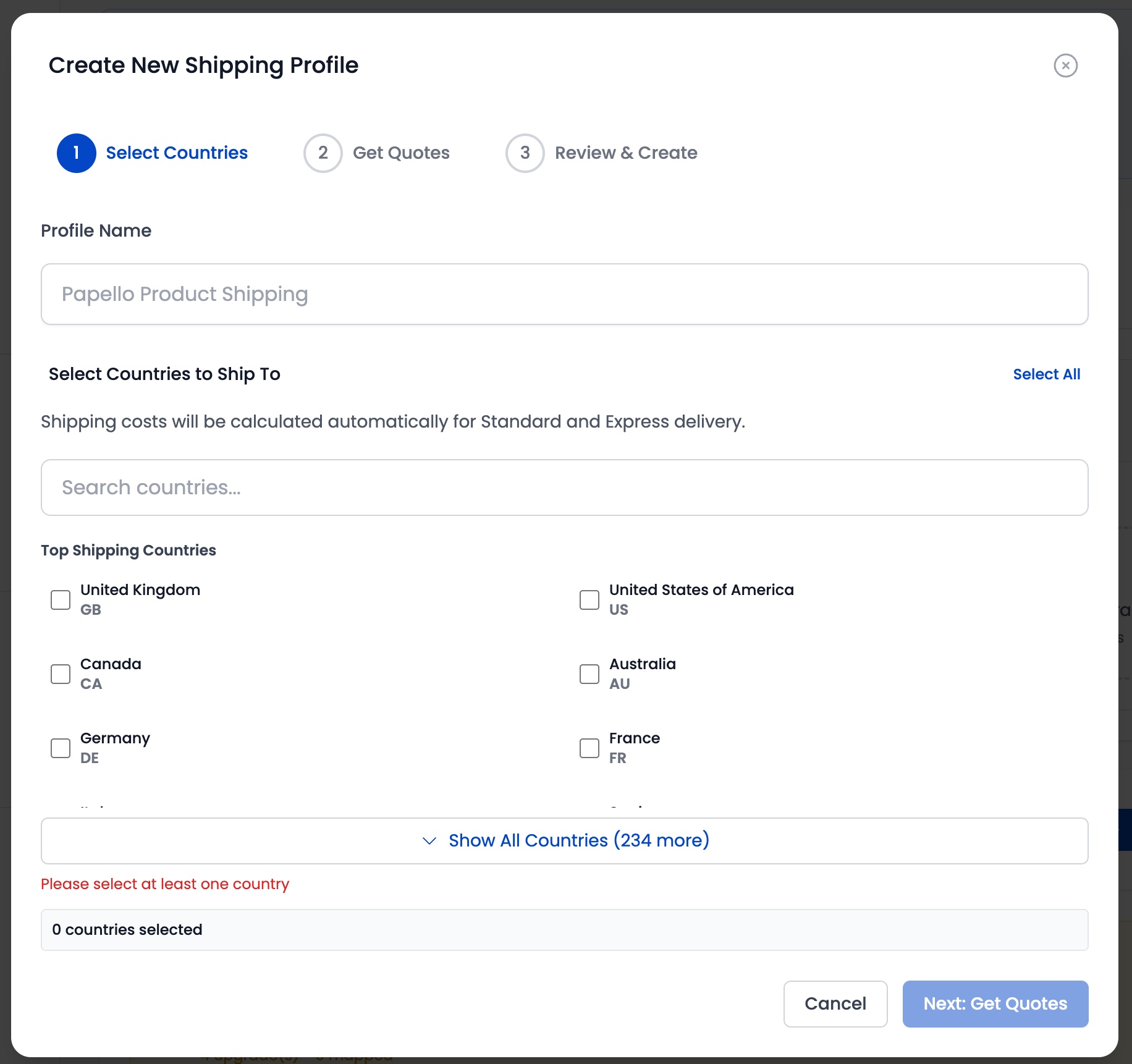
Etsy example, if you’re creating a new shipping profile:
We fetch actual costs for shipping to your selected countries and create a profile in your Etsy shop, to use, for this automation.
Next, click “Save Configuration“
The automation is set up! Next time this item sells Papello will automatically fulfil it.
Setting a Processing Delay (All Platforms)
Papello allows you to delay processing after an automated order is received.
This is useful if you want time to:
- Review addresses
- Make last-minute changes
- Cancel problematic orders
Available Processing Delays
You can choose one of the following options:
- Process immediately
- 1 hour delay
- 4 hours delay
- 24 hours delay
During the delay period:
- The order is not charged
- The order does not enter production
Where to Set the Delay
You can manage processing delays in your account preferences:
https://dash.papello.com/dashboard/account#preferences
Changes apply to all automated orders, across all platforms.
What Happens After the Delay
Once the delay expires:
- The order is charged
- The order enters production
- Printing and fulfilment begin automatically
If you need to cancel after this point, you must contact Papello support directly.
Cancellation is only possible if production has not yet started.
Summary
- Automation enables fully hands-free fulfilment
- Etsy & WooCommerce: automation can be added to existing products
- Shopify: products must be published from Papello
- Automation status can be checked on the shop automation pages
- Processing delays can be set globally in account preferences