
Once you’ve created your product listing in Papello, you can publish it directly to your Shopify store.
Publishing a listing to Shopify enables full automation. When a customer places an order:
- The order is automatically submitted to Papello
- Your saved payment method is charged
- The item is printed and shipped directly to your customer
- No manual fulfilment is required
Automation Overview
When a Papello listing is published to Shopify:
- Orders are automatically imported into Papello
- Fulfilment is handled end-to-end by Papello
- Order and fulfilment status updates are synced automatically
What Happens When You Publish Your First Shopify Listing
When you publish your first product from Papello to Shopify, a small amount of one-time setup is completed automatically in your Shopify store.
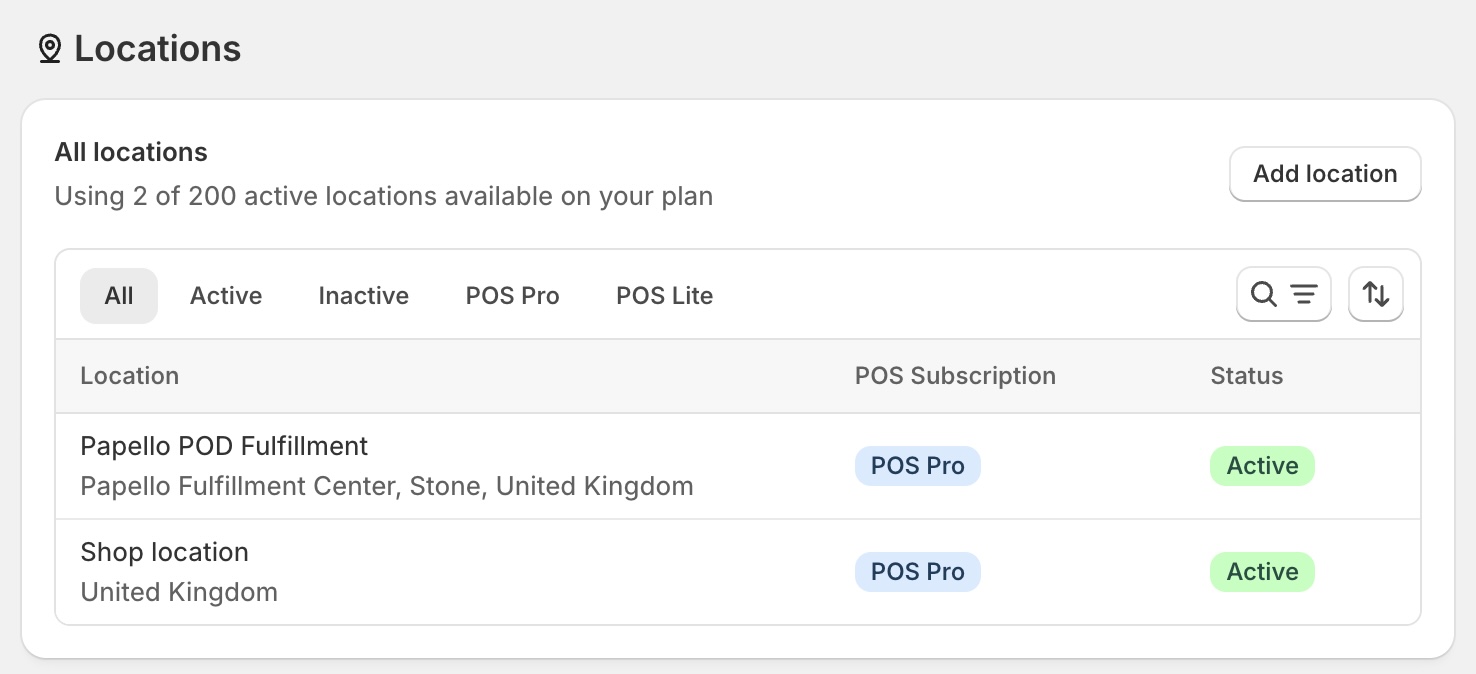
1. Papello Fulfilment Location Is Added
A new fulfilment location named “Papello POD Fulfilment” is added to your Shopify store.
You can view this in your Shopify admin under:
Settings → Locations
This location tells Shopify that products published from Papello will be fulfilled externally by Papello.
2. Papello App Shipping Profile Is Created
A Papello App Shipping Profile is added to your store.
You can find this in Shopify under:
Settings → Shipping and delivery
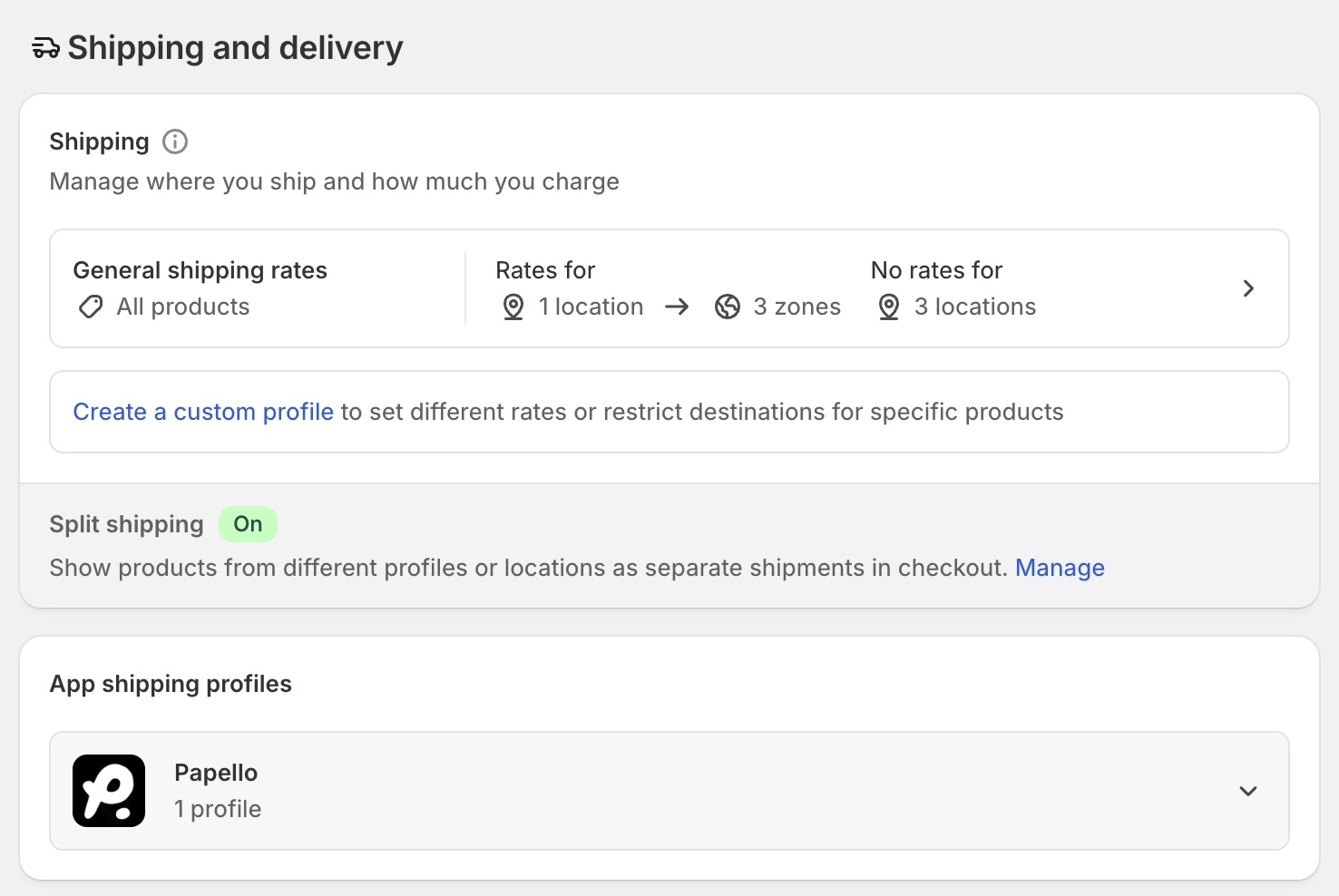
This shipping profile contains:
- Shipping prices for all supported countries
- Rates broken down by product weight
- The actual shipping costs you’ll be charged by Papello (excluding VAT / tax)
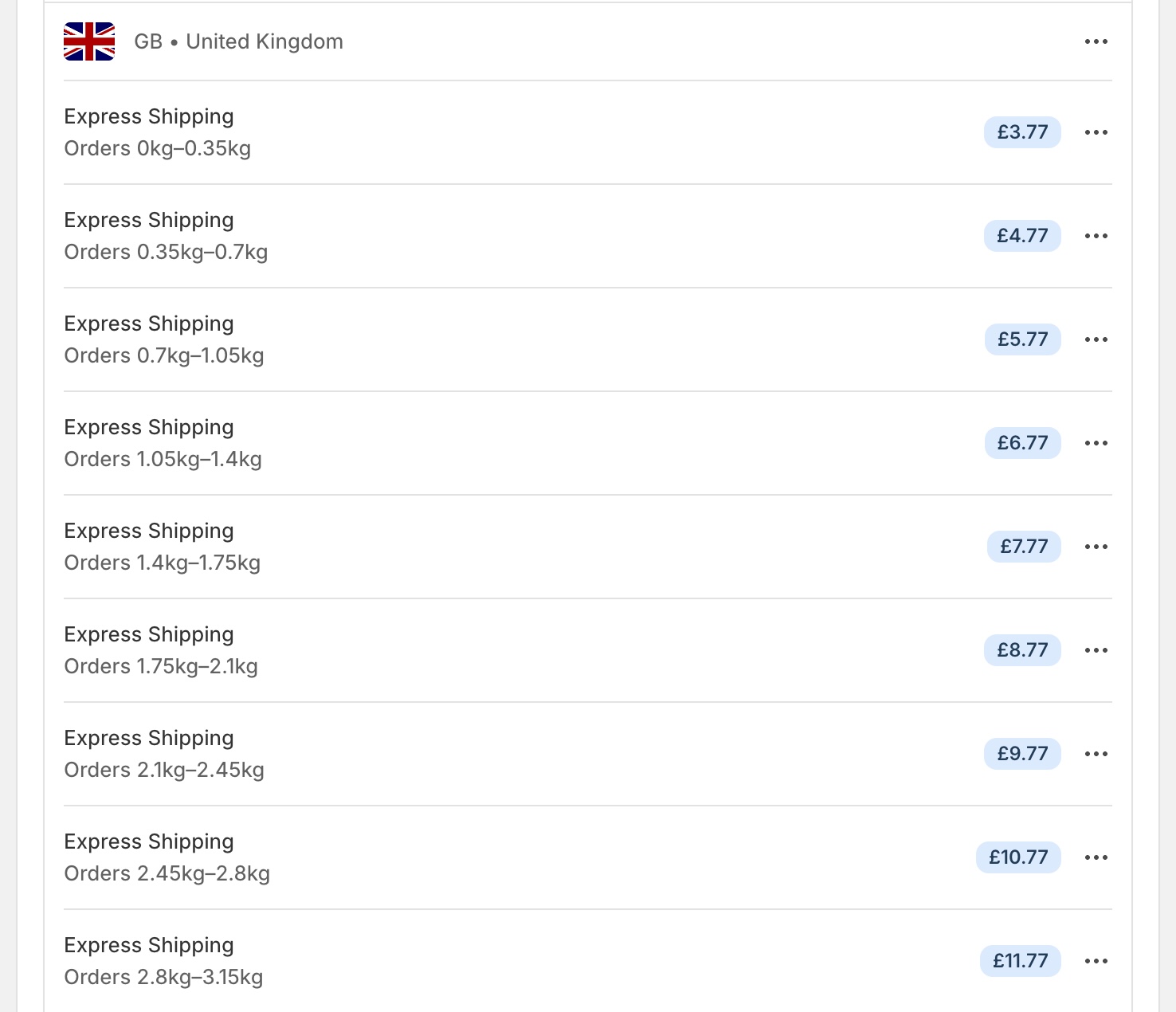
These rates are used automatically when customers check out.
Step 1: Choose a Listing to Publish
From the Listings page in the Papello dashboard, find the listing you want to publish.
Click Publish.
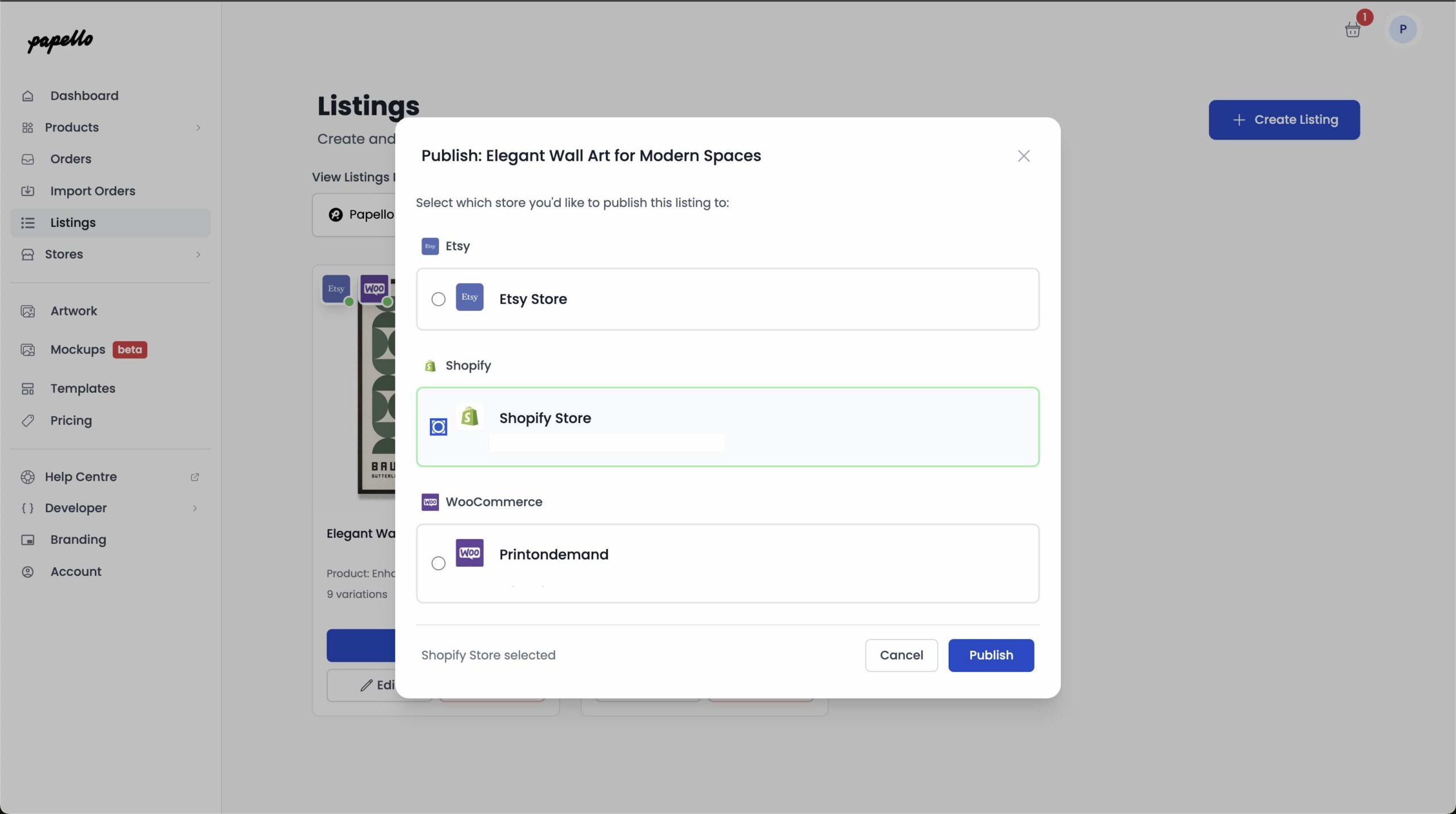
Step 2: Select Your Shopify Store
A pop-up window will appear showing all connected stores.
Select your Shopify store.
Step 3: Configure the Listing for Shopify
When publishing to Shopify:
- The product is created using your Papello listing details
- The fulfilment location is automatically set to Papello POD Fulfilment
- Shipping is assigned using the Papello App Shipping Profile
This ensures that when the product sells, Papello is automatically responsible for fulfilment.
Shipping & Markets (Important)
Shipping will only be available to markets (countries) that are enabled in your Shopify store.
If a country is not enabled as a market:
- Customers in that location will not be able to purchase the product
- Shipping will not appear at checkout
To enable additional countries, you’ll need to enable the relevant Shopify markets in your store settings.
You can find full instructions here:
https://help.shopify.com/en/manual/markets-new/manage
Step 4: Publish to Shopify
Click Publish.
Your listing will be added to the publishing queue and should appear in your Shopify store within a few minutes.
Finished 🎉
That’s it — your Papello listing is now live on Shopify.
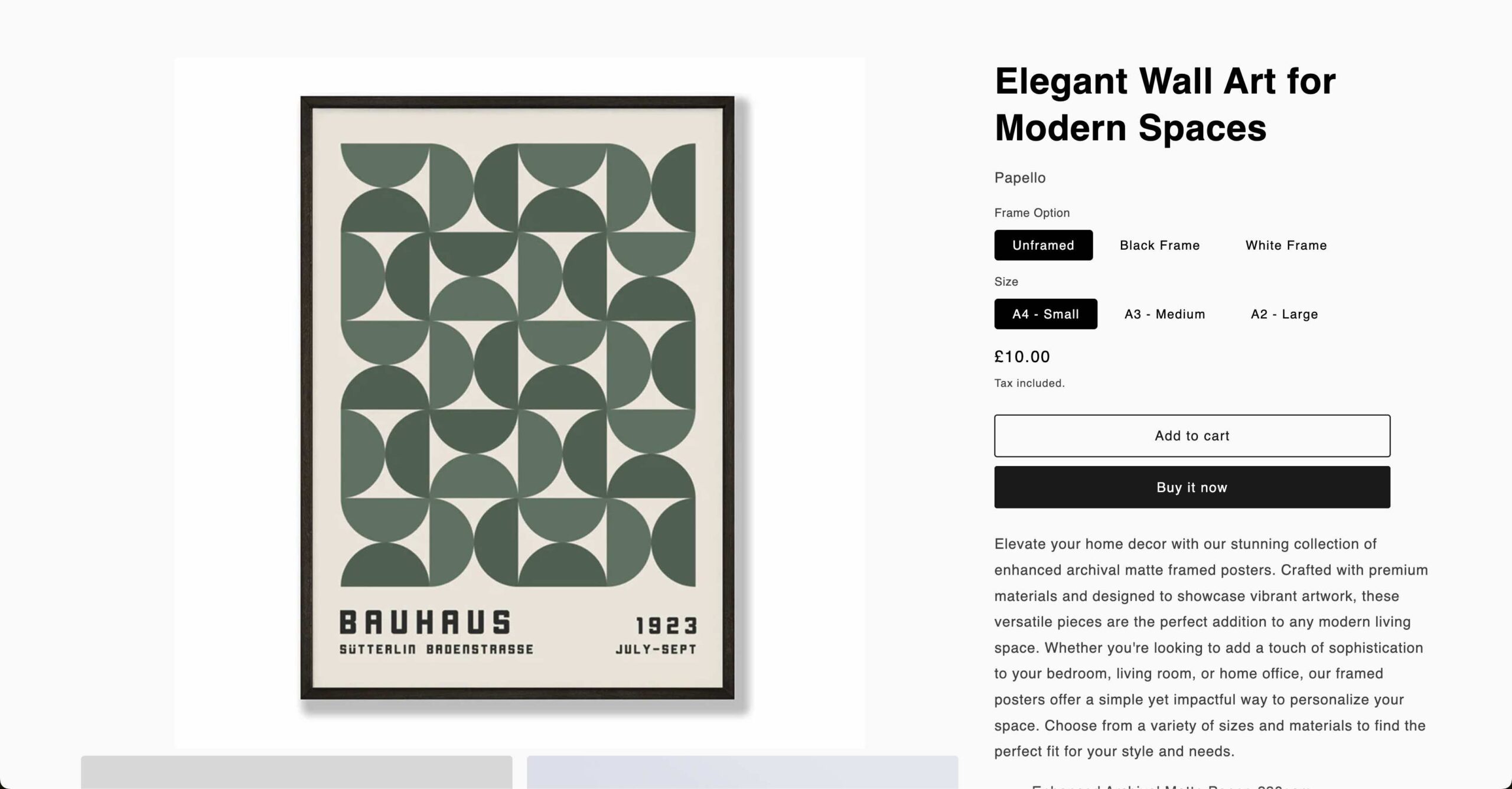
From this point forward:
- Orders are automatically fulfilled by Papello
- You don’t need to manage fulfilment manually
- Shipping rates and fulfilment logic are handled for you